Mastering ComfyUI’s Advanced ControlNet Flux: A Step‑by‑Step Guide
When you’ve already explored the basics of ComfyUI and are ready to push your generative models further, ControlNet Flux offers a powerful way to steer image synthesis with precision. This guide walks you through installing, configuring, and exploiting the advanced features of ControlNet Flux inside ComfyUI, so you can create more nuanced visuals without leaving the familiar node‑based interface.
ComfyUI Advanced ControlNet Flux: Setting the Stage
ControlNet extends a base diffusion model by adding conditioning branches that accept external guidance—depth maps, edge maps, pose vectors, etc. Flux is the latest generation of such models, built on a transformer backbone that delivers higher detail and faster inference. To harness this synergy, you’ll need a recent ComfyUI build (v0.7+), Python 3.10+, and a CUDA‑enabled GPU. The steps below assume you already have ComfyUI up and running.
Step 1: Update ComfyUI and Install Dependencies
- Navigate to your ComfyUI directory.
- Pull the latest code:
git pull. - Upgrade pip and install the required libraries:
pip install -r requirements.txt --upgrade. - Verify GPU visibility with
nvidia-smi; ensure CUDA drivers match the PyTorch build.
Step 2: Download the Flux ControlNet Model
Flux ControlNet weights are available from the official repo or community hubs. Choose the variant that matches your target conditioning (e.g., depth, segmentation). Example download command:
wget https://huggingface.co/your-org/flux-controlnet-depth/resolve/main/flux_controlnet_depth.pth -O flux_controlnet_depth.pthPlace the downloaded file into comfyui/models/ControlNet. If the folder does not exist, create it.
Step 3: Register the Model in ComfyUI
Open comfyui/config.yaml and add an entry under controlnet_models:
controlnet_models:flux_depth:
path: models/ControlNet/flux_controlnet_depth.pth
type: flux
Save the file and restart ComfyUI. The node palette should now display a “Flux ControlNet (Depth)” node.
Step 4: Build a Basic Workflow
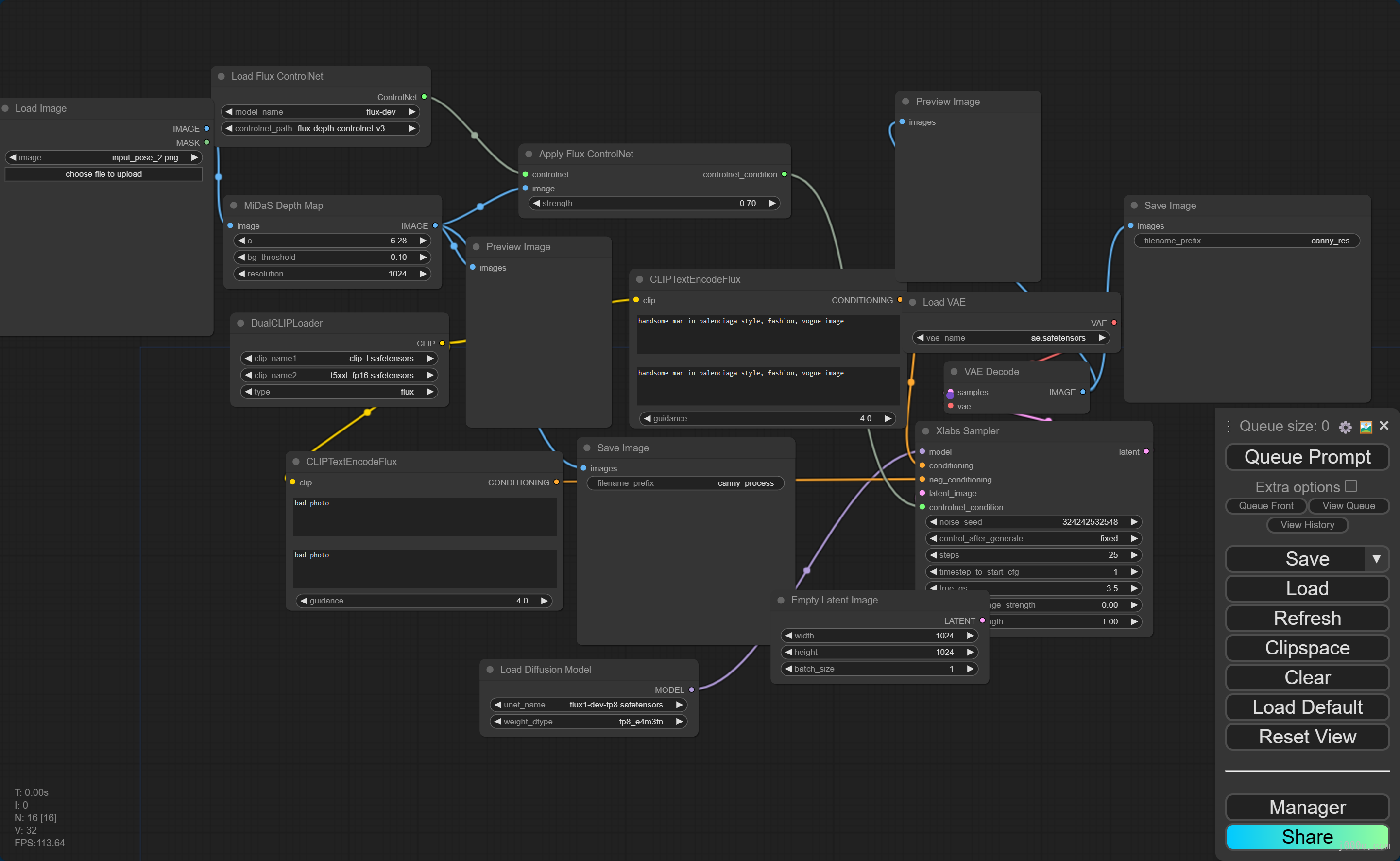
To see ControlNet in action, follow this minimal chain:
- Sampler → Flux ControlNet (Depth) → Image Decoder.
Set the sampler to Euler a, choose a prompt like “A futuristic cityscape at dusk,” and feed a depth map from an image editor or a depth‑estimation model. Adjust ControlNet strength to blend the base diffusion output with the depth guidance.
Step 5: Fine‑Tune Control Parameters
Flux ControlNet introduces several knobs beyond the standard strength:
- Conditional Weight – balances the influence of the conditioning against the base model.
- Scale Factor – rescales the conditioning tensor to match the latent dimensionality.
- Attention Modulation – toggles which attention layers in Flux receive the ControlNet signals.
Experiment by varying these values while keeping the prompt constant. A typical sweet spot is a conditional weight of 0.6 and an attention modulation mask that targets the middle layers of Flux.
Step 6: Combine Multiple Conditions
One of Flux’s strengths is its ability to accept several conditioning modalities simultaneously. Drag two or more ControlNet nodes (e.g., depth + edge) onto the workflow, connect them to separate inputs of a single Flux node, and enable “Multi‑Condition Mode.” The node will concatenate the tensors and apply them in parallel.
Tip: Keep the total conditioning strength below 1.0 to avoid over‑constraining the generator, which can lead to blurry outputs.
Step 7: Save and Reuse Configurations
After crafting a workflow you like, click Save Workflow. ComfyUI stores it as a .json file that you can load later, share with teammates, or version control. You can also export the entire node graph as a .png to document the architecture.
Step 8: Performance Optimizations
Flux models can be memory‑intensive. Below are quick tricks:
- Enable Half Precision (FP16) in the settings for faster inference.
- Use Pipeline Offload to move inactive tensors to CPU memory.
- Reduce Latent Size from 64×64 to 32×32 if your prompt tolerates lower resolution.
Monitor GPU memory usage with watch -n 1 nvidia-smi during long runs.
Common Pitfalls and How to Avoid Them
Even seasoned users can hit snags. Here are some frequent issues:
- Model Mismatch – ensure the Flux backbone version matches the ControlNet weights.
- Incorrect Tensor Shape – conditioning tensors must match the latent dimension (e.g., 32×32). Use the Reshape Node if needed.
- Over‑saturation of ControlNet strength can freeze the generator; always start low and increase gradually.
Frequently Asked Questions
- Can I use ControlNet Flux with non‑Flux diffusion models? No. ControlNet Flux is tightly coupled to the Flux transformer architecture; using it with another backbone will cause dimensional mismatches.
- Is there a community repository for pre‑trained ControlNet weights? Yes, check the official Flux GitHub or Hugging Face community hubs; many users share depth, edge, and pose variants.
- How do I add my own conditioning data? Create a custom node that outputs a tensor matching the expected shape, then feed it into the ControlNet node’s conditioning input.
- What if the output looks too uniform? Reduce the conditioning strength or add noise by increasing the scheduler’s step count.