How Minecraft Texture Packs and Shaders Transform Your Game
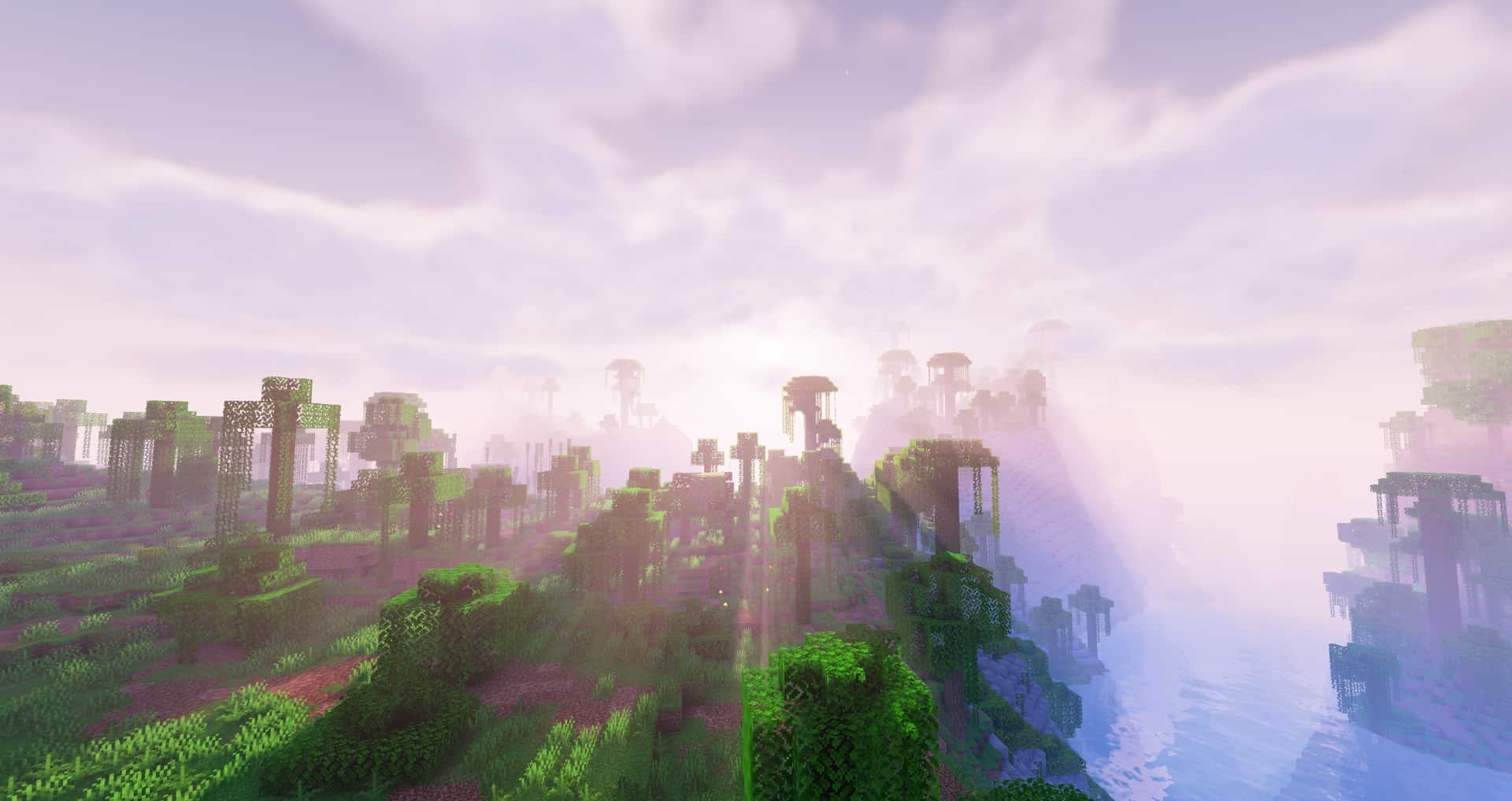
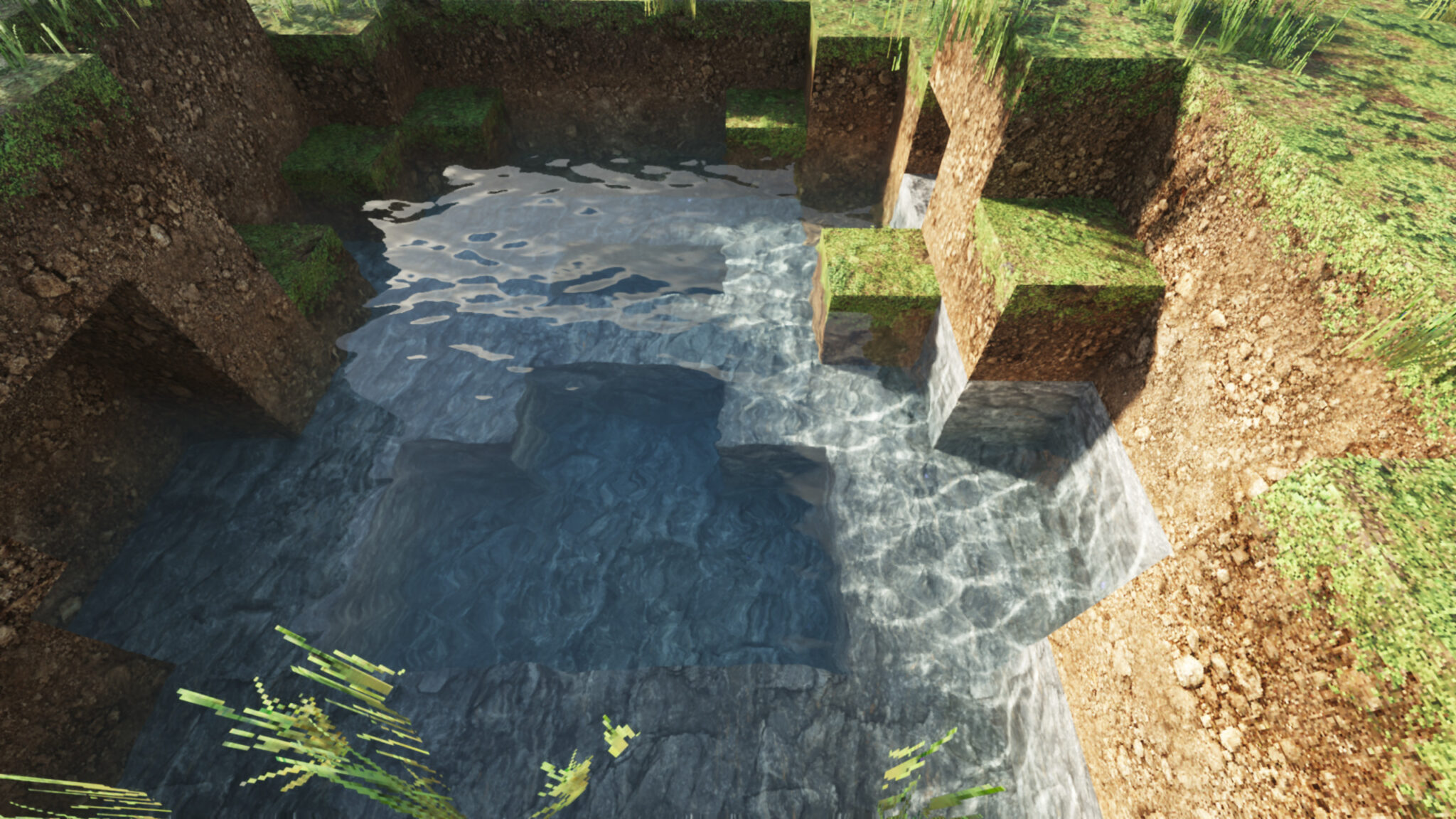
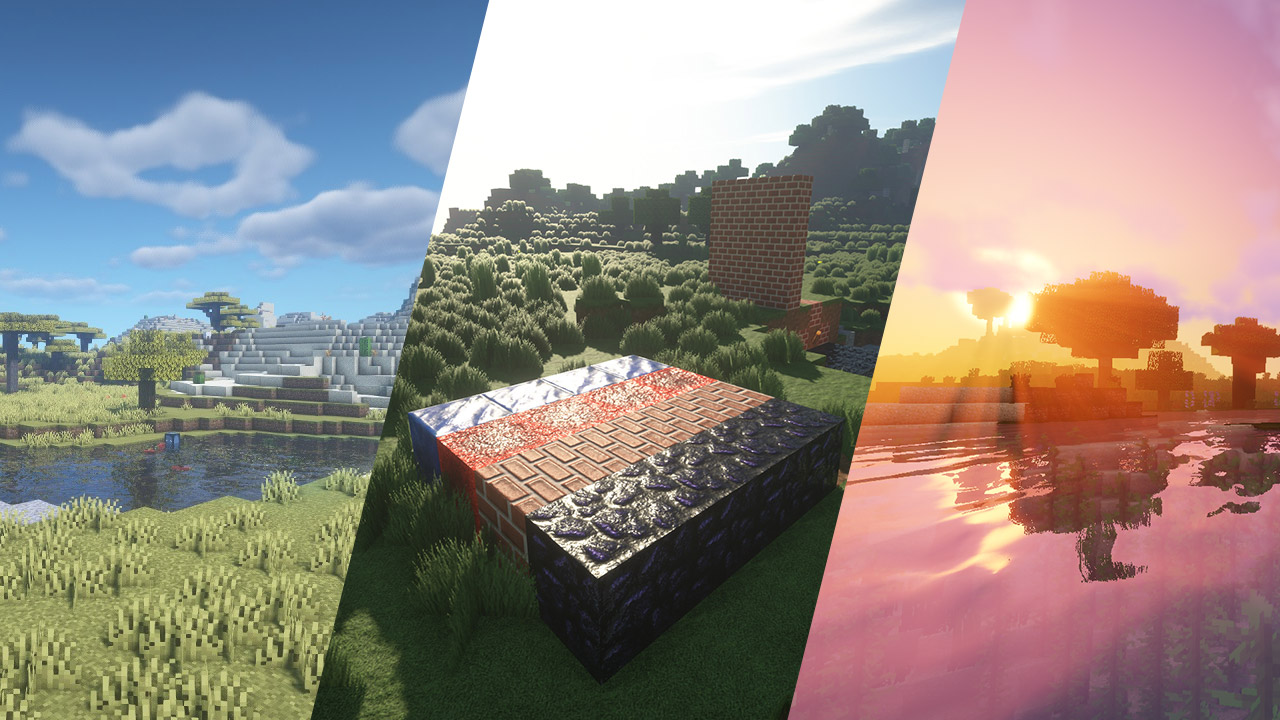
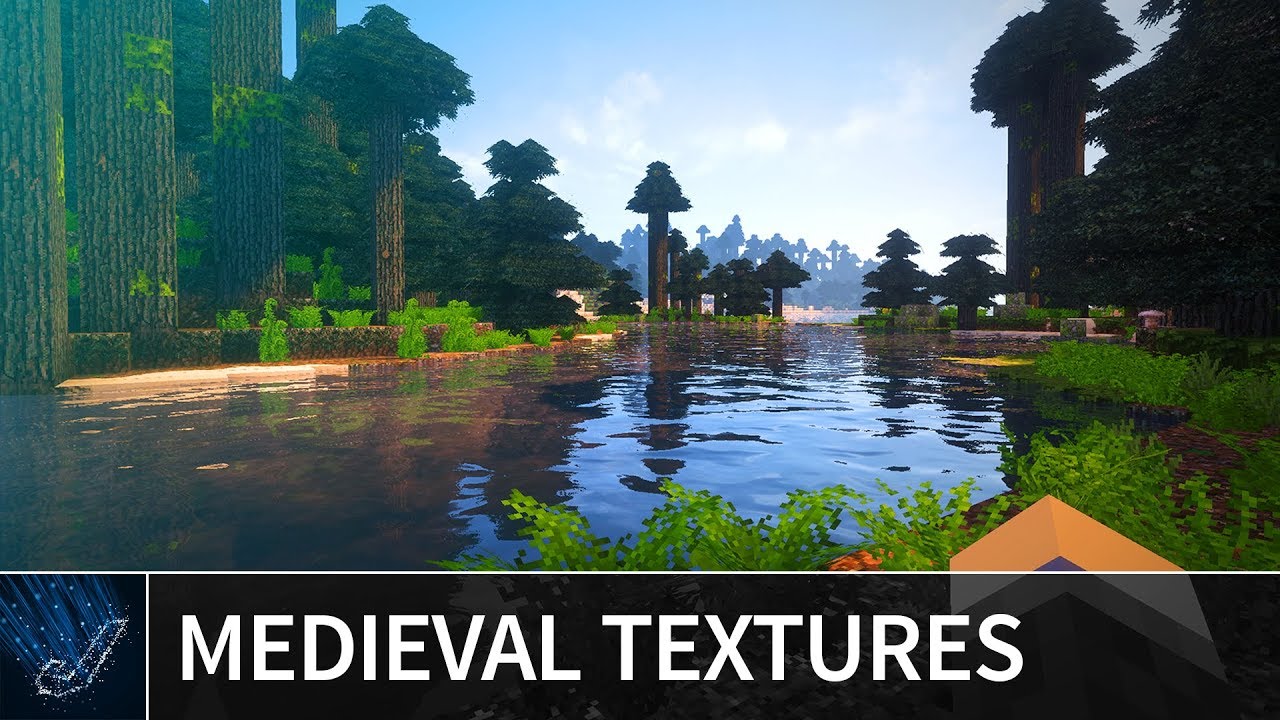
When Minecraft updates launch, the community often looks for fresh visual upgrades to keep the blocky world feeling new. The two most popular ways to refresh the look are Minecraft texture packs and shaders. Texture packs swap out the pixel art that builds every block, while shaders add realistic lighting, shadows, and water reflections. Together, they can turn a simple survival build into an eye‑catching masterpiece.
Understanding Texture Packs
A texture pack is essentially a bundle of PNG images that replace the default textures of blocks, items, and UI elements. They come in various resolutions: 16×16 (the original size), 32×32, 64×64, and even 128×128 for high‑end setups. A higher resolution can make things look smoother, but it also demands more from your graphics card.
There are a few common styles:
- Realistic – adds depth, shading, and more detailed textures.
- Fantasy – gives blocks a magical or medieval feel.
- Retro – keeps the classic blocky look with slight improvements.
- Low‑poly – deliberately simplifies textures for a stylized aesthetic.
Many packs are available on sites like Planet Minecraft, CurseForge, and the official Minecraft forums. Always read the description to confirm compatibility with your current game version.
What Shaders Do for Your World
Shaders are a layer on top of the rendering engine that modulate how light, shadows, and water behave. They can introduce dynamic sun positioning, volumetric clouds, real‑time reflections, and even global illumination. Popular shader packs include SEUS (Sonic Ether’s Unbelievable Shaders), Sildur’s Shaders, and Continuum. Each offers a different balance between visual fidelity and performance.
Because shaders alter the core rendering, most players use OptiFine—a lightweight mod that provides the necessary hooks and performance tweaks. Without OptiFine, most shader packs won’t run.
Installing Texture Packs
- Download the ZIP file from a trusted source.
- Open the
.minecraft/resourcepacksfolder. You can find it by selecting Options → Resource Packs → Open Pack Folder in the game. - Drop the ZIP file into this folder.
- Launch Minecraft, go to Settings → Resource Packs, and activate the new pack.
Installing Shaders
- Install OptiFine if you haven’t already.
- Download a shader pack ZIP.
- Open
.minecraft/shaderpacks(create the folder if it doesn’t exist). - Drop the ZIP file into
shaderpacks. - In Minecraft, go to Options → Video Settings → Shaders and choose your shader.
Some shader packs require additional tweaks, such as disabling fancy graphics or adjusting the view distance. Consult the pack’s README for specific instructions.
Balancing Beauty and Performance
Shaders can be a visual feast but also a heavy load on your GPU and CPU. If you notice a significant drop in frame rate, try the following:
- Lower the render distance in Video Settings.
- Turn off VSync if you’re running a high‑refresh‑rate monitor.
- Choose a shader preset—many packs come with low, medium, and high options.
- Enable OptiFine’s performance options, such as Fast Math and Fast Render.
On older hardware, a simple 32×32 texture pack combined with a medium shader preset often delivers a smooth experience without sacrificing too much visual quality.
Community Resources and Inspiration
Finding the right pack can feel like treasure hunting. Here are a few places to start:
- Planet Minecraft – thousands of user‑made texture packs with ratings and comments.
- CurseForge – curated collection of popular shaders and texture packs, each verified for safety.
- Reddit r/Minecraft – threads where players showcase their setups and recommend combinations.
Don’t be afraid to mix and match. Many players pair a high‑resolution texture pack with a lightweight shader for a sweet spot between detail and performance.
Frequently Asked Questions
Q: What is the difference between a texture pack and a shader?
A: A texture pack changes the appearance of blocks and items by swapping out PNG files. A shader modifies how light, shadows, and water interact with those textures, adding realistic or stylized effects.
Q: Do I need OptiFine to use shaders?
A: Most shader packs rely on OptiFine or a similar mod to hook into Minecraft’s rendering pipeline. OptiFine is lightweight and adds performance options that complement shaders.
Q: Can I install a new texture pack without uninstalling my old one?
A: Yes. The game allows multiple packs in the resource pack menu. You can enable or disable packs individually; only the active pack’s textures are used.
Q: Will shaders work in multiplayer?
A: Shaders are purely a visual client‑side modification. They work in multiplayer as long as both server and client are running