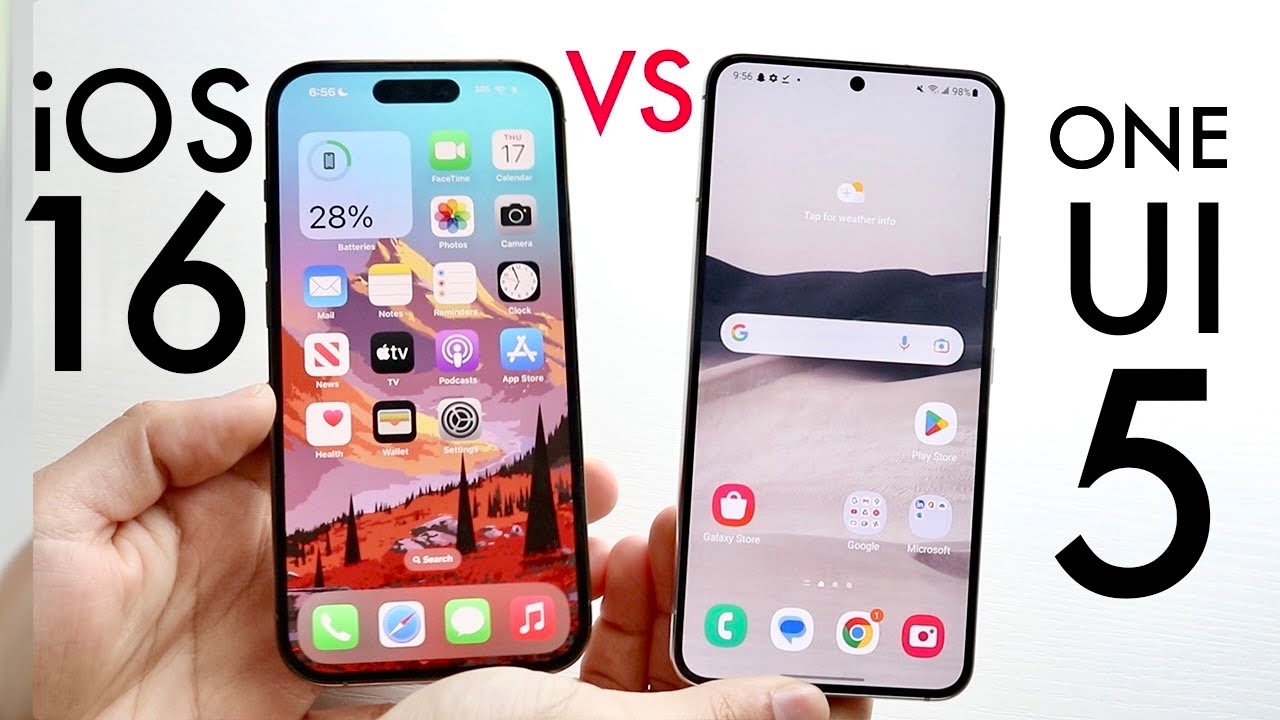
How to Style Samsung One UI with an iOS 16‑Inspired Theme
Love the clean lines, rounded corners, and subtle translucency of iOS 16 but still want to keep your Samsung Galaxy? The good news is you can bring that Apple‑like aesthetic to One UI with a ready‑made theme pack. In this guide you’ll learn what you need, the exact steps to install the theme, and how to tweak it so the look feels native rather than a copy‑cat.
Why the iOS 16 Look Is So Popular on Android
iOS 16 introduced a cohesive design language—soft colors, light‑weighted icons, and a new “focus” wallpaper. Android users crave that consistency because it simplifies navigation and creates a calm, distraction‑free environment. With Samsung’s One UI already highly customizable, the barrier to a full iOS 16 makeover is low.
What You’ll Need Before You Begin
- Galaxy device running One UI 5.0 or later.
- Stable internet connection to download the theme pack.
- Backup your data—though theme changes don’t affect apps, it’s a good habit.
- Optional: a third‑party launcher like Nova or Microsoft Launcher for deeper customisation.
Step‑by‑Step: Installing the iOS 16 Theme on One UI
1. Download a Trusted Theme Pack
Visit the ThemePark or Apeel website, both known for safe, high‑quality skins. Search for “iOS 16” and choose the pack that matches your device model (e.g., “iOS 16 Theme for Samsung S21”). Pay attention to version numbers; older packs may not support the latest One UI features.
2. Use the Theme Store or Custom ROM?
Most theme packs are available directly from Samsung’s Theme Store in the Settings menu. If you can’t find the theme there, a safe alternative is the Theme Store app, which sometimes hosts third‑party themes. Avoid rooting or installing custom ROMs unless you’re comfortable with the risks; the official store is enough for the iOS 16 aesthetic.
3. Apply Widgets, Icons, and Wallpaper
Once downloaded, open the Theme Store and tap Apply. The system will automatically swap icons, change the status bar style, and install the wallpaper. If you prefer a different background, head to Settings → Wallpaper → Choose new wallpaper and pick one from the theme’s gallery or your own images.
Fine‑Tuning the Look: Widgets, Fonts, and More
The iOS 16 theme isn’t just visual; it also reconfigures widgets to align with Apple’s layout. To get the most authentic feel, consider:
- Home screen widgets: Drag a Today View‑style widget onto the first page.
- Fonts: Install a Google Font like “Inter” or “Poppins” and enable it under Settings → Display → Font style.
- Notification style: Turn on Clear‑cut notifications in Settings → Notifications to mimic iOS banners.
Common Pitfalls and How to Fix Them
- Icons reverting after reboot: Some Android updates reset theme data. Re‑apply the theme from the Theme Store after a major OS update.
- Widget size mismatches: iOS 16 widgets are square. In One UI, you can adjust size by long‑pressing the widget, selecting Resize, and picking the “small” option.
- Color bleed on the lock screen: If the lock screen looks off, clear the cache of the lock screen app via Settings → Apps → System UI → Storage.
Can You Switch Back to the Default Theme?
Yes, Here’s How to Revert
Returning to the stock One UI is painless. Go to Settings → Themes → Default theme and tap Apply. All custom icons and wallpapers revert automatically. No data loss occurs.
Final Thoughts on iOS 16 Themes for Samsung One UI
Adopting an iOS 16 theme on Samsung is a quick, reversible tweak that can refresh the look of your phone without changing any core functionality. Whether you’re a design enthusiast, a developer testing cross‑platform UI, or just curious about Apple’s design language, this theme offers a smooth, native‑ish experience on Android.
Frequently Asked Questions
- Can I use the iOS 16 theme on any Samsung device? It works best on devices running One UI 5.0 or newer; older models may lack support for some visual elements.
- Will the theme affect battery life? No noticeable impact; the theme only changes static assets.
- Is the theme compatible with Samsung’s Bixby? Yes—Bixby remains fully functional; only the UI elements around it are altered.
- Can I customize the theme further? Absolutely—use third‑party launchers or tweak individual icon packs to match your taste.




:max_bytes(150000):strip_icc()/90-Day-Fiance-Happily-Ever-After-01-b463c1fca29e4dc4b532856609242b3f.jpg)