How to Repair the PS4 Fat Power Supply Yourself Quickly
The PS4 “fat” model (the original 500‑GB and 1‑TB versions) is notorious for power‑supply failures that can turn a gaming night into a frustrating troubleshooting session. If you’ve heard the infamous “click‑click‑click” or noticed the console won’t power on at all, the culprit is often the internal power supply unit (PSU). Below is a practical, step‑by‑step guide that walks you through diagnosing the issue, gathering the right tools, and performing a safe repair.
Understanding the PS4 Fat Power Supply
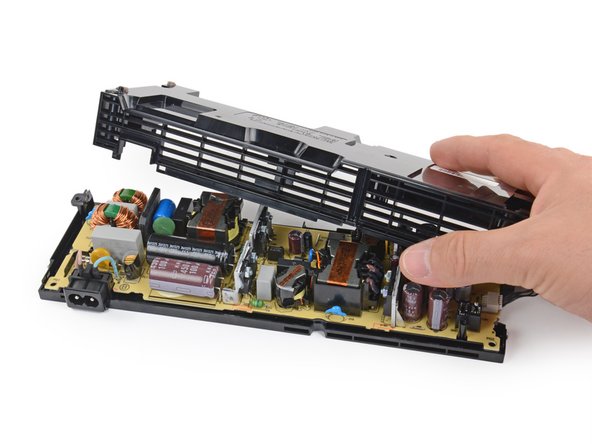
The PS4 Fat PSU is a rectangular brick mounted to the side of the motherboard. It converts AC mains voltage to the 12 V and 5 V rails that feed the GPU, CPU, and storage. Unlike later “slim” and “pro” models, the original design uses a single large fan and a series of electrolytic capacitors that can degrade over time, especially in warm or dusty environments.
Because the unit is integrated into the console’s chassis, you’ll need to open the case to reach it. The good news is that the PSU itself is not soldered to the board, so most replacements involve swapping the whole module rather than repairing individual components.
Common Symptoms of a Failing Supply
- Intermittent power loss or sudden shutdowns during gameplay.
- A rapid series of clicking noises from the console’s interior.
- The power‑on LED stays amber, never turning green.
- Console powers on briefly then shuts off after a few seconds.
If you notice any of these signs, it’s worth confirming the PSU before assuming a more serious motherboard issue. A simple voltage test with a multimeter can save you time and money.
Tools and Parts You’ll Need
- Phillips #1 screwdriver (the PS4 uses small screws).
- Plastic prying tool or spudger to avoid damaging the plastic shell.
- Replacement PS4 Fat power supply (ensure it matches the model number, e.g., CFW‑1000A for the 500 GB version).
- Multimeter (optional but helpful for troubleshooting).
- Anti‑static wrist strap (highly recommended for safety).
Step‑by‑Step Repair Process
Safety First
Unplug the console from the wall and press the power button for a few seconds to discharge any residual charge. If you have an anti‑static wrist strap, attach it to a grounded surface. This simple step prevents accidental static discharge that could damage sensitive components.
Disassembly
Lay the PS4 face‑up on a soft surface. Remove the two screws on the back that secure the top cover, then gently lift the cover off. You’ll see a metal shield covering the internal hardware; remove the four screws holding that shield in place and set the shield aside.
Next, locate the PSU on the right side of the motherboard. It’s held by two longer screws and a small connector cable. Unscrew the mounting screws, then carefully disconnect the power cable by pressing the latch on the connector.
Testing the Supply (Optional)
If you own a multimeter, set it to DC voltage and probe the 12 V and 5 V pins on the PSU’s output connector. A healthy unit should read close to 12.0 V and 5.0 V respectively. Significant deviation (e.g., below 10 V on the 12 V rail) confirms a faulty supply.
Replacing Faulty Components
Take the replacement PSU and align its mounting holes with those in the chassis. Secure it with the two screws you removed earlier, then reconnect the power cable—ensure the latch clicks into place.
Before sealing the console, double‑check that no stray wires are touching the metal chassis. A quick visual inspection can prevent short circuits later on.
Reassembly
Replace the metal shield, re‑insert its four screws, and then snap the top cover back on. Finally, re‑fasten the two rear screws. The console should now feel as solid as before.
Plug the PS4 back into the wall and press the power button. If the system boots to the home screen without the previous clicking or sudden shutdowns, the repair was successful.
When to Call a Professional
While swapping the PSU is relatively straightforward, some situations warrant a technician’s touch. If the console still won’t power on after a new PSU is installed, the issue may lie deeper in the motherboard or GPU power circuitry. Likewise, if you’re uncomfortable handling small screws or lack a multimeter, seeking professional help can avoid accidental damage.
Professional repair shops often have access to OEM‑grade replacement parts and can perform solder‑based fixes on capacitors, which is beyond the scope of most DIY attempts.
FAQ
Q: Can I use a PS4 Slim power supply in a PS4 Fat console?
A: No. The Slim and Fat models have different connector layouts and voltage specifications, so swapping them would likely cause further damage.
Q: How long does a replacement PS4 Fat PSU usually last?
A: When sourced from a reputable supplier, a new PSU typically lasts the lifetime of the console—often 5 years or more—provided the console is kept in a well‑ventilated area.
Q: Is it safe to run the console without the original fan attached to the PSU?
A: The PSU’s fan is essential for cooling its internal components. Running the console without it can lead to overheating and premature failure, so always reinstall the fan when re‑assembling.
Q: Do I need to replace the thermal paste when I open the PS4?
A: Not for a PSU swap. Thermal paste only needs replacement when you remove the CPU or GPU heat‑sinks, which isn’t required for this repair.