How to Pair AirPods with Google TV – A Simple Step‑by‑Step Guide
If you’ve ever wondered how to connect AirPods to Google TV, you’re in the right place. The wireless earbuds many of us already own can double as a convenient audio solution for streaming movies, gaming, or simply enjoying a quiet night in front of the couch. Below is a practical walk‑through that walks you through the process, highlights common hiccups, and offers a few pro tips to keep the sound smooth.
Why Use AirPods with Google TV?
AirPods deliver a surprisingly solid stereo experience, especially the newer generations that support spatial audio. Pairing them with Google TV lets you:
- Enjoy private listening without disturbing roommates.
- Benefit from automatic device switching if you already use the AirPods with an iPhone.
- Skip the hassle of juggling multiple Bluetooth remotes.
While Google TV doesn’t boast a dedicated “Apple” ecosystem, its generic Bluetooth stack works just fine once you follow the right steps.
What You Need Before You Start
Gathering a few basics can save you a few minutes of trial and error.
- AirPods (any generation) – Both the classic 1st‑gen model and the Pro/Max variants will pair.
- A Google TV device – This could be a Chromecast with Google TV, a smart TV running the Google TV interface, or an Android TV box that has adopted the new UI.
- Bluetooth enabled – Ensure the TV’s Bluetooth feature is turned on in Settings → Remote & Accessories.
- Charging case – Your AirPods should have at least a 20% charge for a stable connection.
Having a remote that can navigate the Settings menu is essential; the on‑screen keyboard works fine, but a voice remote speeds things up.
Step‑by‑Step Pairing Process
Now, let’s get those AirPods linked. The procedure is straightforward, but a few nuances are worth noting.
- Open the AirPods case. Keep the earbuds inside and hold the lid open.
- Activate pairing mode. Press and hold the button on the back of the case until the LED flashes white. This signals the AirPods are discoverable.
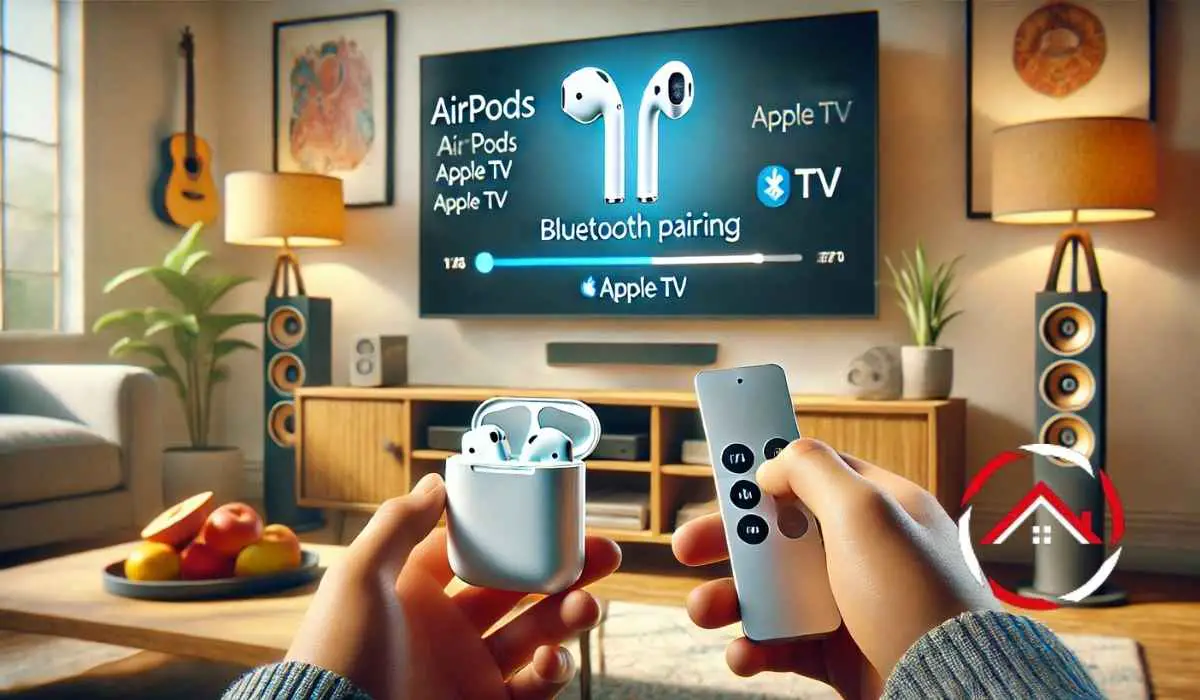
- Navigate to your Google TV. From the home screen, go to Settings → Remote & Accessories → Add accessory. Your TV will start scanning for nearby Bluetooth devices.
- Select your AirPods. When “AirPods” appears in the list, highlight it and press “OK”. The TV will confirm the connection with a brief on‑screen message.
- Test the audio. Open a streaming app, play a short clip, and ensure sound is coming through the AirPods. Adjust the volume using either the TV remote or the AirPods’ built‑in controls.
If the pairing fails the first time, repeat steps 2‑4. Occasionally, the TV may need a quick restart to clear any lingering Bluetooth cache.
Troubleshooting Common Issues
Even with a clean setup, you might hit a snag. Here are the most frequent hiccups and how to fix them.
- AirPods won’t appear in the list. Make sure Bluetooth is truly on; some TVs have a separate “Bluetooth audio” toggle. Also, check that no other device (phone, laptop) is currently connected to the AirPods.
- Audio cuts out or drops. This usually points to interference. Move any Wi‑Fi routers or other Bluetooth gadgets away from the TV and AirPods. Re‑pairing after a brief power‑cycle of the TV often helps.
- Volume control isn’t responsive. Google TV sometimes defaults the volume to the TV speaker. Go back to Settings → Remote & Accessories → AirPods and ensure “Use as speaker” is selected.
- AirPods connect to the TV but then switch back to your phone. This is Apple’s automatic device switching feature. Temporarily disable it on your iPhone (Settings → Bluetooth → AirPods → “Connect to This iPhone”) while you’re watching TV.
Tips for a Better Listening Experience
Beyond the basics, a few tweaks can make your sessions more enjoyable.
- Enable Spatial Audio (if supported). On newer AirPods models, go to Settings → Audio on the paired iPhone, turn on Spatial Audio, and it will carry over to the TV as long as the content is encoded for it.
- Use a Bluetooth transmitter. If your TV’s built‑in Bluetooth feels finicky, an external transmitter plugged into the TV’s optical or HDMI‑ARC port can provide a more robust link.
- Keep the case handy. When the AirPods run low, slipping them back into the case automatically pauses playback—a handy feature for binge‑watching.
- Adjust latency settings. Some apps let you lower audio delay; this can be useful for gaming where lip‑sync matters.
Frequently Asked Questions
Can I use AirPods Pro’s active noise cancellation with Google TV?
Yes. Once paired, the Pro’s ANC works exactly as it does on any other device. Just toggle it using the force‑press on the stem while watching.
Do I need a separate Bluetooth dongle for older Google TV models?
Most Chromecast with Google TV units have native Bluetooth, but older Android TV boxes might lack it. In that case, a small USB Bluetooth adapter will do the trick.
Will using AirPods affect my TV’s remote control functions?
No. Pairing audio only modifies the sound output; the remote continues to control navigation, volume (if linked), and power as usual.
Is there any noticeable audio delay?
Generally the delay is under 150 ms, which is fine for movies. For fast‑paced games you might notice a slight lag, and a dedicated transmitter can reduce it further.