How to Locate Your Instagram IP Address – A Quick Guide
Every time you scroll through your feed, your device talks to Instagram’s servers via an IP address. Understanding what that address is and how to find it can help you troubleshoot connectivity problems, secure your account, or simply satisfy curiosity. In this article we’ll unpack the concept of an Instagram IP address, why it matters, and the tools you can use to pinpoint it from any device.
What Is an Instagram IP Address?
An IP (Internet Protocol) address is a unique string of numbers that identifies a device on the internet. When you open the Instagram app or website, your device requests content from Instagram’s servers. Those servers reply to your request from a specific IP address, which is the “phone number” of the Instagram data center. It’s important to remember that the IP you see is usually the address of a server behind a load balancer or CDN (Content Delivery Network), not a single static machine.
Why the IP Matters for Instagram Users
Knowing the IP can help you:
- Diagnose Connectivity Issues – If you’re blocked or experiencing slow load times, the IP can reveal if the problem is local or server‑side.
- Enhance Security – Detecting unfamiliar IP addresses contacting your account can flag potential hijacking attempts.
- Bypass Geofencing – Some users use VPNs to appear in a different region; the IP can confirm whether the VPN is functioning properly.
- Understand Traffic Patterns – For developers, analytics, or researchers studying Instagram’s infrastructure.
Keep in mind that Instagram uses a dynamic range of IP addresses that can change frequently. What you see today might be different tomorrow, especially during large events or server maintenance.
How to Find the IP Address Instagram Uses
The process varies slightly between mobile apps and desktop browsers, but the underlying principle remains the same: capture the network traffic that originates from Instagram and read the destination IP. Below are step‑by‑step guides for both scenarios.
Using Your Phone’s Developer Options (Android)
- Open Settings → About phone → tap Build number seven times to unlock Developer Options.
- Return to Settings, open Developer options, and enable Network logging or USB debugging.
- Connect the phone to a computer via USB and launch Android Studio or ADB. Run the command
adb shell netstat -p -a. - Open the Instagram app, navigate to any feed, then return to the terminal. Look for entries where the destination port is 443 (HTTPS) and the application is
com.instagram.android. The IP address next to the entry is the Instagram server IP.
Using Safari’s Web Inspector (iOS)
- On a Mac, enable Develop → Show Web Inspector in Safari.
- Open Safari on your iPhone, visit
instagram.com, and tap the Share icon. Choose Request Desktop Website. - In the Mac’s Safari Web Inspector, go to the Network tab and reload the page.
- Filter by domain or type
instagram.com. Hover over a resource and the Inspector shows the resolved IP address on the right pane.
Using a Desktop Browser (Chrome, Firefox, Edge)
All major browsers include built‑in network tools that reveal IP addresses.
- Open Instagram in the browser and press F12 (or right‑click and choose Inspect).
- Navigate to the Network panel and reload the page.
- Filter by document or fetch to see the main request. Click on it to view details.
- Under Headers, locate Remote Address. That field contains the IP of the Instagram server handling your request.
Command‑Line Tools (Linux, macOS, Windows)
If you prefer terminal, the curl or nslookup commands can fetch the IP:
curl -I https://instagram.com# Look for 'Host:' line; the IP shown is the server IP.
Or:
nslookup instagram.comBoth commands will return one or more IP addresses that Instagram currently uses. For the most accurate result, run the command right before you open the app or website.
Common Pitfalls When Checking Instagram IP Addresses
Because Instagram operates through CDNs, the IP you see might belong to a regional cache rather than the main server. That’s normal and expected. Also, if you use a VPN or proxy, the IP will belong to the VPN endpoint, masking the real Instagram IP.
Some network monitoring tools show IP addresses in IPv6 format, which might look unfamiliar. Both IPv4 (e.g., 172.217.10.14) and IPv6 addresses are valid and used by Instagram.
Using Instagram IP Information for Security Checks
Occasionally, users discover unfamiliar IP addresses in their login history. Instagram provides a “Login Activity” section where you can review devices, locations, and the IP addresses that accessed your account. If you spot an IP you don’t recognize:
- Change your password immediately.
- Enable two‑factor authentication.
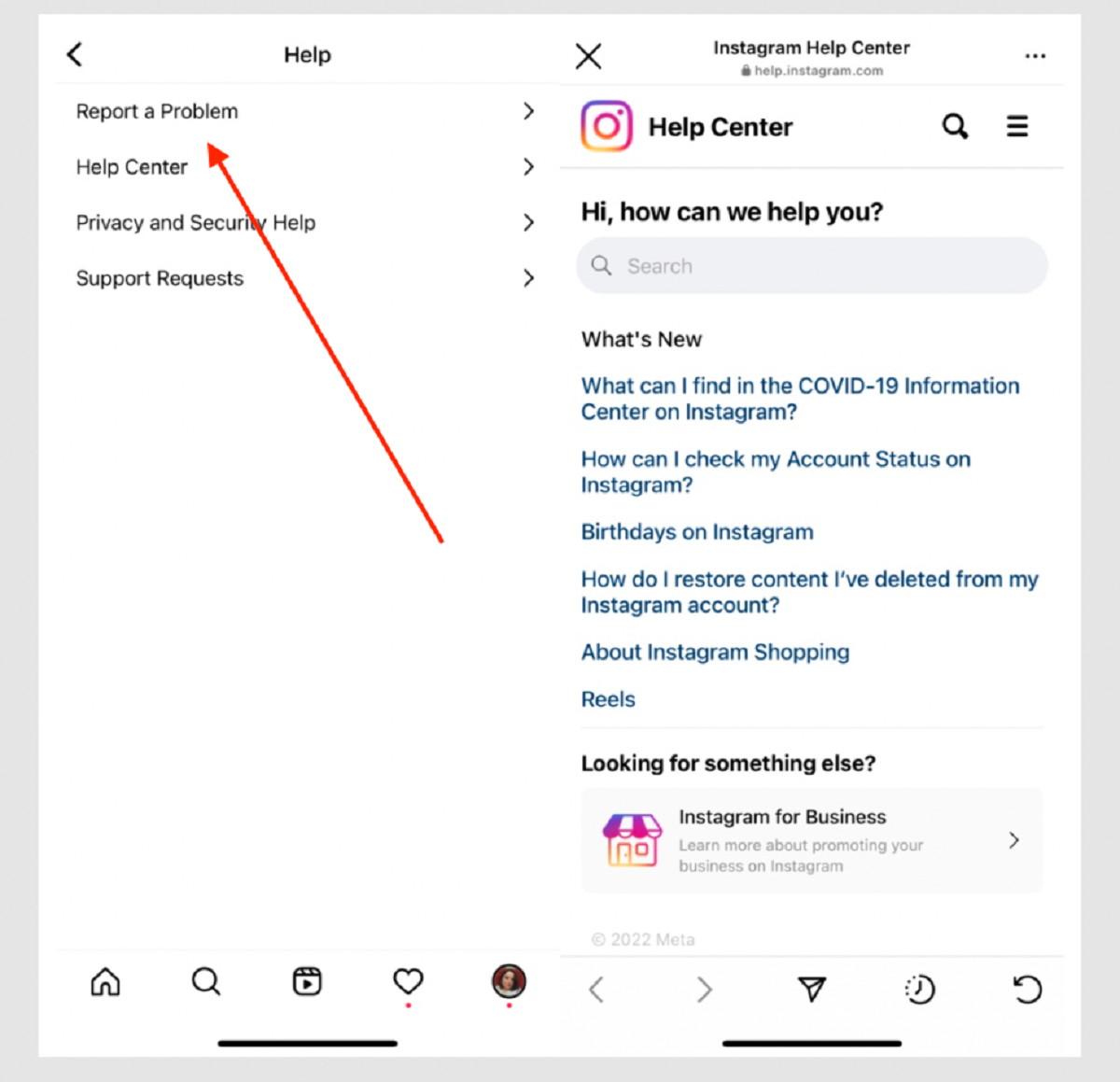
- Report suspicious activity to Instagram’s help center.
Knowing the typical IP ranges used by Instagram can help you decide whether an IP is legitimate. These ranges are not published publicly, so cross‑checking with the login activity is your best bet.
Why Instagram Uses Dynamic IPs
To handle massive traffic and ensure high availability, Instagram distributes requests across thousands of servers worldwide. Load balancers rotate IPs to balance load and avoid bottlenecks. Therefore, an IP that works today might be replaced tomorrow, which is why a single IP lookup can become outdated quickly.
When to Use This Knowledge
While most Instagram users never need to know the specific IP address, there are scenarios where it helps:
- IT Administrators – Filtering Instagram traffic on corporate firewalls.
- Network Troubleshooters – Identifying why a particular device can’t reach Instagram.
- Privacy Advocates – Understanding data routing and potential surveillance points.
- Developers – Testing app performance against various server endpoints.
![How to Find IP Address of Instagram Account? [6 Ways in 2025]](https://images.famiguard.com/famiguarden/assets/article/monitor/istaunch-find-ip-address.png)