Fix the 'Can't Complete Action' iPhone Error After iCloud Terms Update
When you’re in the middle of a download, an app update, or any other task and your iPhone flashes the dreaded “Can’t complete this action” screen, it can feel like a dead end. If the problem surfaced right after Apple rolled out a new iCloud Terms Update, you’re not alone. The change in Apple’s terms often forces devices to re‑authorize iCloud access, and if that process hiccups, the system may reject ongoing actions until the authorization loop is closed.
Why the Error Appears After the iCloud Terms Update
Apple’s iCloud Terms Update is a legal and technical change. Legally, it renews your consent to share data with Apple. Technically, the update triggers a re‑sync of iCloud credentials across the device. If the sync stalls—due to network issues, an outdated iOS version, or a misconfigured account—the device may block certain functions, throwing the “Can’t complete this action” message.
Quick Fixes to Try First
- Restart Your iPhone – A simple reboot clears temporary glitches. Hold the power button, slide to power off, wait a minute, then turn it back on.
- Check Your Internet Connection – A weak Wi‑Fi or cellular signal can interrupt the iCloud authorization. Switch to a stronger network or toggle Airplane Mode on and off.
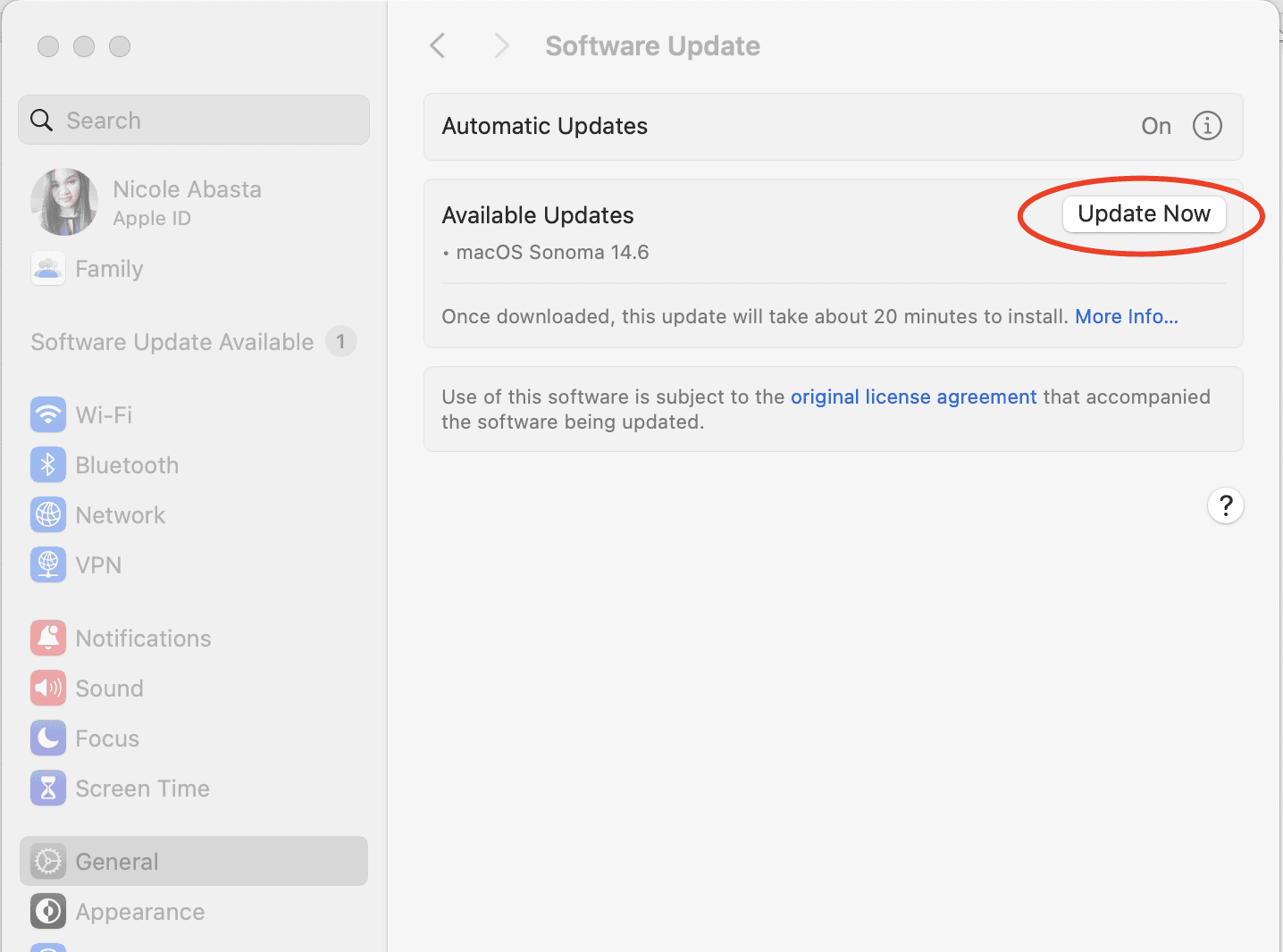
- Make Sure iOS Is Current – Compatibility matters. Go to Settings → General → Software Update and install any available updates.
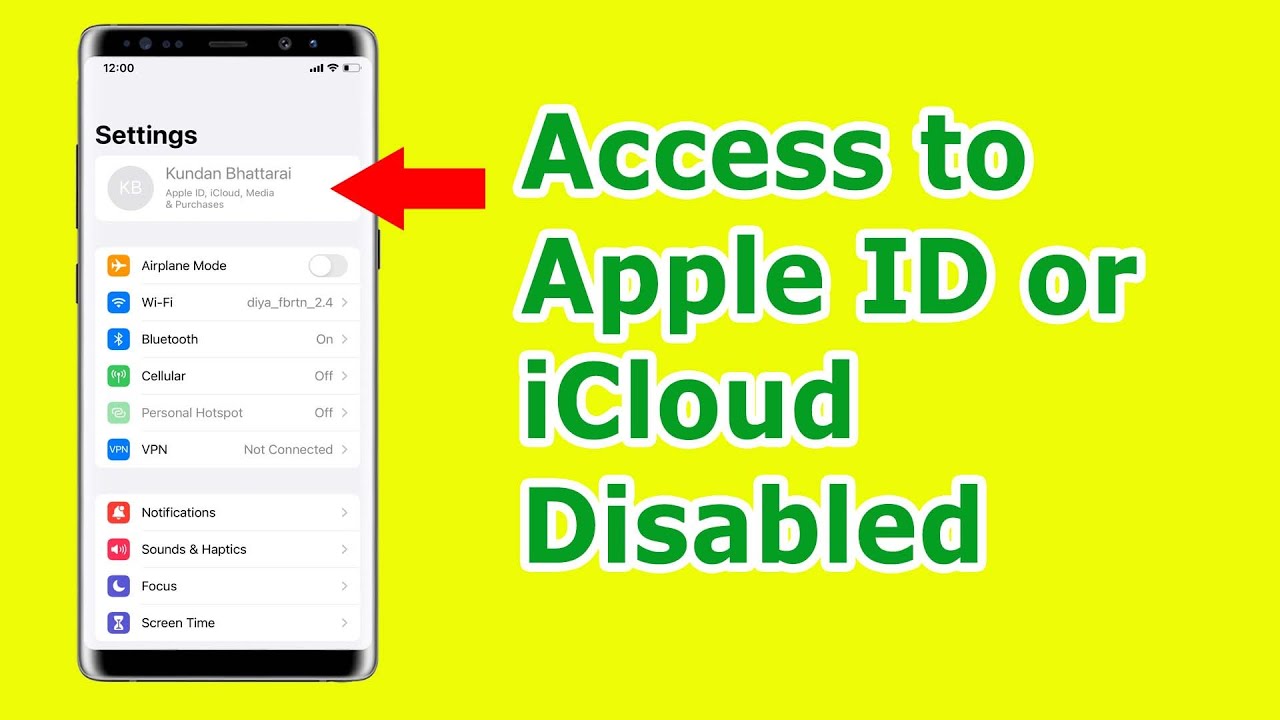
- Sign Out and Back Into iCloud – In Settings, tap your Apple ID banner, scroll to the bottom, and select Sign Out. After signing back in, the system will refresh your terms agreement.
Most users find relief after these four steps. If the screen persists, dig a little deeper.
Resetting Network Settings
Sometimes the problem lies in cached network data. Head to Settings → General → Transfer or Reset iPhone → Reset → Reset Network Settings. You’ll lose saved Wi‑Fi passwords, but the reset often resolves stubborn iCloud sync stalls.
Reinstalling the Problematic App
If the error appears only while using a specific app, delete it and reinstall. Touch‑and‑hold the app icon, tap “Delete App,” confirm, then download it fresh from the App Store. The fresh install forces the app to request fresh iCloud permissions.
When the Basics Don’t Work: Advanced Troubleshooting
- Check Date & Time Settings – An incorrect system clock can cause authentication failures. Settings → General → Date & Time should be set to “Set Automatically.”
- Verify Your Apple ID Credentials – Log in to appleid.apple.com from a browser to ensure your account is active and no verification steps are pending.
- Inspect iCloud Storage Status – Low storage can impede sync. Settings → [Your Name] → iCloud → Manage Storage. If you’re close to your limit, free up space or consider upgrading.
- Contact Apple Support – If the error lingers after trying everything, there may be an account‑level issue. Use the Support app or the Apple website to open a chat or schedule a call.
Most users find that a combination of restarting, signing out/in, and updating iOS resolves the message quickly. The key is to let your device finish the iCloud Terms renewal process before re‑attempting the action.
Preventing the Error in the Future
Apple typically prompts you to accept updated terms during the next login window. A quick glance and “Agree” keeps the device in sync with the latest permissions. Additionally, keeping your iOS updated and regularly backing up iCloud data reduces the chances of a sync hiccup.
Why “Can’t Complete Action” Happens With Other iCloud Tasks
Beyond app updates, the message can surface while syncing photos, backing up, or even during iMessage restores. In each case, the underlying culprit is the same: the device’s attempt to complete a task without proper iCloud authorization.
FAQ
- Q: Does the “Can’t complete this action” error mean my iPhone is damaged?A: No. It usually indicates a temporary sync or authorization issue, not hardware damage.
- Q: Will signing out of all Apple IDs on my device solve the problem?A: Signing out of the primary Apple ID often suffices, but you’ll need to re‑sign in and re‑agree to the updated terms.
- Q: Can I bypass the iCloud Terms Update to use my device normally?A: Apple’s policy requires agreement to the new terms for all users; bypassing it isn’t supported.
- Q: Should I wait for Apple to push a fix before trying these steps?A: If the update was recent, you can attempt the quick fixes first; most problems resolve without waiting for a system patch.