Excel Online Shortcuts: Do They Really Work?
When you’re juggling spreadsheets on the go, a few keystrokes can feel like magic. In Excel Online the promise of speed and efficiency lives in a handful of shortcuts that mimic the familiar desktop experience. But the cloud‑based version has its quirks. This article unpacks what shortcuts truly work, which ones falter, and how to get the most out of your virtual workbook.
Excel Online Shortcuts: Are They Functional?
Shortcuts in Excel Online are intentionally kept lean to match the browser interface. The majority of the standard desktop shortcuts—such as Ctrl + C for copy, Ctrl + V for paste, Ctrl + Z for undo—do operate exactly as you’d expect. These core actions are indispensable for everyday editing, and they remain the same across both environments.
However, some shortcuts that rely on a ribbon or pop‑up menus do not translate seamlessly. For example, Ctrl + 1 opens the Format Cells dialog on the desktop, but in the online version it triggers the Number Formatting pane only if the cell is selected. Likewise, shortcuts that open the “Insert” tab, such as Alt + N, are unsupported because the ribbon is collapsed in the web app.
In short, the shortcuts that stay in Excel Online are those that perform straightforward, non‑ribbon tasks. The more advanced formatting, charting, or VBA‑related shortcuts either have no equivalent or are replaced by contextual toolbar buttons.
What You’ll Find Working
- Copy / Paste – Ctrl + C, Ctrl + V
- Undo / Redo – Ctrl + Z, Ctrl + Y
- Navigation – Ctrl + Arrow Keys, Home, End
- Formatting – Ctrl + B, Ctrl + I, Ctrl + U
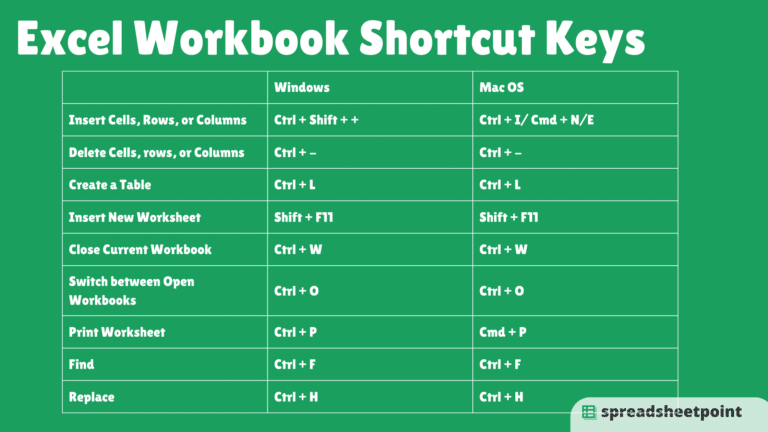
- Find / Replace – Ctrl + F, Ctrl + H
- Save – Ctrl + S (though auto‑save is on by default)
- New Worksheet – Shift + F11
Shortcuts That Don’t Work as You’d Expect
- Alt‑Key Sequences (e.g., Alt + H, Alt + N)
- Ctrl + 1 / Ctrl + 2 / Ctrl + 3 – Limited pane access only in certain contexts
- Macro‑related shortcuts – Excel Online does not support VBA
- Some navigation shortcuts that jump to sheet tabs (e.g., Ctrl + Page Up/Down) work, but may feel sluggish in large files
How to Check Which Shortcuts Are Available
Excel Online provides an on‑screen reference that updates as you hover over the Help icon in the upper‑right corner. Hover over any toolbar button and you’ll see the associated keyboard shortcut. It’s a quick way to confirm whether a key combination is active in the browser edition.
Customizing Keyboard Shortcuts?
Unlike the desktop app, Excel Online doesn’t let you create custom shortcuts directly. Workarounds include using the browser’s built‑in “bookmarklet” features or third‑party extensions like AutoHotkey for Windows or Keyboard Maestro on macOS. These tools intercept keypresses and map them to the desired actions, essentially bridging the gap between your personal workflow and the web app.
Benefits of Using Excel Online Shortcuts
- Speed – Even simple shortcuts cut editing time significantly.
- Consistency – Your desktop habit carries over, reducing the learning curve.
- Reliability – The shortcuts that work are highly dependable, with no accidental pop‑ups.
- Collaboration – When multiple users rely on the same shortcuts, the shared editing experience feels seamless.
Limitations to Keep in Mind
Because Excel Online relies on a browser, performance can dip when the network connection falters or when the file is huge. In those moments, the same shortcut that works instantly on desktop may feel delayed. Additionally, the absence of VBA means that any shortcut tied to a macro will not function.
Tips for Getting the Most Out of Excel Online
- Turn on Auto‑Save and let the app handle versioning. Then focus on shortcuts that free you from manual saves.
- Use Ctrl + S as a habit even though the file saves automatically. It reinforces your workflow and prevents accidental data loss during a quick session.
- Bookmark the Keyboard shortcuts help page for future reference.
- When working with large data sets, use Ctrl + Space to select whole columns and Shift + Space for entire rows quickly.
- Take advantage of the Fill Series shortcut: type the first two numbers, then select them and hit Ctrl + E for auto‑fill.
Frequently Asked Questions About Excel Online Shortcuts
- Do I need a keyboard to use shortcuts in Excel Online?
You can use a virtual keyboard if you’re on a tablet, but physical keys provide the fastest interaction.
- Can I use the desktop shortcuts on the web app?
Most core shortcuts work, but those that rely on ribbon navigation or macros won’t.
- Is there a way to create my own shortcut in Excel Online?
Not directly; you’ll need an external tool or browser extension to remap keys.