Deciphering Garbled Text: A Practical Guide to Clear Communication
Why Miscommunication Happens
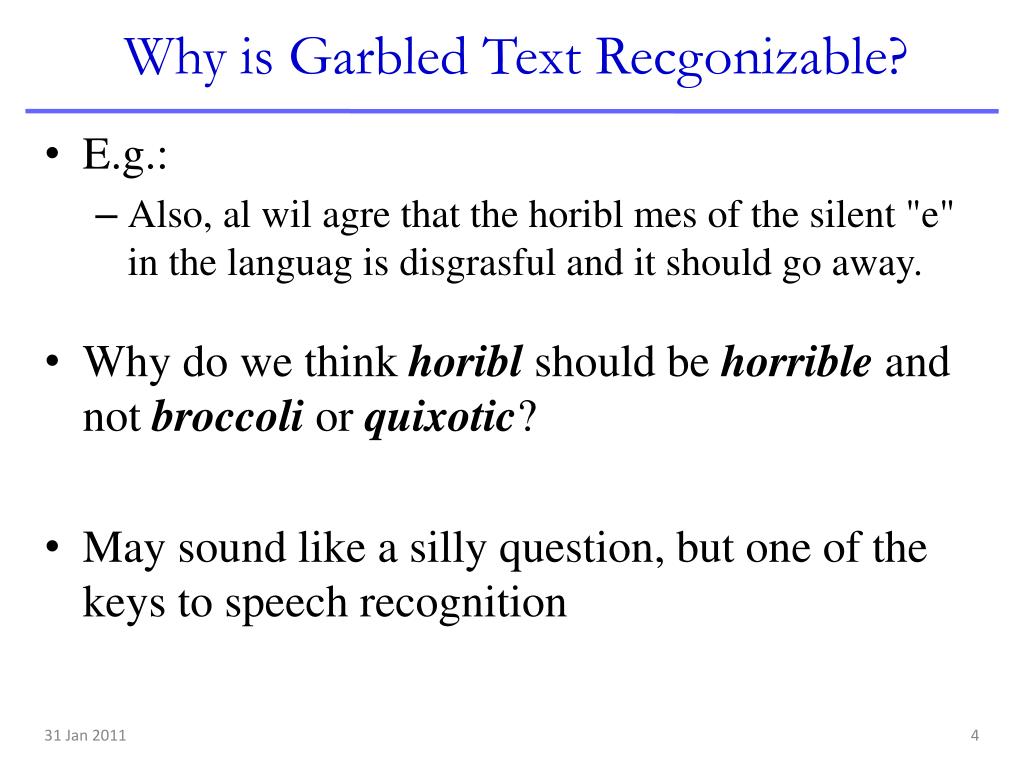
In the digital age, messages travel at lightning speed. Yet, the faster they move, the more they’re susceptible to distortion—be it through typos, autocorrect mishaps, or software glitches. When the intended meaning becomes obscured, the result is garbled text: a string of words that looks familiar but feels alien. Deciphering garbled text is the first step toward restoring clarity, preventing misunderstandings, and keeping conversations productive.
Recognizing the Symptoms of Garbled Text
Not every odd sentence is a signal of garbled text. Look for these telltale signs:
- Unexpected punctuation or line breaks that split ideas awkwardly.
- Repeated words or phrases that don’t fit the context.
- Sudden shifts in tone or subject that leave you guessing the author’s intent.
- Inconsistent capitalization, such as random words starting with a capital letter mid‑sentence.
Spotting these clues early saves time and frustration.
Tools and Techniques to Decode the Noise
Before you dive into manual editing, consider these quick fixes:
- Spell‑check and grammar engines – Most word processors have built‑in scanners that flag oddities.
- Language‑model autocorrect extensions – Browser add‑ons can catch awkward phrasing on the fly.
- Plain‑text converters – Stripping formatting often removes hidden characters that cause trouble.
- Version control diff tools – When multiple collaborators edit a document, a side‑by‑side comparison can expose accidental edits.
These tools handle the obvious problems, but deeper issues still require a human touch.
Step‑by‑Step Process for Everyday Use
Here’s a systematic approach you can apply whether you’re reading an email, reviewing a chat log, or proofreading a report.
1. Identify the Source
Ask yourself: Where did the text come from? Different sources have distinct common errors. For example, mobile SMS often suffer from character limits, while email drafts may include hidden line breaks from different operating systems.
2. Clean the Message
Remove any extraneous formatting. Copy the text into a plain‑text editor (like Notepad) to strip away hidden codes. This step often reveals the true structure of the sentence.
3. Break It Down
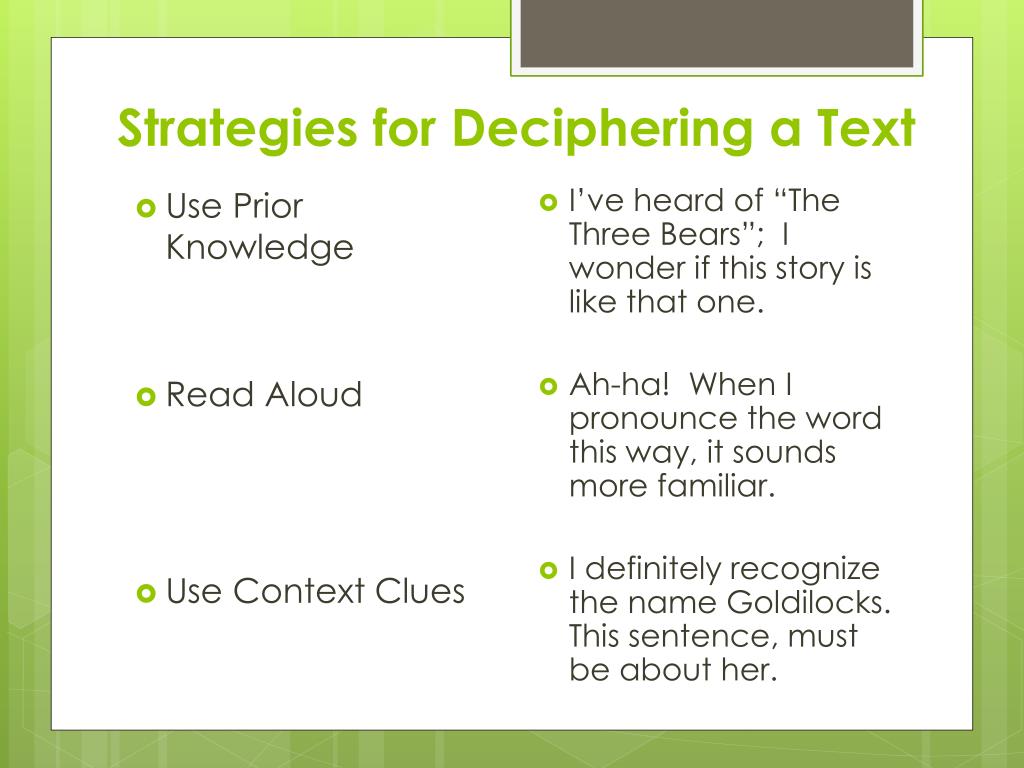
Divide the passage into manageable chunks—usually clauses or short sentences. Work on each piece individually, translating it back into a clearer version.
4. Re‑assemble with Context
Once the pieces are clean, re‑insert them into the original flow. Check for logical continuity and correct any remaining punctuation errors.
5. Verify the Intent
Ask the sender or, if that’s not possible, imagine the intended message. Does the revised text make sense in the conversation’s broader context? If not, iterate until it does.
Common Pitfalls and How to Avoid Them
Even after following a methodical process, errors can sneak in:
- Assuming the first readable version is the final one—always read through the entire text.
- Over‑correcting for style rather than meaning—focus on clarity over polish.
- Ignoring cultural or technical terms that might seem garbled but are correct within a niche.
Double‑checking against the original source and, when possible, consulting the author can eliminate these pitfalls.
Practical Tips for Email, Chat, and Documents
- Email: Enable “Show Original” in most clients to see the raw message headers; this can expose encoding errors.
- Chat: Use copy‑paste into a text editor before replying to avoid re‑typing mistakes.
- Documents: Regularly back up versions and use “Track Changes” so you can revert any accidental garbling.
- Cross‑Platform: When sending files between Windows and macOS, choose PDF or plain text to preserve formatting.
These small habits build a resilient communication workflow.
FAQs
- What causes garbled text in emails?
Encoding mismatches, especially between UTF‑8 and legacy systems, can corrupt characters during transmission. - Can I rely solely on software to fix garbled text?
Automated tools catch many errors, but nuanced meaning often requires human judgment. - How do I prevent garbled text in collaborative documents?
Use shared cloud platforms that lock formatting, keep a consistent character set, and establish a simple revision protocol. - Is there a way to automatically correct garbled text in real time?
Advanced IDE plugins and AI‑powered editors offer live suggestions, yet they are best used as aids rather than replacements for careful review.