Yuzu Emulator Guide: Everything You Need to Know
What Is Yuzu and Why It Matters
The Yuzu emulator is a free, open‑source program that lets you run Nintendo Switch titles on a PC. Developed by the creators of the Citra 3DS emulator, it translates the console’s ARM architecture into something your Windows, macOS, or Linux machine can understand. For gamers who missed out on a Switch release or want to preserve their library, Yuzu offers a practical, legal‑friendly alternative.
Getting Started: System Requirements
Yuzu isn’t a lightweight app; it needs a decent CPU, a modern GPU, and at least 8 GB of RAM to run most games smoothly. An Intel Core i5‑8600K, AMD Ryzen 5 2600, or better is a safe baseline, while an NVIDIA GTX 1060 or AMD RX 5600 XT will handle graphics rendering without chugging. SSD storage is recommended to reduce loading times, though a fast HDD can suffice for casual play.
Downloading and Installing the Emulator
Head to the official Yuzu website and grab the latest stable build for your operating system. Avoid third‑party sites—they often bundle unwanted software. Once the installer is downloaded, run it, follow the prompts, and let the program create its default folders in C:\Users\YourName\AppData\Roaming\yuzu. After installation, launch Yuzu and you’ll be greeted by a clean, minimal interface.
Setting Up Keys and Firmware
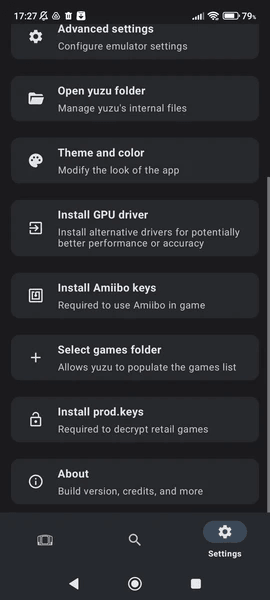
To launch Switch games, Yuzu requires two essential files extracted from a real console: the prod.keys and the title.keys. These contain encryption data that the emulator uses to decode game assets. Additionally, a copy of the Switch’s firmware (the “system files”) must be placed in the system folder. The process is legal only if you dump these files yourself from a device you own.
Adding Games to Your Library
Yuzu supports both NSP (Nintendo Submission Package) and XCI (game cartridge image) formats. Drag a file onto the Yuzu window or use the “Add New Game Directory” option under the File menu. The emulator will scan the folder, display the game’s icon, and list it alongside any other titles you’ve added.
Configuring Graphics Settings for Optimal Performance
Start in the “Graphics” tab of the configuration window. Set the API to Vulkan if your GPU supports it; Vulkan often outperforms OpenGL on Windows and Linux. For NVIDIA cards, enable “Use GPU buffer cache” and set “Shader Cache” to “On.” Adjust the internal resolution to match your monitor’s native size—higher values improve clarity but increase GPU load.
Audio Tweaks and Controller Support
Audio can be finicky on some setups. Switching the “Audio Backend” to “Cubeb” or “OpenAL” solves most glitches. Yuzu also works with a variety of input devices: Xbox and PlayStation controllers map automatically, while a Nintendo Switch Pro controller can be paired via Bluetooth for a more authentic feel.
Game Compatibility: What Runs Well, What Doesn’t
The Yuzu compatibility list is constantly updated, but as of early 2024, flagship titles like The Legend of Zelda: Breath of the Wild and Super Mario Odyssey run at 60 fps on mid‑range rigs. Heavier games such as Metroid Dread or Pokemon Legends: Arceus may require lower resolutions or “CPU Accuracy” toggled off to stay playable. Always check the official compatibility database for the latest status.
Improving Load Times and Reducing Stutters
Enabling “CPU Cache” in the “System” settings can shave a few seconds off loading screens. Additionally, turning on “Async GPU Emulation” helps smooth frame pacing, especially on CPUs with multiple cores. If you notice occasional stutters, try disabling “VSync” and using a frame limiter set to the game’s native 30 or 60 fps.
Legal and Ethical Considerations
Emulation itself is not illegal, but the legality hinges on how you acquire game files and keys. Dumping your own Switch cartridge and firmware for personal use is generally accepted, whereas downloading pirated NSPs violates copyright law. Always respect the developers’ rights and consider supporting them by purchasing games you enjoy.
Troubleshooting Common Issues
If a game fails to start, first verify that your keys are up to date; older keysets can cause decryption errors. Crash logs in the “Log” tab often point to missing DLLs—installing the latest Visual C++ Redistributable usually resolves those. For graphical artifacts, switch the GPU backend from Vulkan to OpenGL as a fallback.
Staying Updated: Patches and Community Mods
Yuzu releases new builds weekly, each bringing performance boosts and bug fixes. Enable automatic updates in the “General” tab, or manually download the latest version from the site. The community also creates shader caches, texture packs, and UI tweaks—most are shared on the Yuzu Discord or Reddit and can be applied by dropping files into the shaderCache folder.
Where to Find Help and Resources
Beyond the official documentation, the Yuzu subreddit (r/YuzuEmu) is a bustling hub for troubleshooting, game-specific tips, and performance benchmarks. The Discord server hosts channels for hardware advice, mod distribution, and direct developer Q&A. For deep dives, YouTubers like “MeticulousTech” regularly post configuration guides for new game releases.
Future Outlook: What’s Next for Yuzu
The development roadmap includes better multithreading support, improved handheld mode emulation, and experimental features like “Dynamic Resolution Scaling.” As the Switch hardware evolves, Yuzu’s team continues to reverse‑engineer new firmware updates, aiming to keep the emulator compatible with upcoming titles for years to come.
FAQ
- Can I play Yuzu on a laptop? Yes—provided the laptop has a recent quad‑core CPU and a dedicated GPU (or a high‑end integrated graphics chip), you can run many Switch games at playable framerates.
- Do I need a Nintendo Switch to use Yuzu? You need a Switch only to dump the necessary keys and firmware. Once you have those files, the emulator works independently.
- Is Yuzu safe from malware? The official build is open source and regularly audited. Avoid third‑party installers, and always download from the yuzu-emu.org domain.
- How do I improve performance on a low‑end PC? Lower the internal resolution, disable “CPU Accuracy,” and stick to Vulkan with a modest shader cache. Turning off extra visual effects in the game itself also helps.