What Turning Off Notifications Actually Means for You
When a phone or computer buzzes, pings, or flashes a little badge, most of us reach for it instinctively. Yet the phrase “turn off notifications” shows up in countless help guides, and many people wonder what the real impact is. In short, silencing alerts changes how information reaches you, how your device behaves, and even how you feel throughout the day. Below we’ll unpack the practical side of muting those digital nudges, explore why you might want to do it, and offer a quick roadmap for making the switch without missing anything vital.
Why You Might Want to Turn Off Notifications
At first glance, notifications seem harmless—a reminder of a new message, a calendar event, or a breaking news headline. But the constant stream can have several hidden costs.
- Focus loss. Each ping interrupts the brain’s attention cycle, making it harder to complete tasks efficiently.
- Battery drain. Background alerts force the screen to light up and the processor to wake, shaving off precious battery life over time.
- Data usage. Some apps pull data just to generate a notification, nudging your monthly data plan upward.
- Mental fatigue. The “always‑on” feeling can raise stress levels, especially when alerts arrive at odd hours.
Understanding these trade‑offs helps you decide whether muting all alerts, just a few, or setting custom schedules is the right move.
What Turning Off Notifications Actually Does
When you toggle the notification switch in a device’s settings, three things happen behind the scenes.
- The operating system stops delivering pop‑ups, sounds, or badge counts for the selected app or category.
- The app may still receive data in the background, but it won’t push that information to the user until you open the app manually.
- System‑wide “Do Not Disturb” modes can be activated, silencing all alerts for a set period while still allowing critical calls or alarms.
In practice, you’ll notice fewer interruptions, but you’ll also need to check apps more deliberately to stay up‑to‑date.
Common Scenarios and How to Adjust Settings
Not every notification is created equal. Here’s how to tailor the experience for three everyday contexts.
Smartphones
Both iOS and Android let you control alerts at three levels: globally, per app, and per notification type (sound, banner, badge).
- Global “Do Not Disturb.” Set a schedule—say, 10 p.m. to 7 a.m.—to mute all non‑essential alerts while still allowing emergency calls.
- App‑by‑app control. For social media, you might keep “mentions” on but turn off “likes.” For finance apps, keep balance updates on but silence promotional offers.
- Channel filtering. Android’s “Notification Channels” let you mute specific categories inside a single app, such as turning off “new video uploads” while keeping “direct messages” active.
Desktop Computers
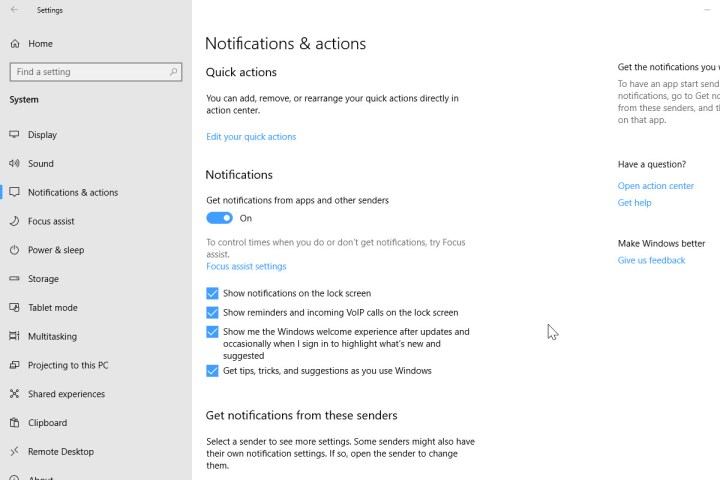
Windows, macOS, and Linux each have a “focus assist” or “do not disturb” feature. On macOS, the Notification Center lets you disable alerts for individual apps or enable “time‑sensitive” notifications only. On Windows, the “Focus Assist” panel offers automatic rules based on activity (e.g., when you’re presenting or gaming).
Wearables and Smart Speakers
Smartwatches inherit the phone’s settings, but many let you mute alerts directly on the wrist—a handy shortcut when you’re in a meeting. Smart speakers, meanwhile, often have a “Do Not Disturb” command that silences voice alerts without affecting the phone.
Potential Downsides to Consider
Silencing everything isn’t a universal solution. Here are a few pitfalls to watch.
- Missing time‑critical information. Emergency alerts, calendar reminders, or security warnings may go unnoticed if they’re fully muted.
- Delayed responses. Friends or coworkers might wonder why you’re not replying quickly, especially if you’ve turned off messaging alerts.
- App‑specific quirks. Some apps, like two‑factor authentication tools, rely on push notifications for security. Disabling them could lock you out of accounts.
To mitigate these risks, keep a handful of essential alerts active and use schedule‑based silencing for everything else.
Step‑by‑Step: How to Turn Off Notifications on Major Platforms
Below is a quick cheat sheet for the most common devices.
iPhone (iOS 17)
- Open Settings → Notifications.
- Select the app you want to adjust.
- Toggle Allow Notifications off, or customize by turning off Sounds, Banners, and Badges individually.
- For a global mute, go to Focus → Do Not Disturb and set a schedule.
Android (Pixel 8, Android 14)
- Swipe down from the top and tap the gear icon for Settings.
- Choose Apps & notifications → Notifications.
- Tap an app, then switch off Show notifications or adjust specific channels.
- Activate Do Not Disturb from the quick‑settings panel for a temporary global silence.
Windows 11
- Open Settings → System → Focus assist.
- Pick Priority only and customize the list of apps that can break through.
- Or toggle the Focus assist button in the Action Center for an instant mute.
macOS Ventura
- Click the Apple menu → System Settings → Notifications.
- Select an app, then uncheck Allow Notifications or fine‑tune the alert style.
- Enable Focus mode from the Control Center for scheduled global silence.
Balancing Silence and Awareness
The sweet spot often lies in a hybrid approach: keep high‑priority alerts on, mute the rest, and rely on scheduled “quiet hours” to protect your evenings. Experiment with the settings for a week, note any missed important messages, then tweak accordingly. Over time you’ll develop a rhythm that preserves both productivity and peace of mind.
Quick FAQ
Do muted notifications still use data?
Generally yes. The app may still sync in the background, but because the system isn’t pushing alerts to you, the data consumption is usually lower. Disabling background refresh for heavy‑traffic apps can cut it further.
Can I turn off notifications without affecting alarms?
Absolutely. Most platforms treat alarms as “critical” alerts that bypass Do Not Disturb or global mute settings. Just verify the alarm toggle is separate from the notification toggle in your device’s settings.
What’s the best way to stay updated on urgent messages while silencing everything else?
Use “priority” or “important” channels. On Android, enable the “high‑importance” channel for messaging apps. On iOS, add contacts to your “VIP” list in Mail and enable alerts only for those contacts.
Will turning off notifications improve battery life noticeably?
Yes, especially on devices with OLED screens where each wake‑up consumes power. The impact varies, but most users see a modest increase—often a few extra hours of usage per charge.