Upgrade Your Android TV Box in a Few Simple Steps
Whether you’re streaming the latest series or browsing the web, an up‑to‑date Android TV box feels faster, more secure, and less prone to glitches. In this guide we’ll walk through everything you need to know to upgrade your Android TV box safely—no need for a tech degree.
Why Keep Your Android TV Box Updated?
Manufacturers release firmware updates for three main reasons: security patches, performance tweaks, and new features. A fresh build can shave seconds off app launch times, improve Wi‑Fi stability, and block known exploits that could turn your device into a backdoor for malware. Even if you’re happy with the current interface, the hidden benefits of an upgrade often outweigh the brief inconvenience of a reboot.
Preparing for the Upgrade
Before you dive in, a little preparation saves a lot of headaches.
- Back up your data. Use the built‑in backup option or a third‑party app to export settings, installed apps, and login credentials to Google Drive or a USB stick.
- Check your current firmware. Navigate to Settings → About → System version to note the version number; you’ll need it when verifying the download.
- Ensure a stable power source. A sudden power loss during flashing can brick the box, so keep the original charger plugged in.
- Free up storage. At least 500 MB of free space is usually required for the new image and temporary files.
Step‑by‑Step Firmware Update
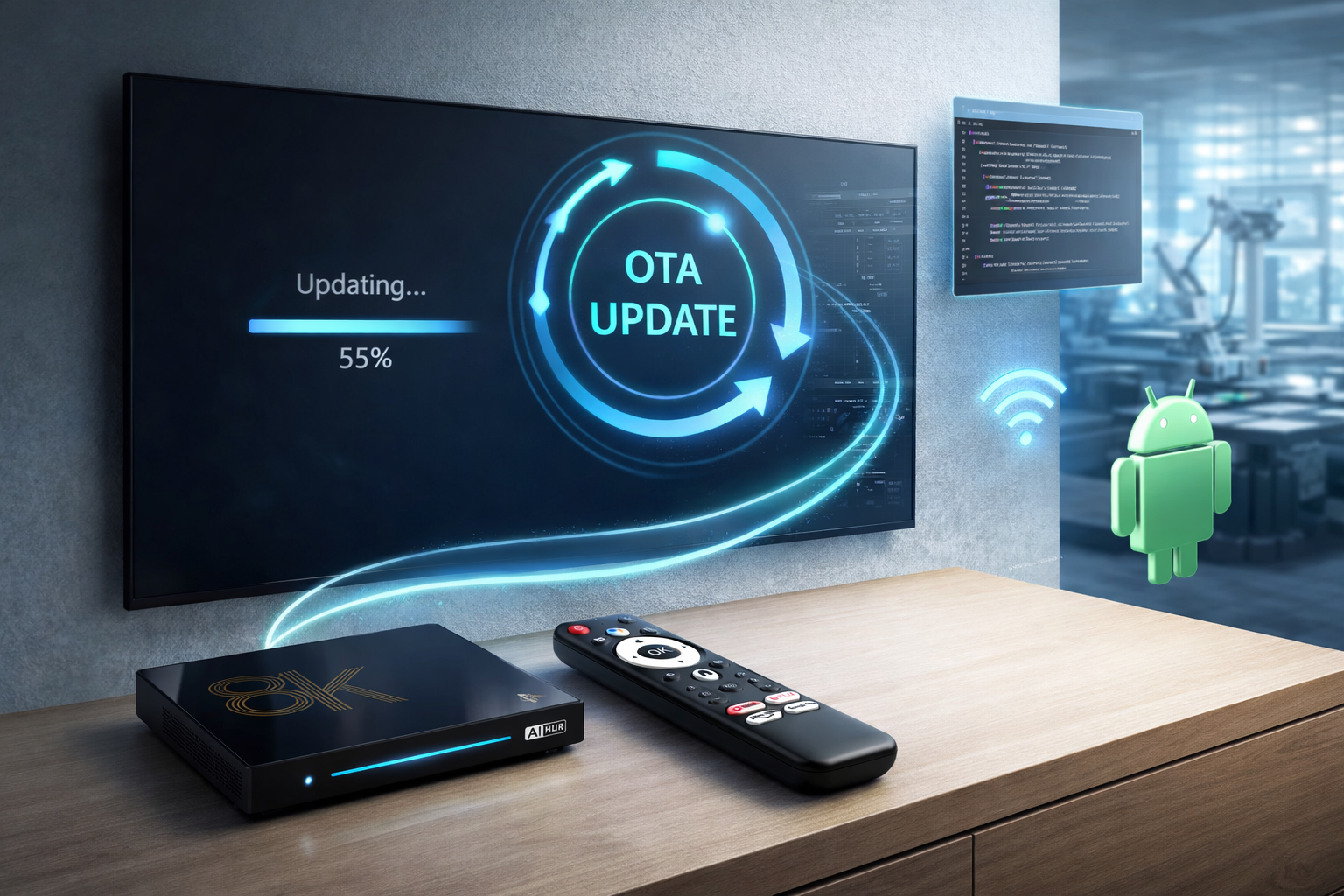
The most common method is an over‑the‑air (OTA) update, but you can also flash manually if the OTA option is missing.
- Open Settings, scroll to System Updates, and tap Check for updates. If a newer version appears, select Download and wait for the file to finish.
- Once downloaded, the box will prompt a restart. Choose Install Now. The device will reboot a few times; avoid using the remote during this window.
- When the update completes, verify the new version under Settings → About. If everything looks right, restore your backup if you had to reset any settings.
For manual flashing, download the official firmware from the manufacturer’s website onto a FAT32‑formatted USB drive. Plug the drive into the box, boot into recovery mode (usually by holding the reset button while powering on), select “Apply update from USB,” and follow the on‑screen prompts. After flashing, the box will restart into the fresh system.
Optional: Installing Custom ROMs
Some users crave more control, a different UI, or newer Android versions not yet offered officially. Custom ROMs such as LineageOS or CoreELEC can provide those perks, but they require rooting the device first.
- Unlock the bootloader (if the manufacturer permits).
- Install a custom recovery like TWRP via fastboot.
- Flash the ROM ZIP file and, optionally, Google Apps packages.
Proceed with caution: custom ROMs may void warranties, and compatibility varies by hardware model. Always read the ROM’s forum thread for known issues before flashing.
Hardware Tweaks to Extend Life
Software updates are only half the story. A few hardware adjustments can keep your box humming for years.
- Upgrade storage. Attach a high‑speed USB‑3.0 SSD for apps and cache. Many boxes support external storage as internal memory via “Adoptable Storage” in Android settings.
- Boost Wi‑Fi. If the built‑in antenna is weak, add a USB Wi‑Fi dongle with a better chipset. Ensure the box’s kernel includes the driver.
- Improve cooling. Overheating can throttle performance. A small clip‑on fan or a well‑ventilated placement reduces thermal throttling and prolongs the hardware.
Common Issues and How to Fix Them
Even with careful steps, glitches can pop up.
- Boot loops. Boot into recovery, wipe cache partition, and reboot. If the loop persists, perform a factory reset.
- Missing apps after update. Some pre‑installed apps are tied to the previous firmware version. Re‑install them from the Play Store or sideload the APKs.
- Audio/video lag. Check that HDMI‑CEC is disabled, update the box’s video driver (if available), and verify that your TV’s firmware is also current.
FAQ
Can I install a newer Android version if the manufacturer stops support?
Yes, but you’ll need to rely on custom ROMs or community‑maintained builds. Research your exact model to find a compatible image.
Do I have to root my TV box to receive OTA updates?
No. OTA updates are delivered directly by the manufacturer and work on stock firmware. Rooting is only required for unofficial upgrades.
What should I do if the upgrade process freezes?
Power off the device by holding the reset button for 10 seconds, then restart the update. If the problem repeats, try flashing via USB rather than OTA.
Is it safe to use a USB flash drive for manual updates?
Absolutely, provided the drive is formatted to FAT32 and the firmware file matches your exact model. Using the wrong file can brick the device.


![How to Update An Android Box Firmware? [2022]](https://dontdisappoint.me.uk/wp-content/uploads/2022/01/Webp.net-compress-image-2022-01-20T162534.831.jpg)