Speedtest: How to Test Your Internet Speed Quickly and Accurately
When you’re streaming, gaming or working from home, the last thing you want is a sluggish connection that hides behind a “good enough” label. A Speedtest is your first line of defense. It gives you a snapshot of what your provider is actually delivering, so you can spot problems, compare plans and, if necessary, demand the service you paid for.
What Exactly Is a Speedtest?
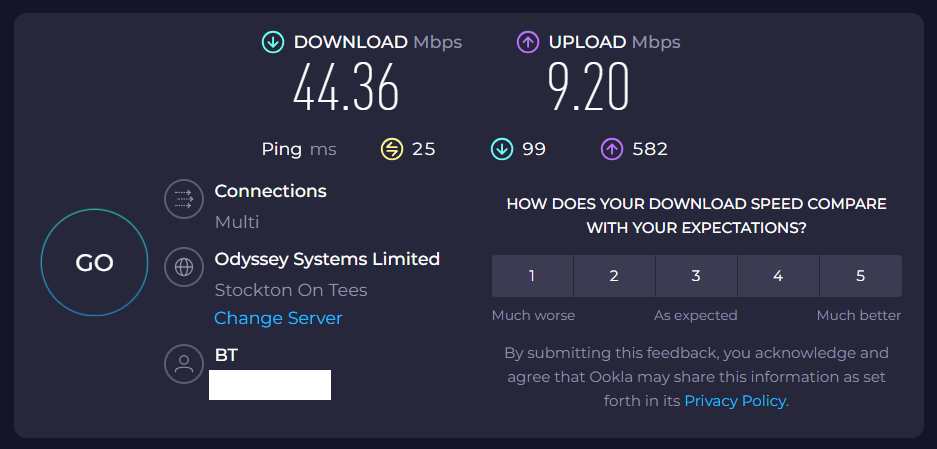
At its core, a Speedtest measures two key metrics: download speed—how fast data can flow into your device, and upload speed—how quickly you can send data out. Most tests also report latency, or ping, which tells you how responsive your connection feels during real‑time activities. The results are expressed in megabits per second (Mbps) or gigabits per second (Gbps). For most consumers, download speed dominates the conversation, but upload matters just as much for video calls and cloud backups.
Why Speed Matters in Everyday Life
- Streaming HD or 4K – A 4K video needs roughly 25 Mbps for smooth playback. If your Speedtest shows 18 Mbps, you’ll notice buffering or lower resolution.
- Online gaming – Latency under 50 ms feels responsive; higher numbers lead to lag spikes.
- Remote work – Upload speed determines how quickly you can send large files or video‑confer with colleagues.
- Smart home devices – Multiple IoT devices consume bandwidth; knowing your total capacity helps avoid bottlenecks.
Choosing the Right Speedtest Tool
There are dozens of Speedtest services, but a few stand out for reliability and ease of use:
- Ookla Speedtest – The most widely used platform, with servers in every major region.
- Fast.com – Operated by Netflix, it focuses on download speed but offers upload and latency too.
- Google Speed Test – A quick test integrated into Google’s search, useful for a quick snapshot.
- SpeedOf.Me – Browser‑based and free of ads, it offers a clear interface and raw data download.
Pick one that’s near you geographically; a closer server generally provides a more accurate reflection of everyday performance.
Best Practices for Reliable Results
Getting a single number from a Speedtest can be misleading. Here’s how to make sure your test reflects real-world speeds.
1. Reset Your Modem and Router
Before you fire up a Speedtest, give your equipment a fresh start. Unplug the power strip, wait 30 seconds, then plug everything back in. This clears memory, resolves minor firmware glitches and can boost performance.
2. Use a Wired Connection When Possible
Wi‑Fi introduces variables—interference, distance from the router, and device congestion. If you’re testing a home internet plan, connect a laptop or desktop directly to the router with an Ethernet cable. The numbers you’ll see are the most accurate.
3. Close Background Applications
Streaming services, cloud syncs, or other downloads can skew your results. Pause any background traffic before running the test. Even a single open tab in a video platform can draw significant bandwidth.
4. Run Multiple Tests at Different Times
Internet speeds can fluctuate based on peak usage hours. A test at 10 a.m. might show 80 Mbps, while one at 9 p.m. could dip to 45 Mbps. Run tests at various times and note the range. If the entire spectrum is lower than promised, it’s a clear red flag.
5. Record Your Results
Keep a simple spreadsheet: date, time, download, upload, latency. Over weeks, this data reveals patterns—perhaps a slow-down after a firmware update or a sudden drop in upload speed when a new device joins the network.
Interpreting Your Speedtest Data
Speedtest results rarely match the theoretical maximum advertised by your provider. That’s normal; real‑world speeds are influenced by infrastructure, distance to the server, and network congestion. Here’s what to look for:
- Download speed – Compare it to your plan’s minimum. If the test consistently reports 20% less, you might want to discuss it with your ISP.
- Upload speed – Important for video calls and cloud backups. If upload lags by more than 30%, it can hamper productivity.
- Latency (ping) – A ping under 30 ms feels instant. Above 100 ms can cause noticeable lag in gaming or video calls.
- Jitter – While not always displayed, high jitter (fluctuating latency) can disrupt real‑time communication, even if the average ping looks fine.
When to Escalate the Issue
If your Speedtest consistently shows significant deviation from your contract, it’s time to act.
- Contact your ISP’s customer support with the recorded data.
- Ask for a technician visit if the problem persists.
- Review your plan’s terms; some providers have “congestion management” clauses that allow throttling during peak hours.
- Consider switching providers if the issue continues and you’re not getting the speeds you paid for.
Speedtest for Mobile Networks
Speedtesting on cellular data follows the same principles but adds extra layers. Signal strength, network congestion, and carrier throttling can all influence results. Most mobile carriers provide their own Speedtest apps



_0.png?w=3800&h=2000)