Run Superset Fast with Docker Compose – A Quick Start Guide
Apache Superset has become the go-to open‑source data‑visualization platform for many teams, yet installing it from source can feel daunting. Docker Compose turns that complexity into a single command that spins up Superset, its PostgreSQL database, and a Redis cache—all in minutes. This guide walks you through the minimal steps needed to get a production‑ready Superset instance up and running, and it includes quick troubleshooting tips for the most common hiccups.
Superset with Docker Compose: The Essentials
At its core, Superset needs a relational database for metadata, a message broker for background tasks, and a web server to serve the UI. The official Docker Compose template bundles PostgreSQL and Redis, which are the most widely used and well‑documented components. By following the steps below, you’ll have a fully functional Superset cluster that’s ready for dashboards, SQL labs, and security hardening.
Prerequisites
- Docker (18.06+)
- Docker Compose (1.22+)
- A machine with at least 4 GB RAM (8 GB recommended for larger deployments)
- Basic terminal skills – you’ll be editing a YAML file and running a few shell commands.
Step 1: Create the docker‑compose.yml File
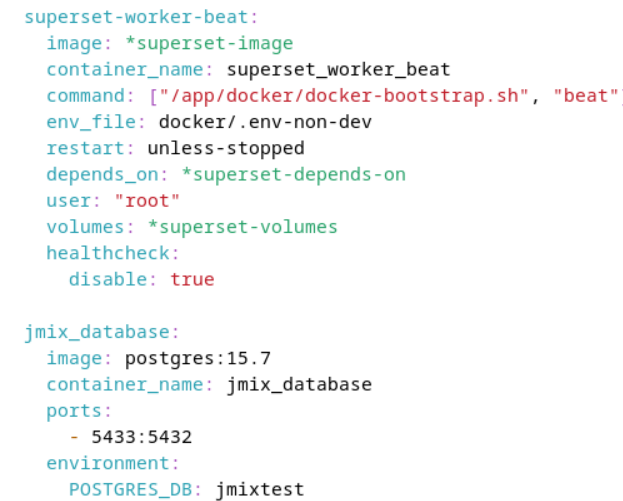
Begin by creating a directory for your Superset project, then add a file named docker-compose.yml with the following contents. The file defines three services: web for the Flask app, postgres for metadata storage, and redis for Celery queues.
docker-compose.yml
version: "3.7"
services:
postgres:
image: postgres:13
restart: unless-stopped
environment:
POSTGRES_PASSWORD: "superset"
POSTGRES_DB: superset
volumes:
- pg_data:/var/lib/postgresql/data
redis:
image: redis:6-alpine
restart: unless-stopped
web:
image: apache/superset:latest
restart: unless-stopped
environment:
SUPERSET_DATABASE_URI: postgresql+psycopg2://postgres:superset@postgres:5432/superset
REDIS_URL: redis://redis:6379/0
depends_on:
- postgres
- redis
volumes:
- superset_home:/app/superset_home
ports:
- "8088:8088"
volumes:
pg_data:
superset_home:
Step 2: Initialize the Database and Set Up an Admin User
After saving the YAML file, launch the containers with docker compose up -d. Once the containers are running, you’ll need to create the database tables and an admin account.
Open a shell into the web container:
docker compose exec web superset fab create-admin --username admin --firstname Admin --lastname User --email admin@example.com --password admin
Next, run the migrations and load the example data set:
docker compose exec web superset db upgrade
docker compose exec web superset init
Step 3: Launch Superset and Verify the Setup
The web service exposes port 8088, which you can access from your browser at http://localhost:8088. Log in with the credentials you just created. If everything is configured correctly, you’ll see the Superset dashboard with sample charts and a navigation bar ready for you to start adding real data sources.
Accessing the UI from Remote Hosts
By default, Docker forwards the port to the host machine only. To expose Superset to external clients, you can add networks: to the compose file and update the ports section to include your public IP or use a reverse proxy such as Nginx with SSL termination. For production environments, always secure the connection with TLS and configure authentication mechanisms like OAuth or LDAP.
Common Pitfalls & Fixes
- “Could not connect to database” – Ensure the postgres container is up and that the environment variables match the connection string in the web service.
- “Timeout while starting Celery workers” – Check that Redis is reachable. Restart the redis container if necessary.
- “Admin user already exists” – If you rerun the compose file, skip the
fab create-adminstep or use a different username. - Large data uploads fail – Increase
client_max_body_sizein the reverse proxy or adjust the web container’sMAX_CONTENT_LENGTHenvironment variable.
FAQ
What is Apache Superset?
Superset is a modern, enterprise‑grade business intelligence web application that allows users to explore data, build dashboards, and publish interactive visualizations without writing code.
Do I need Docker Compose to run Superset?
No, Superset can run directly on a host or inside any container orchestration platform. Docker Compose is simply the easiest way to bundle all dependencies