Mastering Voicemeeter: Setup, Tips, and Common Fixes
Why Voicemeeter Is a Popular Choice for Streamers and Podcasters
Voicemeeter sits at the sweet spot between a simple volume knob and a full‑blown digital audio workstation. It lets you route, mix, and process multiple audio sources without buying expensive hardware. Because it runs on Windows and offers a free tier, many creators adopt it as the first layer of their audio chain. The flexibility it provides—virtual inputs, hardware inserts, and built‑in EQ—means you can fine‑tune game chat, microphone, and music all in one window.
Setting Up Voicemeeter: Installation and First Run
Getting Voicemeeter off the download page and into a functional state takes only a handful of minutes if you follow the order below. The process is deliberately linear: driver first, software second, then routing.
1. Download the correct edition
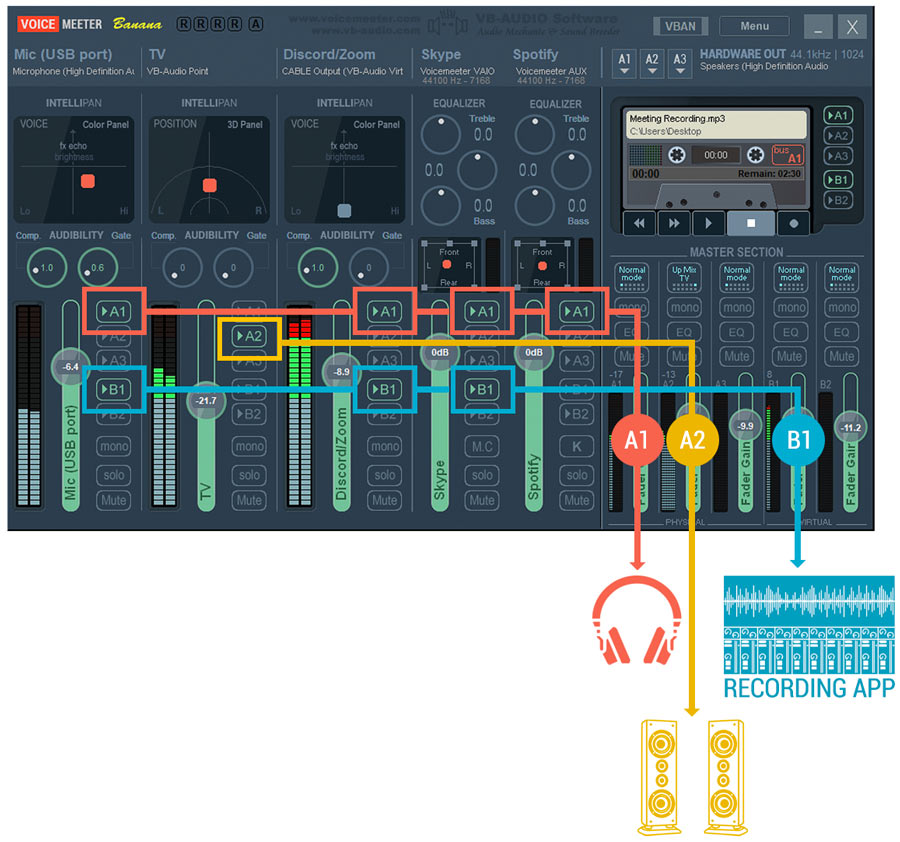
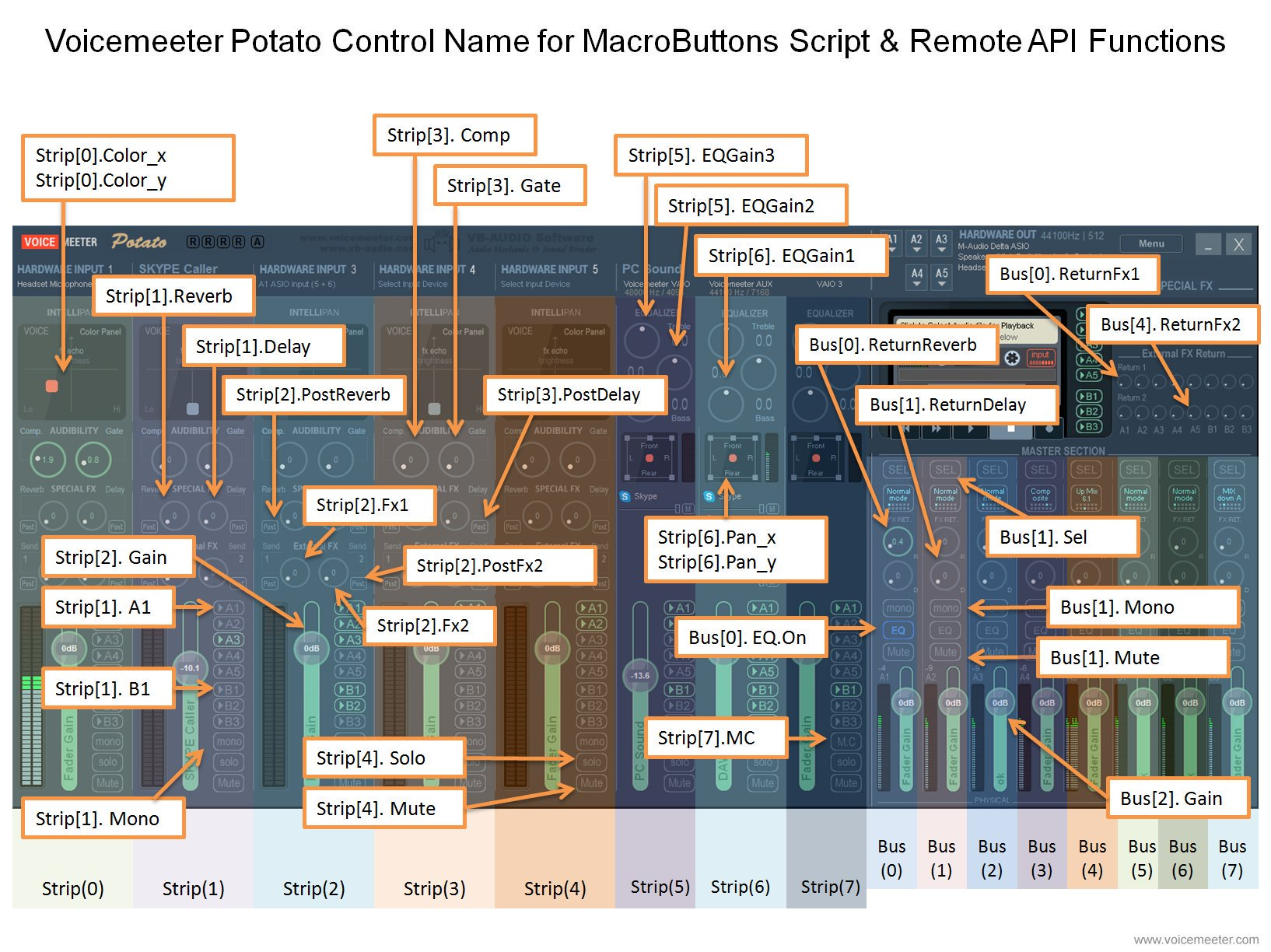
Visit the official VB‑Audio site and choose between Voicemeeter Standard, Banana, or Potato. Standard covers most basic needs; Banana adds extra buses, while Potato introduces advanced routing and a built‑in recorder. Pick the version that matches the number of inputs you plan to juggle.
2. Install the VB‑Cable driver bundle
Voicemeeter relies on virtual audio cables (VB‑Cable) to shuttle sound between apps. Run the installer, restart your PC when prompted, and verify that “CABLE Input” and “CABLE Output” appear in the Windows sound settings.
3. Install Voicemeeter itself
Run the .exe file, accept the license, and allow the installer to place a few system services. After the second reboot, you should see the Voicemeeter icon in the task tray.
4. Set default devices
Open Windows Sound → “Playback” and set “Voicemeeter Input (VB‑Audio Voicemeeter VAIO)” as the default speaker. Then go to “Recording” and make “Voicemeeter Output” your default microphone. This tells every program to send and receive audio through Voicemeeter unless you override the setting later.
Practical Tips to Polish Your Mix
Even after a clean install, a few tweaks can make the difference between “okay” and “studio‑grade.” Below are habits that seasoned users swear by.
- Use the hardware input gain knobs sparingly. A gentle boost before the software EQ often yields a cleaner signal than cranking the virtual sliders later.
- Route music through the “Aux” bus. Assign your media player to “Voicemeeter Aux Input” and then send it only to the headphones, leaving the broadcast stream free of background tracks.
- Enable “Intellipan” for quick tonal shaping. Dragging the cursor up adds brightness, while moving left darkens the sound—useful for taming harsh sibilance on the fly.
- Save your configuration. The menu offers “Save Settings” and “Load Settings”—treat these like presets for each streaming platform you use.
- Monitor latency. Open the “Menu → System Settings/Options” panel and adjust the “Buffer Size” slider. Smaller buffers give tighter sync but can cause clicks; larger buffers are safer for older PCs.
Troubleshooting the Most Common Issues
If something goes wrong, the solution is often a single setting rather than a full reinstall. Below are the hiccups you’ll encounter most often and how to clear them.
- No sound from Voicemeeter after a Windows update. Re‑run the VB‑Cable installer; Windows tends to overwrite virtual drivers during major patches. A quick reboot usually restores the signal path.
- Echo or “double‑talk” when using a headset. Check that the headset isn’t feeding audio back into the “Hardware Input” channel. Disable “Listen to this device” in the Windows recording properties, and make sure only one output (Voicemeeter or the headset) is active at a time.
- Mic level drops unexpectedly. The “Auto‑Mute” function can mute the microphone when it detects silence. Turn it off in the “Menu → System Settings/Options” panel, or lower the “Noise Gate” threshold.
- Audio lag during live streams. Reduce the buffer size in the System Settings, but also verify that your streaming software (OBS, Streamlabs) is set to use “Voicemeeter Output” as the audio source, not the default Windows device.
- Crackling or distortion when recording. This usually points to a sample‑rate mismatch. Ensure that Voicemeeter, Windows sound, and your recording program all run at 48 kHz—or 44.1 kHz if you prefer that rate across the board.
FAQ
Do I need a dedicated sound card to run Voicemeeter?
No. Voicemeeter works with the built‑in audio chipset of most laptops and desktops. A separate interface becomes useful only if you need ultra‑low latency or high‑quality preamps.
Can I use Voicemeeter with multiple microphones simultaneously?
Yes. The Banana and Potato versions provide extra hardware input strips, letting you assign each mic to its own channel, apply individual EQ, and route them to different outputs.
What’s the difference between “VAIO” and “Aux” in Voicemeeter?
“VAIO” is the main virtual input that most apps use by default; “Aux” is a secondary bus meant for side‑chained audio like music or sound effects. You can send VAIO to your stream while keeping Aux private for local monitoring.
Is Voicemeeter safe for professional podcast production?
Many podcasters rely on it for its low cost and real‑time processing. As long as you keep the driver up to date and monitor latency, it can serve as a reliable front‑end before a DAW or dedicated recorder.