Master Zabbix Modbus Monitoring With Ready-to-Use Templates
Zabbix is a powerhouse for infrastructure monitoring, but pulling data from industrial devices can feel like fitting a square peg into a round hole. That’s where Modbus comes in – a simple, widely‑adopted protocol that speaks the language of PLCs, RTUs, and smart meters. Pair it with a well‑crafted Zabbix template and you’ve got a fast‑track to real‑time insight without reinventing the wheel.
Why Use Zabbix Modbus Templates?
Templates bundle items, triggers, graphs, and discovery rules into a single, reusable package. In the context of Zabbix Modbus, they translate raw register reads into meaningful metrics like voltage, temperature, or flow rate. By leveraging a community‑tested template, you sidestep the tedious trial‑and‑error of mapping each register yourself, and you gain a consistent baseline that can be version‑controlled alongside your other monitoring assets.
Prerequisites Before You Dive In
- Zabbix server version 5.0 or later – the Modbus integration landed officially in the 5.0 LTS release.
- Modbus‑TCP or Modbus‑RTU gateway reachable from the Zabbix server. For serial connections, an RS‑485 to Ethernet converter is usually the easiest bridge.
- Device documentation that lists register addresses, data types, and scaling factors. Without it, you’ll be guessing at best.
- Basic familiarity with Zabbix’s web UI – importing templates, linking hosts, and tweaking items.
Importing the Official Modbus Template
The Zabbix community maintains a “Template Modbus Generic” that covers the most common function codes. Grab it from the Zabbix Share portal, then follow these steps:
- Log into the Zabbix front‑end and navigate to Configuration → Templates.
- Click Import, upload the XML file, and confirm the default options (keep existing items, replace if needed).
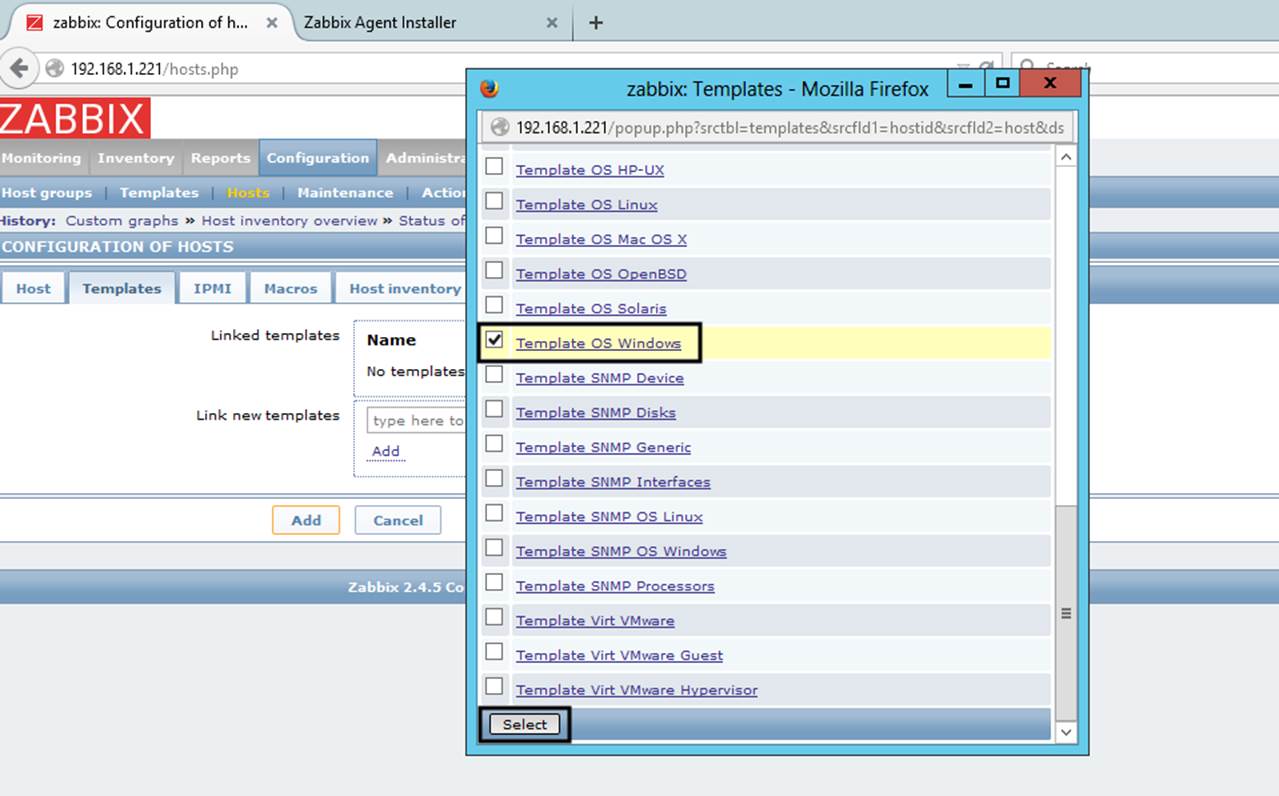
- Once the template appears in the list, go to Configuration → Hosts and either create a new host or edit an existing one.
- Link the “Template Modbus Generic” under the Templates tab. Save.
At this point Zabbix will start polling the device using the default modbus.read key, which reads a range of registers every 60 seconds. You’ll see a handful of items appear under the host – things like “Modbus Register 0x0001” and “Modbus Register 0x0002”.
Customizing Items and Triggers
Every industrial setup is unique, so you’ll likely need to rename items, adjust scaling, or add new triggers. Here’s a practical workflow:
- Rename for clarity – Open an item, replace the generic name with something like “Pump A Pressure (bar)”. Use the Applications field to group related metrics.
- Apply a multiplier – If the device reports pressure in centi‑bars, set the Multiplier to
0.01so Zabbix stores the value in bars. - Define thresholds – Add a trigger such as “{Host:modbus.register[0x0010].last()}>5.0” for a high‑pressure alarm. Include a severity level that matches your incident response plan.
- Use Low‑Level Discovery (LLD) – For devices with many similar registers (e.g., a bank of temperature sensors), enable LLD rules that automatically generate items for each index.
After tweaking, run a manual “Check now” from the host’s item list to verify that values appear as expected.
Best Practices for Reliable Data Collection
Modbus is tolerant of occasional packet loss, but Zabbix will flag a host as “unreachable” if the timeout is too aggressive. Keep these tips in mind:
- Set reasonable timeouts – 2 seconds works for most Ethernet‑based devices; increase to 5 seconds for slow serial links.
- Batch reads when possible – Reading a block of consecutive registers reduces network chatter and improves performance.
- Monitor connection health – Add a simple item that checks the return code of a “heartbeat” register; trigger on non‑zero values.
- Document every change – Store template revisions in a Git repository. That way you can roll back if a new firmware update reshuffles registers.
Common Pitfalls and How to Avoid Them
Even seasoned engineers hit snags when bridging IT and OT. Below are a few hiccups that show up often, plus quick fixes.
Wrong data type: Zabbix defaults to numeric unsigned. If the device uses signed 16‑bit values, you’ll see wrap‑around at 32767. Switch the item type to “Numeric (float)” and apply a abs() preprocessing step if needed.
Endian mismatch: Some legacy PLCs store registers in big‑endian order while Zabbix expects little‑endian. Use the “Swap bytes” preprocessing option to correct the orientation.
Register overlap: Accidentally reading overlapping ranges can cause duplicate items and confusing graphs. Double‑check the start address and length for each LLD rule.
Extending the Template for Advanced Use Cases
Once the basics are stable, you can push the integration further. For example, combine Modbus data with Zabbix’s built‑in trends to calculate moving averages of power consumption, or feed values into Webhooks that trigger external SCADA dashboards. The key is to keep the core template lean, then layer additional macros or user‑parameters on top as your needs evolve.
FAQ
Can Zabbix monitor Modbus‑RTU devices directly?
Yes, but you need an intermediary gateway that exposes the serial bus over TCP. Zabbix only talks HTTP, HTTPS, or TCP, so the converter does the heavy lifting.
Do I need to enable the Modbus module on the Zabbix server?
The Modbus support is built into the core from version 5.0 onward. Just ensure the modbus item key is recognized; no extra plugins are required.
How often should I poll critical registers?
For fast‑changing parameters like motor speed, a 10‑second interval is common. Balance the need for fresh data against network load – over‑polling can flood both the device and the Zabbix server.
Is it safe to expose Modbus‑TCP to the internet?
Generally not. Modbus lacks authentication, so you should place the gateway behind a VPN or restrict access with firewall rules.