Master Flowcharts Quickly with Lucidchart Training Videos
When you need to turn a tangled process into a clear, visual map, Lucidchart’s library of training videos can be a game‑changer. These short, on‑demand lessons walk you through everything from the basics of shape selection to advanced techniques like dynamic data linking. By following the right sequence, you’ll shave hours off the learning curve and start producing professional‑grade flowcharts in no time.
Why Video Guides Beat Text‑Only Tutorials
Most people assume a PDF or blog post is enough to learn a diagramming tool, but visual learners often hit a wall when the instructions lack motion. Video captures the exact clicks, drag‑and‑drop actions, and keyboard shortcuts that text can only describe. In Lucidchart, where layout and alignment are crucial, watching a flowchart come together in real time helps you internalize the rhythm of design.
Getting Started: The Essential Intro Series
The first three videos in Lucidchart’s official training set lay the groundwork. They cover:
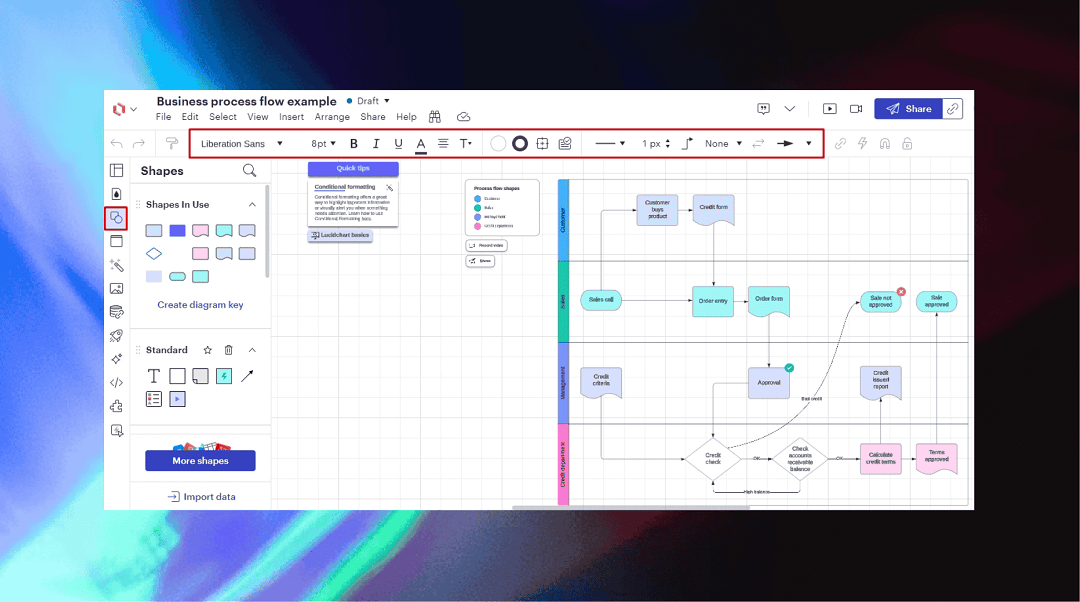
- Interface Overview – navigating the toolbar, panels, and canvas.
- Basic Shapes & Connectors – choosing the right symbols for process, decision, and start/end points.
- Creating Your First Flowchart – a step‑by‑step walkthrough that ends with a shareable diagram.
Each segment lasts under five minutes, so you can pause, try the steps yourself, and resume without losing momentum. By the end of this trio, you’ll have a clean, functional flowchart and a solid grasp of Lucidchart’s core workflow.
Accelerating Your Skills with Advanced Techniques
Once the basics feel comfortable, the next batch of videos dives into features that make your diagrams pop and stay up‑to‑date.
Dynamic Data Integration
Instead of manually editing values, you can link shapes to external data sources such as Google Sheets. The tutorial shows how to map columns to shape text, automatically updating the flowchart whenever the source file changes. This is a huge time‑saver for teams that need to reflect real‑time metrics.
Smart Containers and Auto‑Layout
Smart Containers group related steps and let Lucidchart rearrange them intelligently as you add or remove items. The video demonstrates turning a simple linear flow into a modular, expandable process map without re‑aligning each shape.
Collaboration Shortcuts
Working with stakeholders? A dedicated video walks through live commenting, version history, and permission settings, ensuring everyone stays on the same page (literally) without a flood of email attachments.
Putting Theory into Practice: A Mini Project
To cement what you’ve learned, try building a “Customer Support Ticket Flow.” Start with a blank canvas, add a start shape, then follow the decision‑branch pattern taught in the intro videos. Next, pull in a Google Sheet that tracks ticket status and bind it to a status shape using the dynamic data feature. Finally, wrap the entire process in a Smart Container so you can easily expand the workflow when you add new support tiers. This hands‑on exercise reinforces each skill while delivering a usable artifact for your team.
Tips for Getting the Most Out of Lucidchart Training Videos
- Bookmark as You Go – Save each video to a personal playlist so you can revisit specific sections.
- Pause and Replicate – After each major step, pause the video and recreate the action in your own document.
- Combine with the Help Center – If a feature feels fuzzy, the Lucidchart Help Center offers searchable articles that complement the video content.
- Join the Community Forum – Real‑world questions often surface there, and you’ll find shortcuts that the videos don’t cover.
Choosing the Right Learning Path for Your Goals
If you’re a newcomer needing a quick start, stick to the “Beginner Essentials” playlist. For managers who must oversee multiple processes, the “Enterprise Collaboration” series adds depth on sharing, permissions, and reporting. And for power users, the “Advanced Automation” videos explore APIs and custom scripting, opening the door to fully automated diagram generation.
Frequently Asked Questions
How long does it take to create a basic flowchart in Lucidchart?
For most users, the introductory videos enable a simple flowchart in 15‑20 minutes. Complex diagrams with data integration may require an additional hour of practice.
Are Lucidchart training videos free?
Yes, the core tutorial series is freely available on Lucidchart’s website and YouTube channel. More specialized content, such as enterprise‑level automation, may be part of a paid subscription.
Can I learn flowcharting fast without a formal course?
Absolutely. The bite‑size format of Lucidchart’s videos lets you focus on one feature at a time, which often leads to faster mastery than a lengthy classroom setting.
What if I get stuck on a specific feature?
Use the built‑in “Help” button in the app to search for the feature, or drop a question in the Lucidchart Community Forum where both staff and experienced users can offer quick guidance.