iOS 17: Resolve iCloud Syncing Pauses with These Quick Fixes
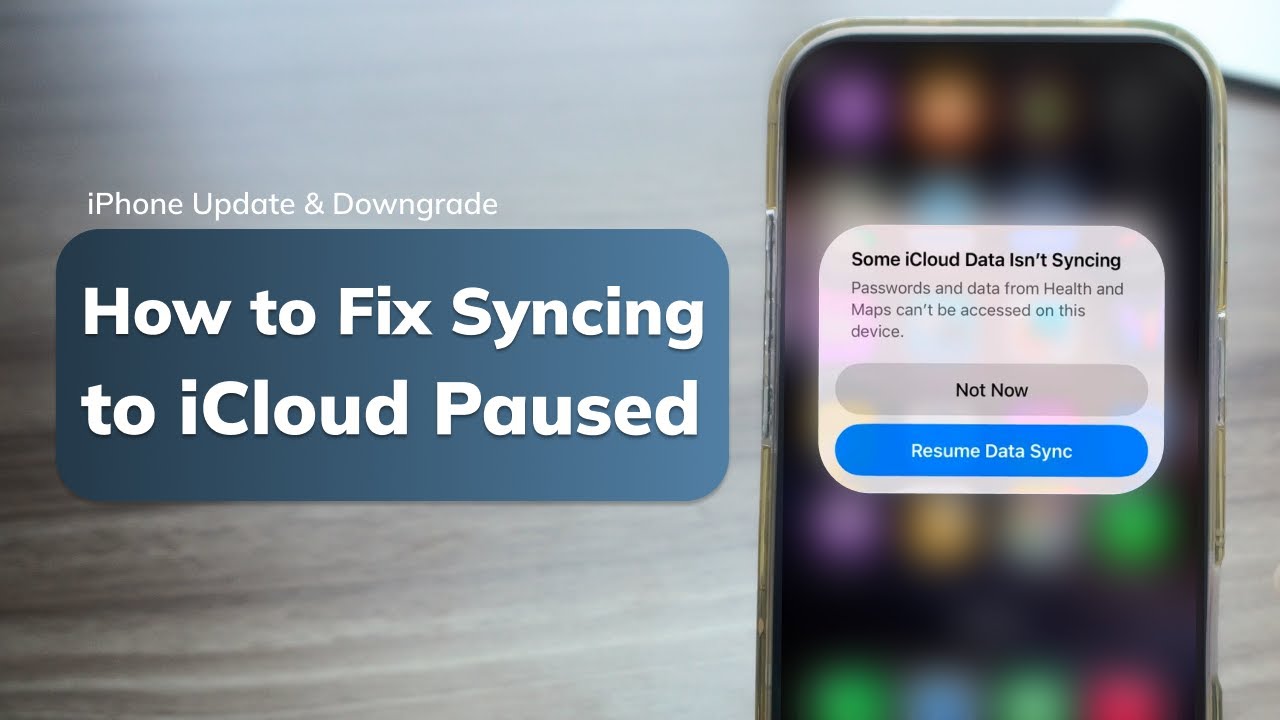
Seeing a blinking iCloud icon with “syncing paused” on your iPhone can feel like a glitch that stops you in your tracks. If you’re on iOS 17 and the sync is stalled, you’re not alone. Below you’ll find the most common reasons for the pause and the straightforward steps to get iCloud working again.
Why Does iCloud Syncing Pause on iOS 17?
iCloud’s pause feature is actually a safeguard. The system stops syncing when it detects:
- Insufficient storage on the device or in the iCloud account.
- Network problems—poor Wi‑Fi, limited mobile data, or a firewall blocking traffic.
- System updates that need to finish first.
- Conflicting settings, such as iCloud Drive off but the Photos app still set to “Optimize iPhone Storage.”
Understanding the trigger is the first step toward a quick resolution.
Step‑by‑Step Fixes for a Stalled Sync
1. Verify iCloud Storage Space
Open Settings > [your name] > iCloud. Scroll to the bottom to see how much space is left. If you’re close to or at capacity, either delete unnecessary backups, photos, or files, or upgrade your storage plan.
2. Check Your Network Connection
iCloud sync requires a steady connection. Try:
- Restarting your Wi‑Fi router.
- Turning Wi‑Fi off and back on.
- Switching to a different network.
- Using cellular data if Wi‑Fi is unreliable.
Also, ensure that “Low Power Mode” isn’t limiting background activity (Settings → Battery).
3. Force a Re‑Sync
Sometimes a quick reset nudges the system back on track:
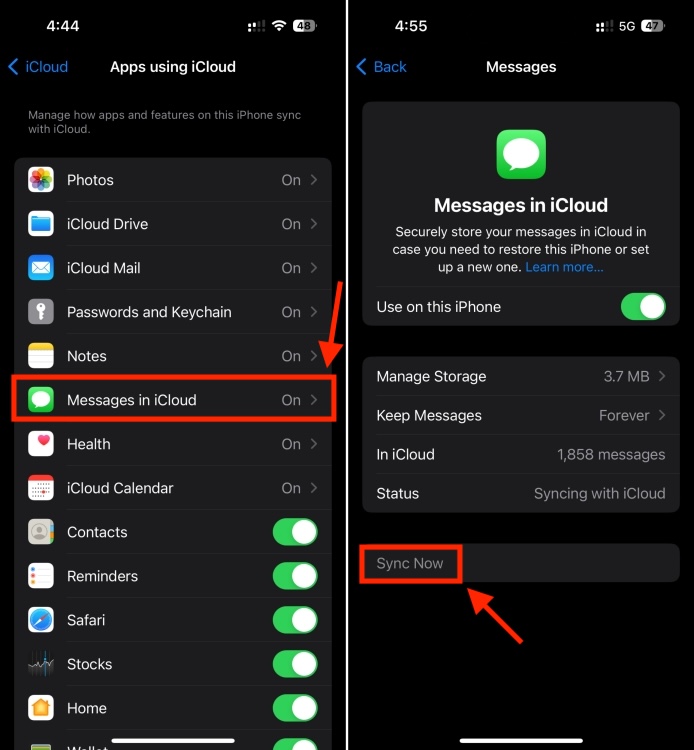
- Go to Settings → [your name] → iCloud.
- Toggle off the apps or services that are stuck.
- Wait 30 seconds, then toggle them back on.
This action clears any stale sync requests and starts the process anew.
4. Update or Reinstall iOS
Apple occasionally releases patches that fix iCloud bugs. Check for an update in Settings → General → Software Update. If the problem persists after updating, consider restoring from a backup or performing a clean iOS installation via iTunes/Finder.
5. Manage Backup Settings
Large or corrupted backups can stall syncing. In Settings → [your name] → iCloud → Manage Storage, locate the backup entry for your device. Tap Delete Backup and then create a new backup. This often resolves the pause.
Preventing Future Pauses
Once the sync is running, keep it running smoothly with these habits:
- Regularly review storage usage. Delete old photos, videos, or apps that aren’t needed.
- Keep iCloud Drive enabled for apps you rely on. Turning it off only for a few apps can create inconsistencies.
- Stay on a reliable network. For large photo libraries, consider syncing during times of low traffic.
- Use the “Optimize” settings wisely. “Optimize iPhone Storage” for photos saves space but may slow initial sync.
FAQ
What should I do if iCloud sync never starts after these steps?
Check Apple’s System Status page. If iCloud services show an outage, wait until Apple resolves it. If the service is fine, contact Apple Support for deeper diagnostics.
Can I manually sync iCloud data from my computer?
Yes. Using Finder on macOS or iTunes on Windows, you can sync selected data types. However, this only affects the specific categories you choose; the device will still rely on its own sync process for others.
Will turning on “Low Power Mode” permanently pause iCloud?
No. Low Power Mode throttles background activity temporarily. Once you turn it off, syncing resumes automatically, provided there is enough storage and network connectivity.