Instantly Open Google Lens Camera on Android: A Quick Guide
Picture this: you’re scrolling through a bustling market, spotting a rare spice, and you want to learn more instantly. You’d want that photo to be recognized, translated, or searched right away. That’s exactly what Google Lens offers—an AI‑powered camera that turns your phone into a knowledge engine. If you’re wondering how to open Google Lens camera on Android without fumbling through menus, you’re in the right place. Below, we walk through the simplest methods, troubleshooting tips, and handy shortcuts so you can start using Lens the moment you need it.
How to Open Google Lens Camera on Android
The quickest way to launch Lens depends on the version of Android and whether you have the standalone Lens app installed. Here’s the most universal path that works on the majority of recent devices:
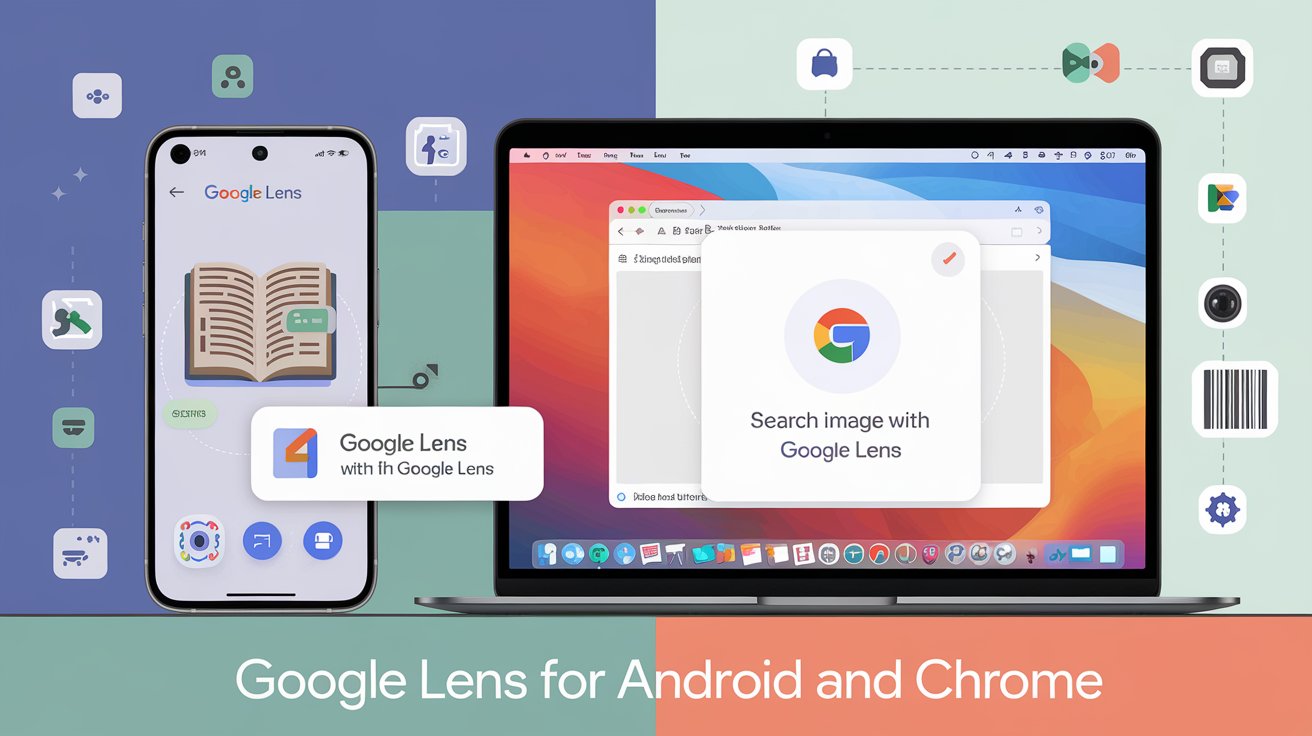
- Tap the Google app icon. On most Android phones, the Google search bar is always at the top of your home screen or within the Google app.
- Press the Lens icon. It’s the small green square that looks like a camera. If you don’t see it, swipe right on the search bar to reveal additional icons.
- Your camera opens with the Lens overlay. Point your phone at the object, text, or scene you’re interested in, and tap the screen to capture.
If you prefer a one‑tap route, check whether the Lens icon has been pinned to your home screen or dock. Many manufacturers bundle Lens with the camera app, so you might find a Lens shortcut right in the default Camera UI.
Installing the Standalone Lens App
For users who like a dedicated Lens experience—or for those whose Android version doesn’t expose Lens directly—installing the standalone app is straightforward:
- Open the Google Play Store.
- Search for “Google Lens”. The official app is developed by Google.
- Tap “Install” and wait for the download to finish.
- Once installed, launch the app and tap the camera icon in the bottom center to activate Lens.
After the first launch, you’ll see a quick tutorial that highlights key features such as text selection, product search, and instant translation.
Using Google Lens from the Google Assistant
Google Assistant offers a voice‑activated shortcut. Simply say “Hey Google, open Lens” or “Hey Google, take a picture with Lens.” The assistant launches the camera with Lens enabled. This method is handy when your hands are full or you’re on the go.
Integrating Lens into Google Photos
Google Photos now has an embedded Lens tool that lets you analyze images you’ve already taken. Open the Photos app, select any photo, tap the Lens icon at the bottom, and Lens will scan the image for recognizable objects, text, or places. It’s a great way to retroactively discover more about your memories.
Common Issues and How to Fix Them
Even though Lens is built to be user‑friendly, a few hiccups can arise. Here’s a quick troubleshooting cheat sheet:
- Lens icon missing from the Google app. Ensure you’re running the latest Google app. Update via the Play Store or your device’s app updater.
- Camera not opening or freezing. Restart your phone; clear cache for Google Lens or the Camera app from Settings > Apps.
- Lens not recognizing text. Make sure your device’s language settings include the language you’re trying to read. For non‑Latin scripts, add the appropriate language under Settings > System > Languages & input.
- Slow response or lag. Check for background apps that consume CPU or battery. A clean‑up or a device reboot can help.
Most problems resolve quickly with these simple steps, so you can get back to scanning.
Tips to Maximize Lens Efficiency
Once you know how to open Lens, a few habits will elevate your experience:
- Hold steady or use a tripod for blurry objects. Lens performs best with clear, focused images.
- For text, ensure sufficient lighting. Lens can struggle in shadows or low‑light settings.
- When searching for products, use the “Shop” tab within Lens to view price comparisons and buying options.
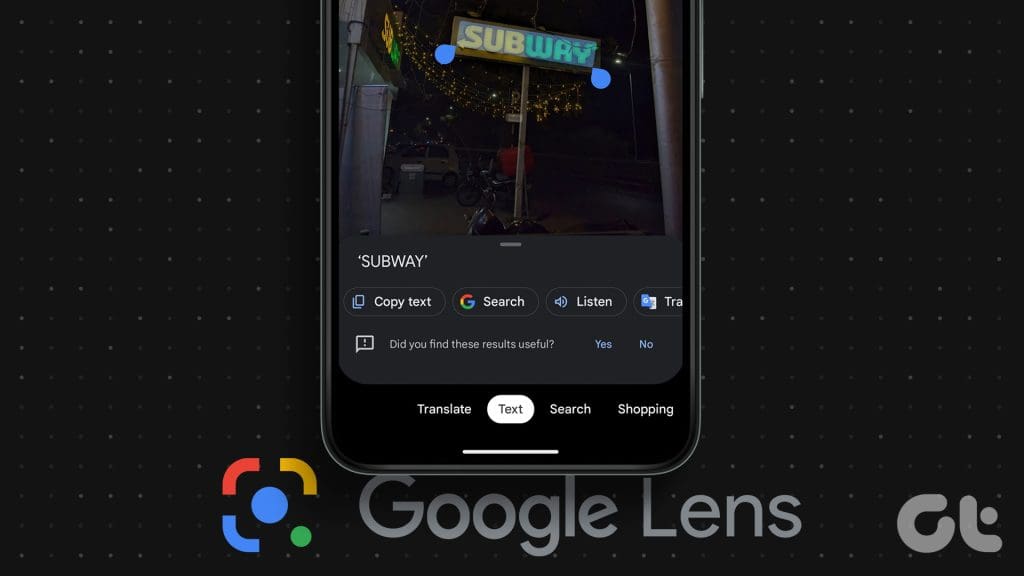
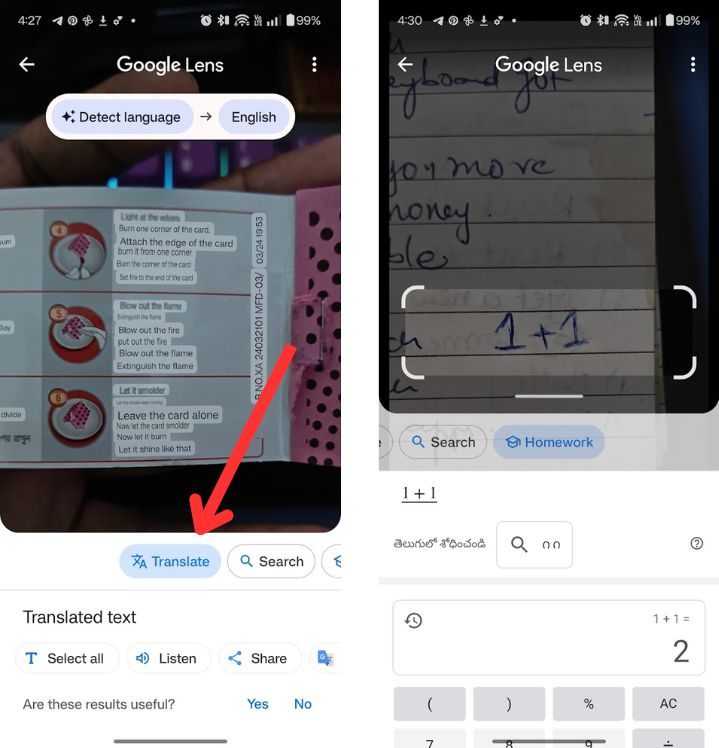
- Use the “Translate” mode for handwritten notes or signage in foreign languages.
- Keep the app updated. New models of Lens bring expanded language support and smarter object recognition.
FAQ
Can I use Google Lens without an internet connection?
Lens typically requires an active internet connection for the most accurate results, especially for language translation and product search. However, for basic image recognition and offline text extraction, it can still provide useful information if you’ve previously downloaded relevant language packs.
Is Google Lens available on all Android devices?
Most recent Android phones (Android 10 and above) come with Lens integrated into the default Camera app or the Google app. Devices running older versions may need to install the standalone Lens app from the Play Store.
What permissions does Google Lens need?
Lens requires access to the camera and storage to capture images and save results. It also asks for internet access to deliver translation and search services. Granting these permissions is essential for full functionality.
Can I use Google Lens to scan QR codes?
Yes, Lens can read QR codes, barcodes, and various types of machine-readable codes. Simply point the camera at the code, and Lens will automatically recognize it.
With these steps and tips, you’ll be able to open Google Lens camera on Android quickly and leverage its power for everyday tasks. Happy scanning!