How to Use the LuxVision DVR Android App to Monitor Your Security
The LuxVision DVR Android App lets you monitor your security directly from your smartphone, turning your device into a portable control center for cameras, alarms, and alerts. Whether you’re home, at the office, or traveling, the app provides real‑time feeds, playback, and instant notifications that keep you connected to your property. Below we break down everything you need to know to set up, use, and get the most out of this handy tool.
What Is the LuxVision DVR Android App?
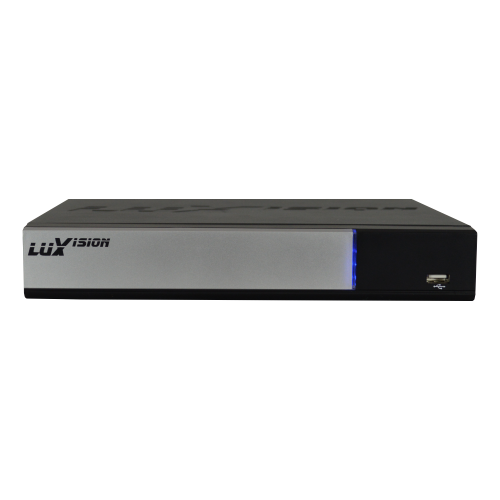
LuxVision’s mobile solution is a dedicated application designed for Android devices that communicates with LuxVision DVR units via Wi‑Fi or a dedicated network. The app offers a clean interface that mirrors the DVR’s web portal, giving users quick access to live streams, recorded footage, and system settings.
Installing and Setting Up the App
Download the LuxVision DVR Android App from the Google Play Store. After installation, launch the app and tap “Add Device.” You can add a new DVR by scanning the QR code on the unit, entering the serial number manually, or selecting your local network if the device is already online. The first time you connect, the app will guide you through a brief setup that includes naming the device, choosing a Wi‑Fi network, and setting up a secure login.
Key Features of the LuxVision DVR Android App for Security Monitoring
The app bundles several features that make remote surveillance straightforward:
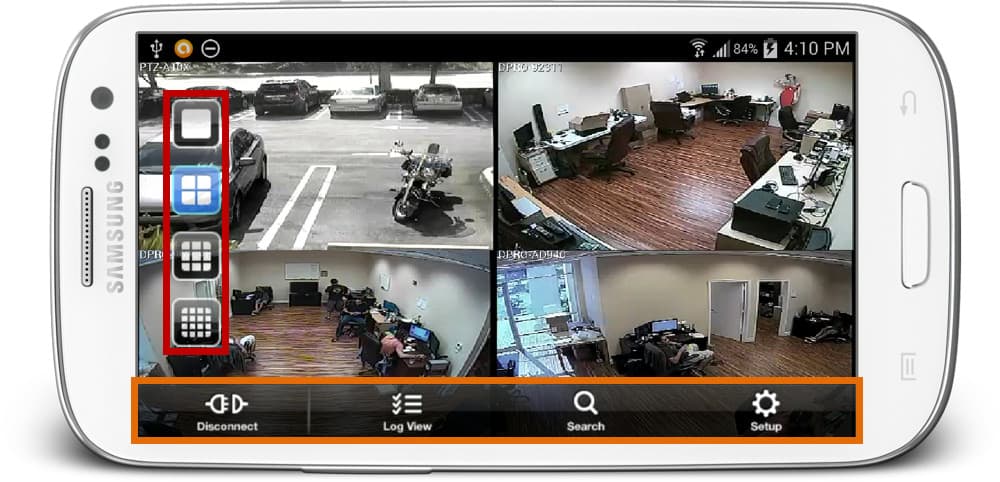
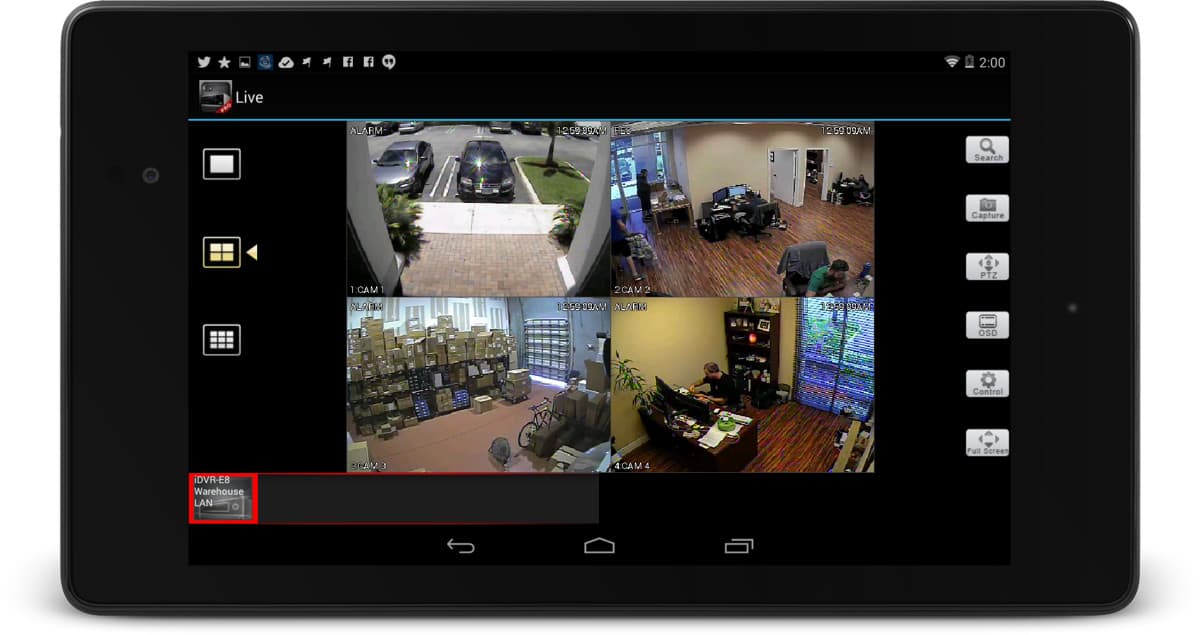
- Live Streaming: Watch up to four cameras simultaneously on your phone, with the option to toggle between full‑screen and grid view.
- Two‑Way Audio: Communicate directly with people near a camera via the built‑in microphone and speaker.
- Motion Detection Alerts: Receive push notifications whenever movement is detected, and view the corresponding clip instantly.
- Cloud Backup: Optionally store selected recordings on a cloud server for extra protection.
- Remote Control: Adjust camera angles, zoom, and focus from the app if your hardware supports PTZ (pan‑tilt‑zoom) functions.
How to View Live Footage and Recordings
Once a DVR is linked, tap the camera icon to launch the live view. The feed refreshes automatically, but you can manually pull down to refresh or lock the screen for continuous monitoring. To review past events, navigate to the “Recordings” tab, where you’ll find a timeline organized by date and motion‑detected events. Long‑pressing a clip allows you to save it locally, share via email, or delete it.
Managing Alerts and Notifications
Effective security relies on timely alerts. In the settings menu, you can configure the types of notifications you receive, set silence periods (e.g., 10 p.m. to 6 a.m.), and choose whether to display alerts as pop‑ups, banners, or silent sounds. For critical systems, you might enable “Immediate Alert” which pushes the notification to your device’s lock screen even if the phone is asleep.
Integrating with Other Smart Devices
LuxVision DVR units often support integration with popular platforms like Google Assistant, Alexa, or IFTTT. Using the “Integrations” section, link the app to your voice‑assistant account so you can ask, “Hey Google, show me the front yard camera.” IFTTT can trigger actions—such as turning on a light when motion is detected—or send an email to a list of contacts whenever the app receives an alert.
Tips for Optimizing Performance
- Stable Connection: Place the DVR near a high‑bandwidth router, and consider using a dedicated VLAN for surveillance traffic to avoid interference.
- Update Firmware: Regularly check for firmware updates in the app’s settings; updates often improve stability, add features, or patch security vulnerabilities.
- Battery Management: If you plan to monitor the feed for long periods, keep your phone plugged into a power bank or use a low‑power mode to conserve battery.
- Clear Cache: If the app lags or fails to load videos, clear the app cache from your phone’s system settings.
Frequently Asked Questions
Q1: Can the LuxVision DVR Android App stream from multiple cameras at once?
A1: Yes. The app supports up to four simultaneous live streams in a grid layout. For more cameras, you’ll need to use a web interface or a compatible third‑party viewer.
Q2: What happens if my Wi‑Fi drops while I’m monitoring?
A2: The app will switch to the last known connection and attempt to reconnect automatically. If the DVR is on the same network as the phone, you may still see a cached feed, but real‑time alerts will pause until connectivity is restored.
Q3: Is it possible to set up the app to run in the background and send alerts?
A3: Yes, enable background data usage in Android’s battery optimization settings for LuxVision. This allows the app to listen for motion and push notifications even when not in the foreground.
Q4: Do I need a subscription to use the LuxVision DVR Android App?
A4: Basic functionality—live view, playback, alerts—is free. Cloud backup and advanced PTZ controls may require a subscription plan, depending on the DVR model.