How to Use Storyboard Examples for Engaging Video Tutorials
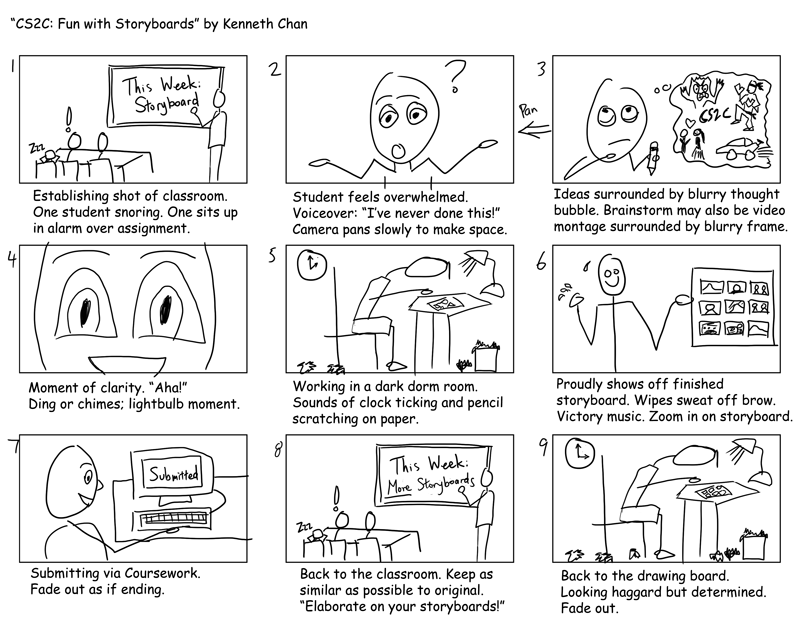
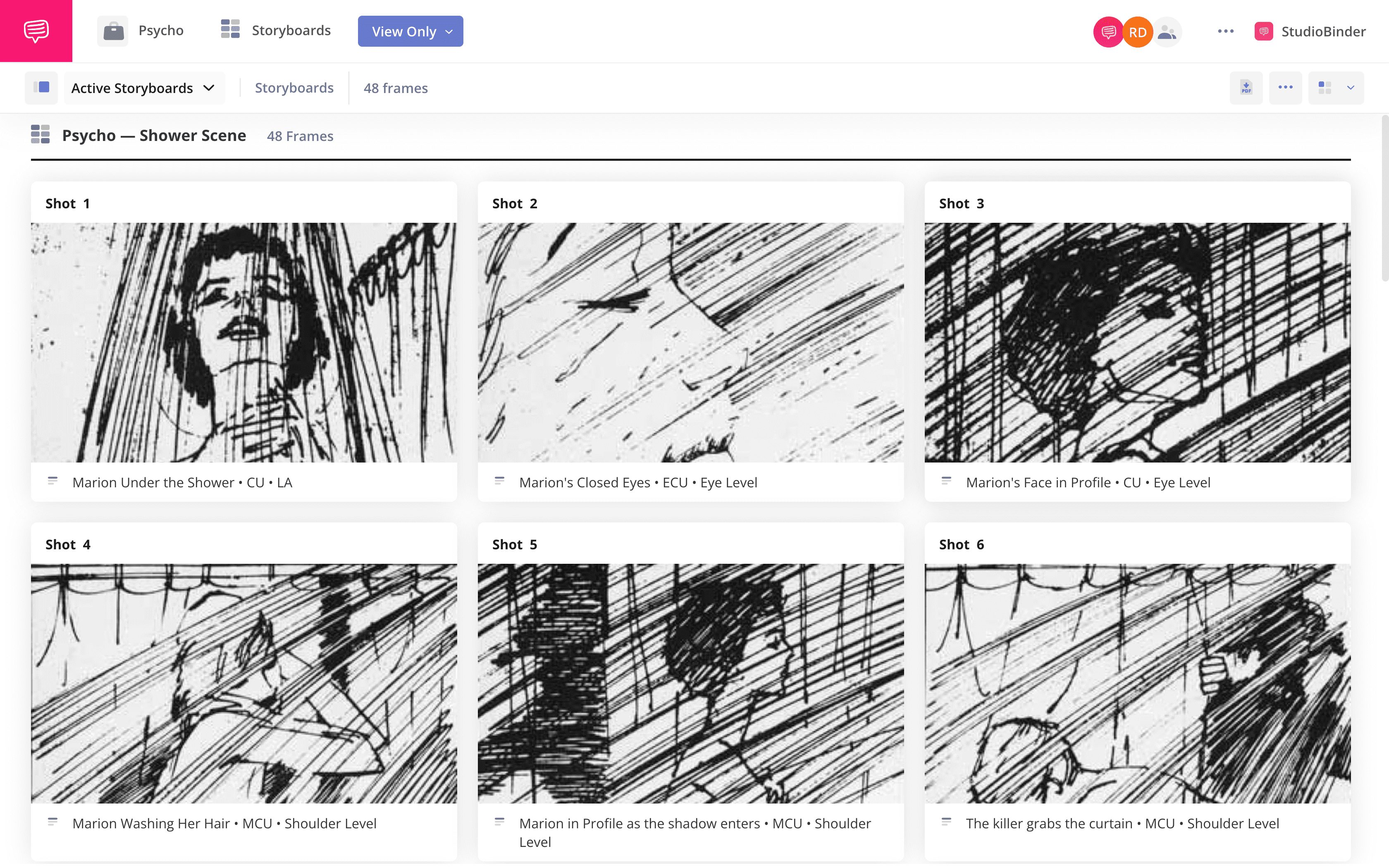
When you’re planning a tutorial video, the first step that often makes the difference between a clear lesson and a confusing mess is the storyboard. Storyboard examples for video tutorials give you a visual roadmap, letting you see the flow, timing, and key visual cues before the camera even rolls. Below is a practical guide that walks you through several real‑world storyboard layouts, explains why each works, and offers tips you can apply to your own projects.
Why a Storyboard Is More Than Just Sketches
Think of a storyboard as the blueprint of a house. It doesn’t look like the finished product, but it shows where each wall, window, and door belongs. In a video tutorial, a storyboard helps you:
- Identify gaps in the narrative before you waste time filming.
- Align narration, on‑screen actions, and visual aids so they reinforce each other.
- Communicate your vision clearly to editors, voice‑over talent, and any collaborators.
Skipping this step often leads to re‑shoots, mismatched audio, or a tutorial that leaves learners hanging.
Common Formats for Tutorial Storyboards
Not every tutorial needs the same visual plan. Choose a format that matches the complexity of your content and the resources you have.
- Linear frame‑by‑frame sheets – Ideal for step‑by‑step software demos where each click is shown in order.
- Columnar outlines – Works well for “talking head” videos that intersperse on‑screen graphics with live narration.
- Branching flowcharts – Perfect for interactive tutorials where viewers may choose different paths (e.g., “Beginner vs. Advanced” tracks).
Example 1: Linear Frame‑by‑Frame for a Photoshop Basics Lesson
In this layout, each row represents a single screen capture or camera shot, and the columns break down the components:
- Shot number – Keeps the sequence organized.
- Visual description – Sketch or placeholder image of the Photoshop window.
- Voice‑over script – Exact wording the narrator will use.
- Timing – Approximate seconds for each action.
- Notes – Callouts for zooms, highlights, or cursor animations.
Seeing the whole flow on paper lets you notice, for instance, that a crucial “Save As” step is missing until you compare the script with the visual column. Adding a quick zoom on the file menu at that point prevents a later stumble during recording.
Example 2: Columnar Outline for a Live‑Action Tech Review
This format splits the screen into two main parts: the presenter’s on‑camera segment and the overlay graphics that will appear later. A typical row might look like this:
- On‑camera cue – “Hold up the new router and point to the LEDs.”
- Graphic placeholder – Simple diagram of LED colors with labels.
- Audio cue – “When the green LED blinks, the connection is stable.”
- Duration – 4–5 seconds.
By aligning spoken words with visual cues in the same row, you avoid the classic “talking over the graphic” problem, ensuring the audience sees the diagram exactly when you mention it.
Example 3: Branching Flowchart for an Interactive Coding Tutorial
When a tutorial offers multiple learning paths, a flowchart storyboard maps each decision point. Picture a node labeled “Choose your language: Python or JavaScript.” From there, arrows split into two parallel tracks, each with its own series of frames.
Key elements for each node:
- Decision text – The on‑screen question or prompt.
- Outcome preview – A thumbnail sketch of what the next segment looks like.
- Duration estimate – Helps you balance the length of each path.
This visual map prevents the dreaded “dead‑end” scenario where one branch ends abruptly because you forgot to script the final wrap‑up.
Tips for Crafting Effective Storyboards
Even the most detailed template can fall flat if you ignore a few best practices.
- Keep sketches simple. Rough boxes and arrows convey structure just as well as polished drawings; the goal is clarity, not artistry.
- Use color coding. Assign a hue to narration, on‑screen actions, and post‑production effects. A quick glance shows you which elements overlap.
- Iterate with collaborators. Share a PDF or an online board (e.g., Miro, Google Slides) early on; feedback from editors often uncovers timing mismatches.
- Include “fallback” frames. If a live demo crashes, note a static screenshot or a brief explanation you can cut in.
- Stay flexible. The storyboard isn’t a contract; treat it as a living document that evolves as you test the tutorial.
Tools That Make Storyboarding Faster
If you prefer digital over pen‑and‑paper, several options cater to different budgets.
- Storyboard That – Drag‑and‑drop scenes with a library of tech icons.
- Google Slides – Free, collaborative, and easy to export as PDF.
- Adobe Illustrator – For high‑fidelity mockups when you need precise UI details.
- Figma – Great for UI‑centric tutorials; you can embed actual component frames directly.
Pick the tool that matches your team’s workflow; the best storyboard is the one people actually use.
Frequently Asked Questions
What level of detail should a storyboard have for a short (2‑minute) tutorial?
For brief videos, a single column of key frames—visual cue, short script, and timing—usually suffices. The focus is on major actions rather than every mouse click.
Can I reuse storyboard templates across different tutorial topics?
Absolutely. The structure (e.g., linear frames or branching nodes) is transferable; you only need to replace the specific screenshots, scripts, and timing notes.
How far in advance should I create the storyboard before filming?
Ideally, finalize the storyboard at least a few days before the shoot. That window gives you time to review, gather assets, and adjust any unrealistic timing estimates.









.jpg?itok=9O-KniX5)

