How to Use a YouTube Music Downloader: The Ultimate Guide
What Is a YouTube Music Downloader?
A YouTube music downloader is a tool that extracts audio from a YouTube video and saves it as a standalone file—usually MP3, AAC, or FLAC. It lets you build a personal library without streaming, which can be handy for offline listening on a commute, a gym session, or a low‑bandwidth trip.
Legal and Ethical Considerations
Before you dive in, it’s worth pausing to think about the law. YouTube’s terms of service generally forbid downloading content unless a download button is provided by the platform itself. In many countries, copying copyrighted music without permission can be considered infringement.
That said, there are legitimate scenarios: royalty‑free tracks, videos released under Creative Commons, or content you own the rights to. When in doubt, check the video description for licensing details or reach out to the creator.
Choosing the Right Downloader
Not all downloaders are created equal. Below are a few criteria to keep in mind when selecting a tool.
- Safety – Avoid installers that bundle adware or malware. Look for reputable sources or open‑source projects with active community reviews.
- Format Support – If you care about lossless audio, pick a downloader that offers FLAC or WAV output.
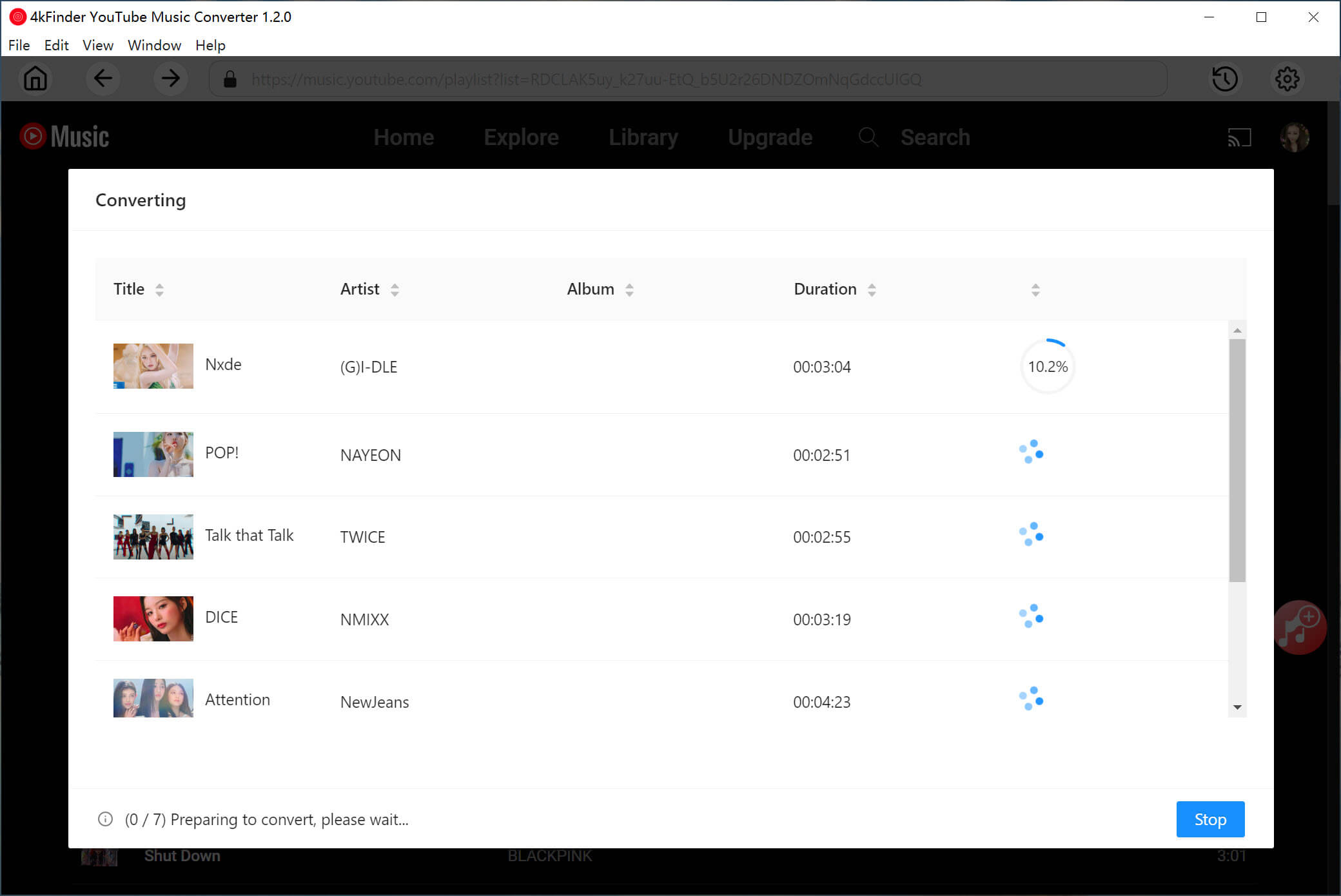
- Batch Processing – For playlists, a bulk‑download feature can save hours of clicking.
- Speed Controls – Some services let you throttle the download rate, which helps if you’re sharing a limited internet connection.
Web‑based options (e.g., ytmp3.cc) are convenient but often come with pop‑ups and limited file size caps. Desktop applications such as 4K Video Downloader, ClipGrab, or open‑source projects like youtube-dl provide more control and typically run faster.
Step‑by‑Step Download Process
Here’s a straightforward workflow using a popular desktop downloader. The steps translate easily to most other programs.
1. Install the Software
Download the installer from the official site, run it, and follow the on‑screen prompts. Most programs offer a portable version that doesn’t require admin rights—handy for shared computers.
2. Copy the YouTube URL
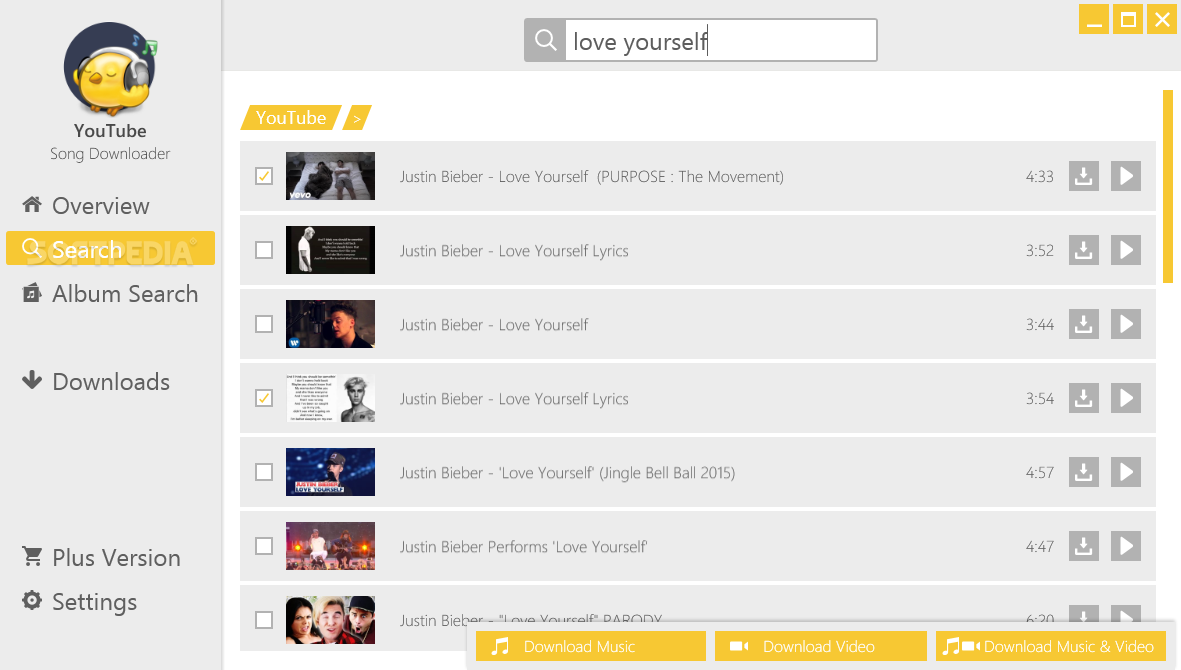
Open YouTube, locate the video you want, and copy the address bar link. For playlists, copying the first video’s URL usually works, as the downloader will detect the full list.
3. Paste and Choose Settings
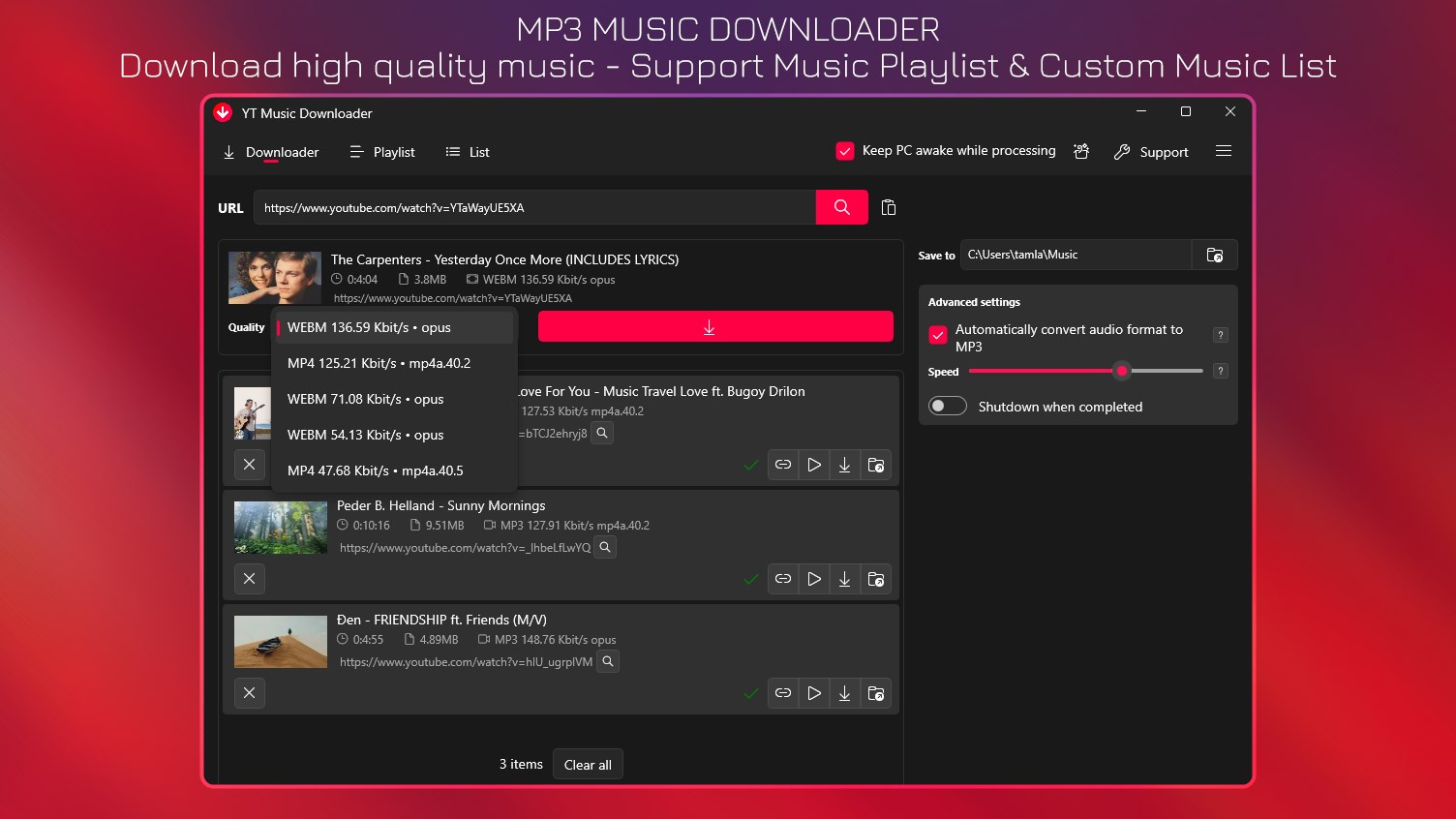
In the downloader’s main window, hit “Paste URL.” A dialog will appear where you can select the output format (MP3 is most universal) and the audio quality—typically ranging from 128 kbps up to 320 kbps or lossless.
4. Start the Download
Click “Download” and watch the progress bar. Most tools create a temporary folder while converting, then move the final file to your chosen music directory.
5. Organize Your Library
Once the file lands on your hard drive, you may want to edit the metadata (artist, album, cover art). Many downloaders embed this information automatically if it’s available from the video description, but a quick check in a tag editor like MP3Tag ensures consistency.
Tips for High‑Quality Audio
Audio quality hinges on three factors: source bitrate, conversion settings, and post‑processing.
- Source bitrate – YouTube offers 128 kbps AAC for most videos, but premium uploads can reach 256 kbps. Look for “HD” or “High‑resolution audio” tags in the video description.
- Conversion settings – When possible, select “Best” or “320 kbps MP3.” Some tools let you preserve the original AAC stream without re‑encoding, which avoids quality loss.
- Post‑processing – Normalizing volume levels across tracks prevents one song from blasting louder than the next. Free utilities like Audacity can batch‑normalize a folder in minutes.
Finally, store your files on an SSD or a reliable external drive. A corrupted library is a nightmare you can avoid with regular backups.
Alternatives to Downloading
If you’re uneasy about the legal gray area, consider subscription services that already provide offline playback—Spotify, Apple Music, or YouTube Music itself. They handle licensing, offer curated playlists, and often deliver higher fidelity streams.
Another option is to explore platforms that host royalty‑free music, such as Free Music Archive or Jamendo. Those sites let you download tracks directly, sidestepping the need for a third‑party downloader.
Frequently Asked Questions
Can I download an entire YouTube playlist with one click?
Yes, most desktop downloaders detect playlists automatically and let you choose “Download All” or “Select Specific Tracks.” Web services may limit batch size, so a desktop app is usually smoother for large collections.
Is it safe to use free online converters?
Free converters work, but they often display intrusive ads or request unnecessary permissions. Stick to reputable sites, keep your antivirus active, and avoid any tool that asks for your personal data.
Do I need to convert the audio after downloading?
Not if you chose the desired format during the download step. However, if you end up with an AAC file but prefer MP3, a quick conversion in a program like VLC or FFmpeg will do the trick.
Will downloading affect my internet bandwidth?
Downloading audio uses far less bandwidth than video—typically a few megabytes per song. Still, if you have a capped data plan, batch downloading overnight when you’re not streaming can keep usage predictable.