How to Unlock Voice Chat in PUBG Mobile – A Complete Guide
Why Voice Chat Matters in PUBG Mobile
Playing PUBG Mobile without hearing your teammates can feel like navigating a battlefield blindfolded. Voice chat lets you call out enemy positions, coordinate flanks, and celebrate a hard‑won victory in real time. That immediacy is why many players scramble to enable the feature as soon as they start a new season.
Prerequisites Before You Dive In
Not every account can flip the switch right away. Here’s what you typically need:
- A game account that is at least level 10 – the system uses early levels to prevent abuse.
- Device‑wide microphone permission granted to PUBG Mobile.
- An internet connection that isn’t restricted by regional bans (some countries block in‑game voice services).
If any of these boxes are unchecked, the voice chat toggle will stay grayed out.
Step‑by‑Step: Enabling Voice Chat
Follow these steps, and you should be chatting with your squad in under two minutes.
- Launch PUBG Mobile and tap the Settings icon in the bottom right corner.
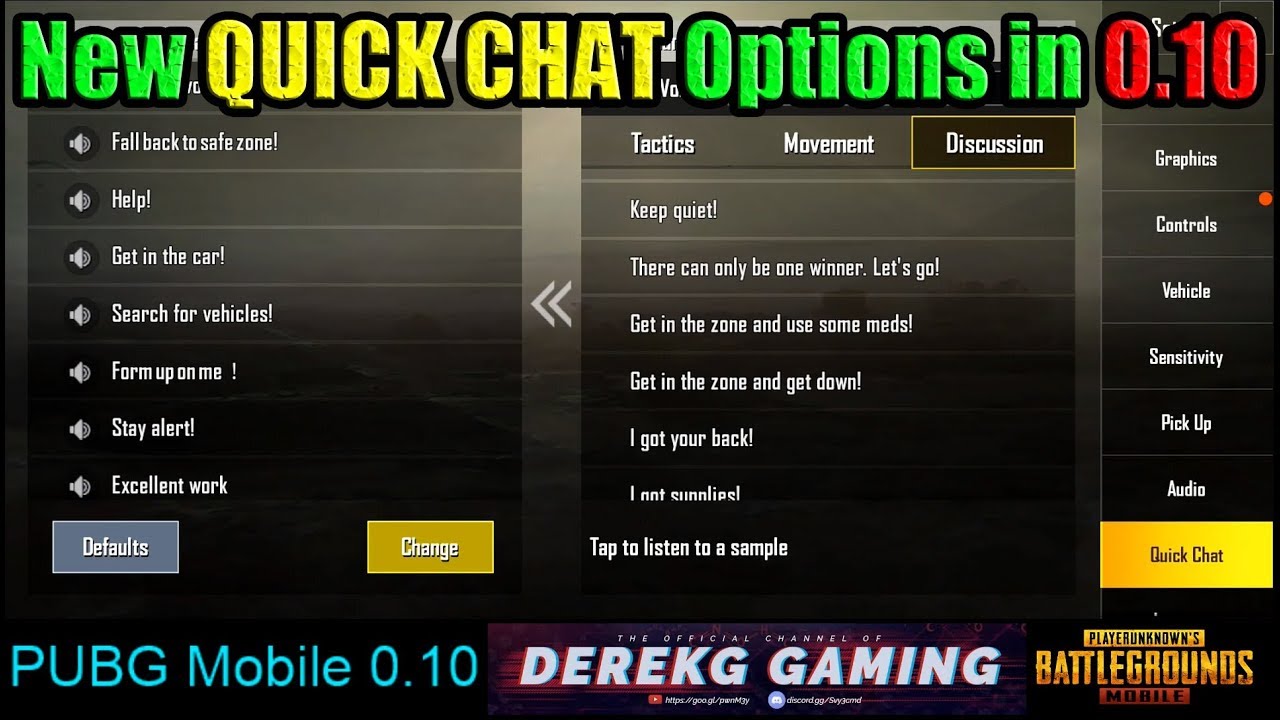
- Select the Audio tab – it looks like a speaker.
- Find the Voice Chat option and toggle it to On. If the switch is inactive, revisit the prerequisites.
- Choose your preferred language from the drop‑down menu. The game supports English, Mandarin, Korean, and several others.
- Confirm that your phone’s microphone is active: go to your device’s Settings → Apps → PUBG Mobile → Permissions, and ensure “Microphone” is allowed.
- Return to the main lobby, join a squad or duo match, and press the microphone icon on the in‑game HUD to start speaking.
That’s it. Most players notice the change the moment they enter a match.
Troubleshooting Common Hurdles
Even after following the steps, you might encounter silence. Below are the most frequent roadblocks and how to clear them.
1. Voice Chat Still Greyed Out
Double‑check your account level. Some servers enforce a higher threshold for voice privileges during special events. If you’re below the required level, keep playing and the option will unlock automatically.
2. No Audio Even When Enabled
Make sure your headset or phone speaker isn’t muted. Also, verify that the “Push‑to‑Talk” setting isn’t set to an unintentionally high sensitivity – lower it in the same Audio menu.
3. Laggy or Distorted Voices
Voice quality is tied to your network latency. Switch from mobile data to a stable Wi‑Fi connection if possible, and close background apps that might hog bandwidth.
4. Regional Restrictions
In some areas, the voice service is routed through third‑party servers that may be blocked. Using a reputable VPN can bypass the restriction, but be aware that PUBG Mobile’s terms prohibit cheating‑related VPN use.
Best Practices for Clear Communication
Good voice etiquette can make the difference between a coordinated win and a chaotic loss.
- Use a headset. Built‑in phone mics pick up a lot of ambient noise, especially during explosions.
- Keep messages short. “Enemy at B‑tower!” is more effective than a long story about your last match.
- Mute when not speaking. This prevents background chatter from drowning out crucial callouts.
- Test before a match. The game offers a quick mic test in the Audio settings – use it to confirm volume levels.
When Voice Chat Isn’t the Right Choice
Some players prefer text chat or the in‑game ping system. If you’re in a noisy environment, typing can be less disruptive. PUBG Mobile also supports a “Push‑to‑Talk” mode that only activates your mic when you hold a button, reducing accidental transmission.
FAQ
Can I use voice chat on a tablet?
Yes. The same steps apply; just make sure your tablet’s microphone permission is enabled in the OS settings.
Is voice chat available in all PUBG Mobile regions?
Most regions support it, but a handful of countries have local regulations that disable the feature. Check the in‑game notice board for region‑specific alerts.
Do I need a strong internet connection for voice chat?
A stable 3G/4G connection usually suffices, but high latency can cause delays. Wi‑Fi or 5G offers the smoothest experience.
What if my teammates can’t hear me?
Ask them to check their own volume settings and ensure they haven’t muted your voice. You may also need to restart the game to reset the audio engine.