How to Unlock and Make the Most of Your Google Maps Timeline
Ever wondered where your phone thinks you’ve been all day? Google Maps Timeline silently records the places you visit, the routes you take, and even the mode of transport you choose. By unveiling this hidden log, you gain a personal travel diary, a tool for trip planning, and a way to spot privacy gaps. Below we walk through how to access the timeline, interpret its data, and use it wisely.
Finding Your Timeline on Desktop and Mobile
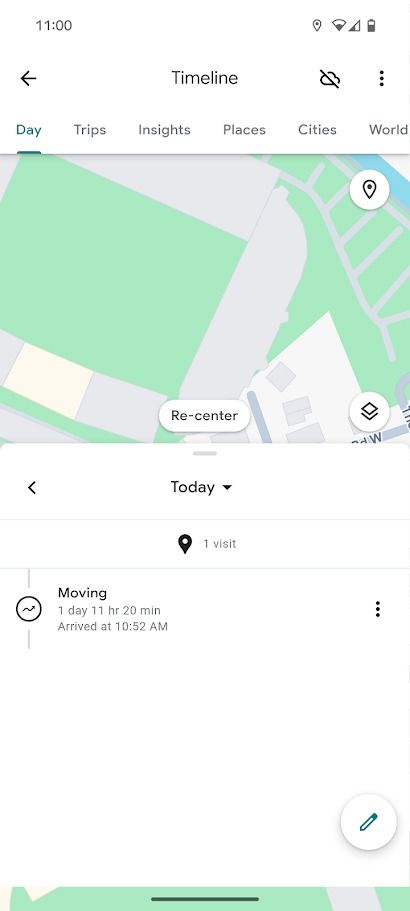
On a computer, head to maps.google.com, click the menu (three horizontal lines) and select “Your timeline.” The web version shows a calendar view on the left and a map on the right. On Android, open the Google Maps app, tap your profile picture, then “Your timeline.” iOS users get the same option under the profile menu. Both platforms require you to be signed in with the Google account that collected the data.
Understanding the Core Elements of the Timeline
The timeline is built from three main pillars: places visited, travel routes, and transport modes. A pin on the map marks each stop, while a line traces your movement between them. Google infers how you traveled—car, walking, cycling, or public transit—by blending GPS, Wi‑Fi, and cell tower signals. Occasionally, the app will label a location as “Approximate” if the signal was weak.
Places: What Shows Up and Why
Every location you pause at for a few minutes appears as a place entry. Restaurants, shops, parks, and even the corner of a street can make the list. Google tries to name the spot using its massive places database, but you can tap “Edit” to rename it or add a note, like “Meeting with Alex.” This flexibility turns a raw data dump into a meaningful journal.
Routes: Visualizing Your Day
The route line connects the dots, color‑coded by transport mode—blue for driving, green for walking, orange for biking, and purple for transit. Hovering over a segment reveals start and end times, distance, and estimated speed. If you’ve taken a train, the timeline may also display the line name and station stops.
Privacy Settings: Controlling What’s Recorded
While the timeline offers convenience, it also raises privacy questions. Google stores your location history in the cloud, linked to your Google account. You can pause or delete the entire history from the same “Your timeline” menu, or fine‑tune the settings by visiting Google Account → Data & privacy → Location History. Turning off “Location History” stops future tracking, but existing data remains until you manually erase it.
Practical Uses for Your Timeline
Beyond curiosity, the timeline serves real‑world purposes. Here are a few ways to put it to work:
- Trip recap: Relive a vacation by scrolling through the days and seeing every landmark you visited.
- Expense tracking: Pair the timeline with receipts to verify mileage for business reimbursements.
- Safety checks: In emergencies, you can share a location snapshot with first responders.
- Fitness insights: Spot patterns in walking or cycling routes to set new health goals.
Editing and Adding Details to Your Timeline
Sometimes Google gets it wrong—perhaps it labeled a coffee shop as a “restaurant” or missed a brief stop. To correct this, tap the entry, choose “Edit,” then adjust the name, add a note, or delete the point entirely. You can also add a manual entry by tapping the plus sign (+) on the calendar view, which is handy for locations where GPS was off, like a remote hiking trail.
Exporting Your Timeline Data
If you want a permanent record, Google lets you download the raw location data through Google Takeout. Select “Location History” and choose the file format (KML or JSON). The exported file can be imported into mapping software, fed into a personal analytics dashboard, or simply archived for future reference.
Common Misconceptions About the Timeline
Many users assume the timeline is 100 % accurate, but signal loss, battery‑saving modes, or device settings can create gaps. Likewise, turning off Wi‑Fi or Bluetooth does not stop GPS from logging; it only reduces precision. Understanding these nuances helps you interpret the data without over‑trusting it.
Tips for Getting the Most Out of Your Timeline
Here are a few habits that make the timeline a more valuable companion:
- Keep your device’s location services on while you’re traveling, but enable “Battery Saver” mode only when you’re stationary.
- Regularly review the timeline—once a week is enough—to catch any mislabelled places early.
- Use the “Add a note” feature for memorable moments; those notes show up in the calendar view for quick recall.
- Combine timeline data with Google Photos’ location tags to build a richer visual diary.
When to Delete or Pause Your Timeline
There are legitimate reasons to pause or erase your location history. If you’re sharing a device, disabling the feature protects the other user’s privacy. Likewise, during periods of heightened security concerns—such as traveling to a region with strict surveillance laws—it may be prudent to turn off tracking. Remember that pausing is reversible; you can reactivate it at any time.
FAQ
Can I view my Timeline without an internet connection?
No. The timeline data lives in Google’s cloud, so you need an internet connection to load it. However, the device’s local location logs remain on the phone and can be accessed via third‑party apps that read raw GPS files.
How far back does Google store my Timeline data?
As long as you keep “Location History” enabled, Google retains the data indefinitely. You can delete specific days or the entire history at any point.
Is my Timeline shared with anyone else?
Only you and anyone you explicitly grant access to through Google account sharing can see it. Google does not publicize the timeline, but it may use aggregated, anonymized data for its own services.
Does the Timeline work on iOS?
Yes. The iOS version of Google Maps includes the same “Your timeline” feature, though some background location permissions work slightly differently compared to Android.