How to Transform Video Scenes with an AI Background Changer
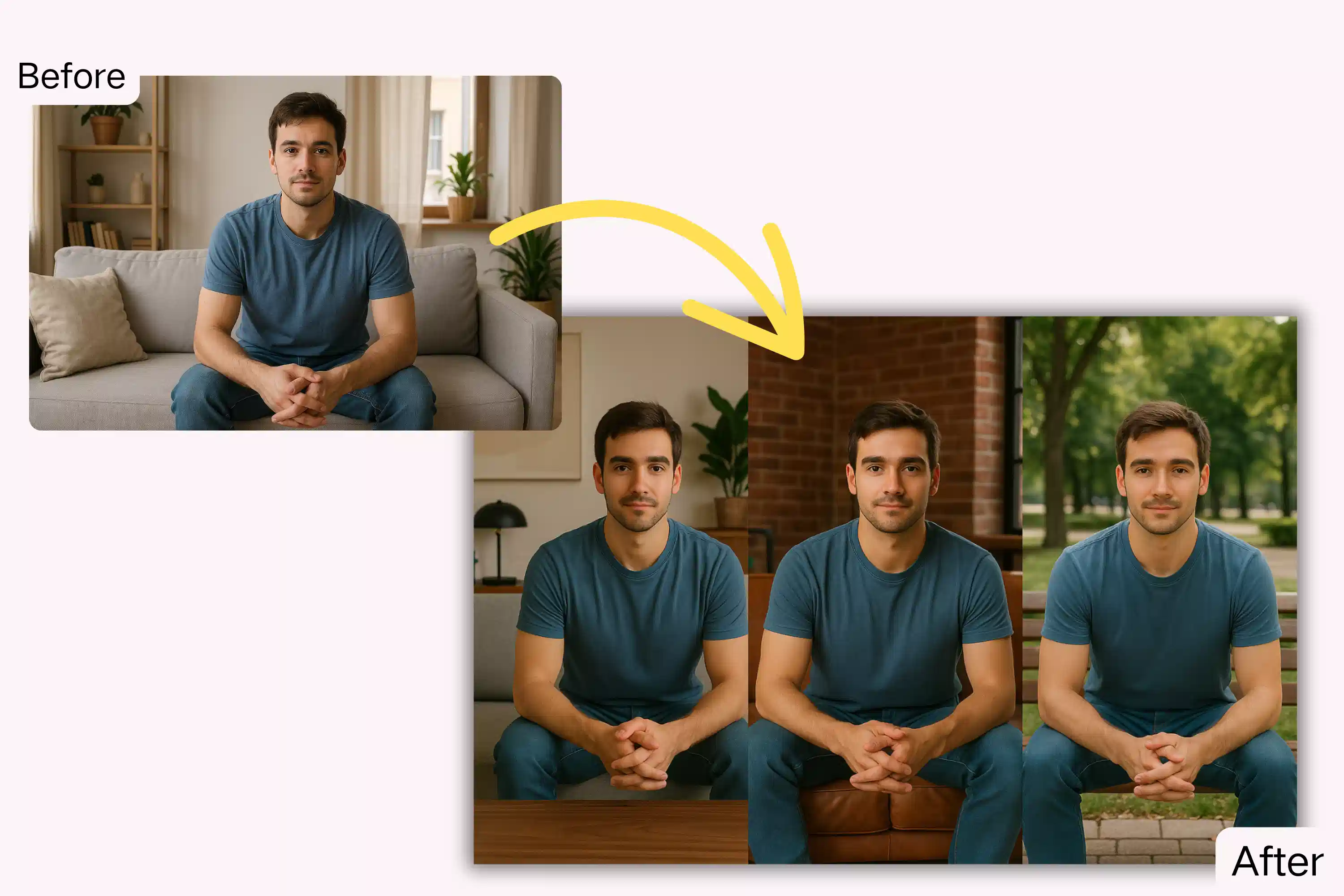
Ever filmed a clip only to realize the backdrop doesn’t match the story you want to tell? An AI video background changer can swap out that unwanted setting in a matter of minutes, letting you keep the footage you already have. The technology bridges the gap between raw capture and polished production without the need for expensive greenscreens.
What Is an AI Video Background Changer?
At its core, an AI video background changer is software that isolates the foreground—people, objects, or action—and replaces the surrounding environment with a new image or video. Unlike traditional rotoscoping, which demands frame‑by‑frame manual work, the AI leverages machine‑learning models trained on millions of visual examples to predict edges and motion automatically.
Because the algorithm learns how subjects move and how light behaves, the result feels natural, even when the camera pans or the subject walks across the frame. The tool is typically offered as a cloud service or a desktop app, and most solutions support popular formats like MP4, MOV, and even 4K streams.
How the Technology Works Behind the Scenes
The magic starts with a deep‑learning network called a segmentation model. This model analyzes each pixel, deciding whether it belongs to the foreground or the background. Modern versions use a combination of convolutional layers and attention mechanisms to maintain consistency across consecutive frames.
Once the foreground mask is generated, a second stage—often a generative adversarial network (GAN)—fills in the newly exposed background area. The GAN learns to synthesize realistic textures, shadows, and depth cues so the inserted scenery blends seamlessly with the original lighting.
Some platforms also incorporate motion‑vector analysis, which helps preserve motion blur and ensures that fast‑moving subjects don’t leave ghostly outlines. The end‑to‑end pipeline runs in real time on a decent GPU, meaning you can preview changes instantly.
Practical Benefits for Creators and Marketers
For content creators, the biggest win is flexibility. Need a city skyline for a vlog but shot in a living room? Swap it out without rescheduling a shoot. Marketers gain a cost‑effective way to localize ads—simply replace a storefront with a region‑specific background, keeping the core footage identical.
- Speed: What once took days of post‑production can now be done in minutes.
- Budget friendliness: No need to rent studios or hire a crew for background plates.
- Creative freedom: Experiment with fantastical settings—think space stations or tropical beaches—without ever leaving your desk.
Because the process is non‑destructive, you can always revert to the original clip, test multiple backgrounds, and decide which one resonates best with your audience.
Step‑by‑Step Guide to Using a Background Changer
Below is a typical workflow that works across most AI‑powered tools:
- Import your footage. Drag the video file into the app’s timeline; most platforms accept drag‑and‑drop.
- Select the subject. The AI usually auto‑detects the foreground. If it misses a detail, use the brush tool to fine‑tune the mask.
- Choose a new backdrop. Upload an image, pick from a built‑in library, or even import another video clip.
- Adjust lighting and color. Use the built‑in color‑match feature to harmonize the foreground with the new scene.
- Render and export. Export in the desired resolution; many services offer a one‑click “export for social media” preset.
Most tools also let you save the mask as a separate file, which can be handy if you want to apply the same foreground to multiple backgrounds later.
Choosing the Right Tool for Your Needs
Not all AI video background changers are created equal. If you need high‑resolution output for broadcast, look for a solution that supports 4K and offers a professional license. For casual YouTubers, a browser‑based option with a free tier may be sufficient.
Key criteria to compare include:
- Accuracy of segmentation. Test with a short clip; a good model should retain hair strands and thin objects.
- Processing speed. Real‑time preview can dramatically speed up the editing loop.
- Export options. Support for alpha channels, HDR, and various codecs adds flexibility.
- Pricing model. Subscription plans are common, but some providers charge per minute of processed video.
Reading user reviews and trying out free trials can reveal how well a platform handles edge cases like low‑light scenes or crowded backgrounds.
FAQ
Can I use an AI video background changer on a smartphone? Many services offer mobile apps or web portals that work on modern phones, though processing speed may be slower than on a desktop GPU.
Do I need a green screen for the AI to work? No. The AI’s segmentation model is designed to work on ordinary footage, eliminating the need for a physical backdrop.
Is the replaced background copyrighted? Always ensure you have the rights to any image or video you import as a new background. Some tools provide royalty‑free libraries to simplify compliance.
Will the AI affect the audio track? The background changer only manipulates visual data; the original audio remains untouched unless you edit it separately.