How to Schedule Email Sending in Outlook: Easy Step‑by‑Step Guide
Ever needed a message to land in someone’s inbox at just the right moment? Outlook lets you set a future delivery time, so you can compose now and let the program handle the rest. This feature—schedule email sending in Outlook—works whether you’re on the desktop client or the web version, and it only takes a few clicks.
Why Schedule Emails in Outlook?
Timing can be strategic. Sending a proposal late on a Friday might get buried, while a morning dispatch on a Tuesday often sees higher open rates. Scheduling also helps you respect different time zones without waking up at odd hours. And for busy days, you can draft replies in advance, ensuring they go out while you’re still focused on other tasks.
Step‑by‑Step: Setting Up a Delayed Send on the Desktop Client
Outlook’s desktop app (Office 365, 2019, 2016) includes a built‑in delay option. Follow these actions, and you’ll have a queued email ready to fire at your chosen time.
- Compose your message. Open a new email, add recipients, subject, and body just as you normally would.
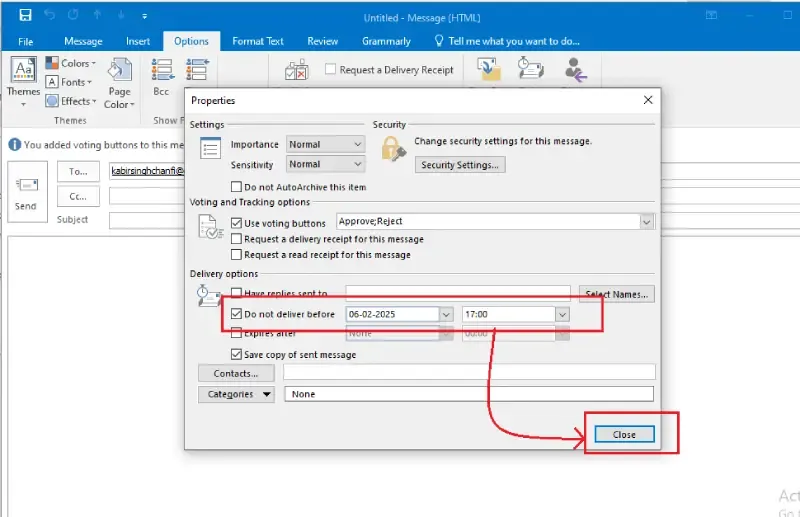
- Find the delay feature. Click the Options tab, then select Delay Delivery from the ribbon. A small dialog box appears.
- Set the delivery time. In the dialog, check “Do not deliver before” and choose the date and hour you prefer. Outlook will hold the email until that timestamp.
- Close the dialog and send. After confirming the time, hit Send. The message disappears from your Outbox, but you’ll see a copy in the Outbox folder until the scheduled moment arrives.
If you need to adjust the timing later, simply open the email from the Outbox, revisit Delay Delivery, and edit the fields.
Scheduling Emails in Outlook on the Web (OWA)
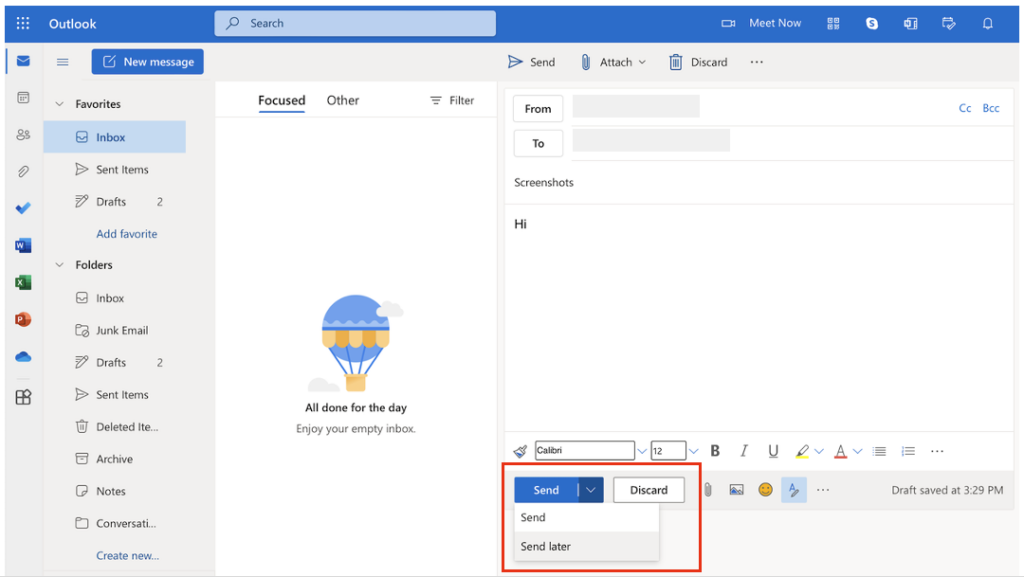
Many users rely on the browser‑based Outlook experience, especially when they’re away from their main workstation. The web app offers a streamlined “Send later” button that mirrors the desktop’s capabilities.
- Start a new email and fill in the usual details.
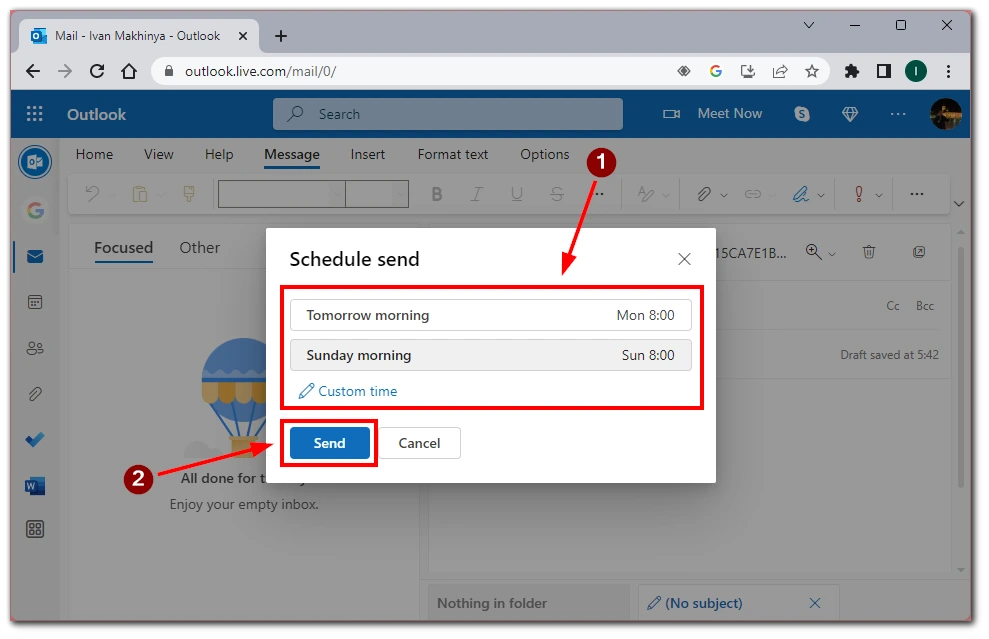
- Click the down‑arrow next to the Send button and choose Send later.
- A calendar pops up; pick the desired date and time, then confirm.
- The message moves to the Drafts folder with a tiny clock icon, indicating its pending status.
When the clock strikes, Outlook on the Web automatically dispatches the message, even if you’ve closed the browser—provided your device stays connected to the internet.
Tips for Reliable Scheduling
Even though Outlook handles the heavy lifting, a few habits can keep things smooth:
- Keep Outlook open. For the desktop client, the program must be running at the scheduled time. If you shut down your computer, the email will wait until the next launch.
- Check your time zone. Outlook uses the system clock, so make sure your computer’s time zone matches where you intend the email to be sent.
- Use the “Delay Delivery” rule for recurring needs. You can create a rule that automatically delays all outgoing messages by a set amount—handy for teams that want a uniform buffer period.
- Watch out for large attachments. If an attachment exceeds Outlook’s size limit, the message may stay in the Outbox indefinitely, never reaching the scheduled slot.
Common Mistakes and How to Avoid Them
Scheduling sounds simple, but users sometimes run into snags. Here’s what to look out for:
- Leaving Outlook closed. As mentioned, the desktop client must stay active. If you often power down at night, consider using Outlook on the Web for overnight sends.
- Mismatched calendars. If you sync Outlook with a third‑party calendar (Google, iCal), double‑check that the scheduled time hasn’t shifted due to sync delays.
- Forgetting to remove the delay. When editing a delayed email, the “Do not deliver before” box may stay checked, sending the message later than you intended. Clear the box before resending.
When to Use Scheduling vs. Drafts
Both options let you prepare messages ahead of time, but they serve different purposes. Drafts are perfect for “work‑in‑progress” emails you plan to finish later. Scheduling, on the other hand, is ideal when the content is ready and you only need to control the exact moment it leaves your outbox. If you’re coordinating a product launch across time zones, a scheduled send guarantees uniform delivery.
FAQ
Can I schedule recurring emails in Outlook?
Outlook doesn’t have a native recurring‑email feature, but you can combine a template with a delayed‑delivery rule to approximate the effect. For truly recurring messages, a small VBA script or third‑party add‑in may be necessary.
What happens if my computer’s clock is wrong?
Outlook trusts the system clock. If it’s off by even a few minutes, your email may fire early or late. Sync your computer’s time automatically via internet time servers to stay accurate.
Is there a limit to how far ahead I can schedule?
Practically, Outlook lets you pick any future date, but extremely distant dates (years ahead) can be cumbersome to manage. Most users find a window of a few weeks sufficient for planning.
Will scheduled emails appear in the recipient’s “Sent” folder?
No. Recipients see the email as if it arrived at the scheduled time; the “Sent” label belongs to the sender’s Outlook and shows the actual send timestamp.