How to Reset Wi‑Fi on Your JVC Smart TV (Step‑by‑Step)
Why a Wi‑Fi Reset Might Be Needed
If your JVC Smart TV keeps buffering, drops the connection, or refuses to find your home network, a Wi‑Fi reset is often the quickest fix. Over time the TV’s network cache can become corrupted, especially after a router firmware update or when you move the TV to a different room. Rather than diving into complex troubleshooting, clearing the TV’s network settings gives it a fresh start and usually restores a stable connection.
Gathering What You’ll Need
Before you head into the menu, make sure you have the TV remote (or a compatible smartphone remote app) and your Wi‑Fi password handy. If you’ve recently changed the SSID or password, you’ll need the new details for the re‑pairing step. A quick glance at the router’s label can save you a trip to the modem room later.
Locate the Settings Menu
Turn the TV on and press the Home button on the remote. From the home screen, navigate to the gear‑shaped Settings icon—usually found in the upper right corner. If you’re using a smartphone remote, tap the three‑dot menu and choose “Settings.”
Find the Network Section
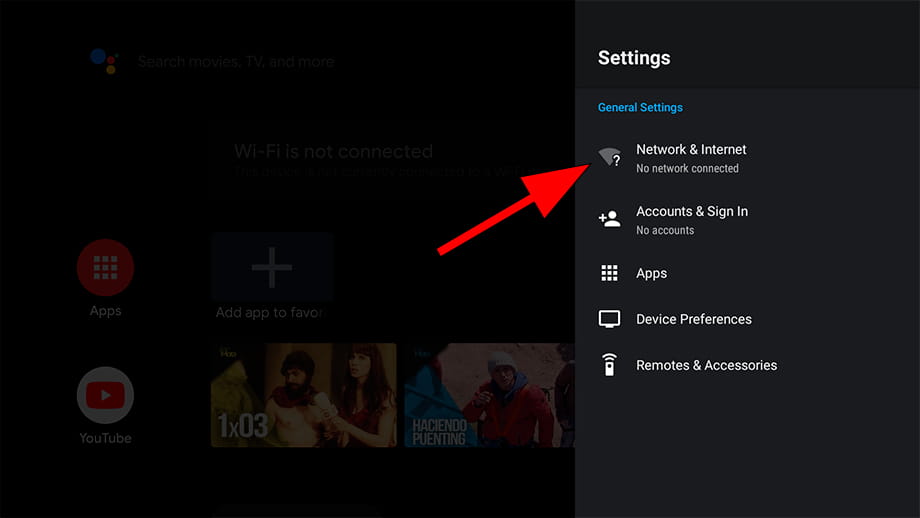
Inside Settings, scroll down to Network. On most JVC models this is the fourth or fifth option, labeled “Network & Internet.” Selecting it opens a sub‑menu where you’ll see the current connection status, IP address, and a Wi‑Fi toggle.
Executing the Reset
There are two common ways to reset the Wi‑Fi on a JVC Smart TV. Choose the method that matches how deep you want to go.
- Simple network toggle: Turn the Wi‑Fi off, wait about ten seconds, then turn it back on. This forces the TV to drop the existing session and request a fresh handshake from your router.
- Full network settings reset: This clears all saved networks, IP configurations, and DNS entries. It’s helpful if the toggle alone doesn’t solve the problem.
Step‑by‑Step for a Full Reset
1. In the Network menu, select Advanced Settings.
2. Look for an option called Reset Network Settings or Factory Network Reset.
3. Confirm the prompt—your TV will briefly reboot and the network screen will return to its initial “search for Wi‑Fi” state.
4. Choose your home network from the list, enter the password, and hit Connect.
After the TV restarts, you should see a “Connected” status with a signal strength indicator. If the connection still fails, move on to the troubleshooting section below.
After the Reset: Reconnect and Test
Once you’ve re‑entered your Wi‑Fi credentials, open a streaming app—YouTube, Netflix, or any built‑in service—to verify playback runs smoothly. A quick test of a 4K video for a minute or two will reveal whether the reset resolved buffering or drop‑outs. If the picture freezes again, double‑check that your router isn’t overloaded with too many devices.
Troubleshooting Common Issues
Signal strength appears low. Try repositioning the router or using a Wi‑Fi extender. JVC TVs have decent antennas but can struggle with thick walls or metal furniture.
The TV can’t see the network. Make sure the router’s broadcast band (2.4 GHz or 5 GHz) is enabled. Some older JVC models only support 2.4 GHz, so you may need to switch the router temporarily.
Repeated disconnections after a reset. Power‑cycle the router: unplug it for 30 seconds, plug it back in, and wait for the lights to stabilize before reconnecting the TV.
FAQ
- Can I reset Wi‑Fi without the remote? Yes. Most JVC TVs let you use the physical buttons on the side or bottom panel to access the Settings menu. Hold the Menu button for a few seconds, then navigate with the volume arrows.
- Will resetting Wi‑Fi delete my installed apps? No. A network reset only clears connectivity data. Your apps, login information, and picture settings remain untouched.
- Do I need to update the TV’s firmware after a network reset? It’s not required, but if you’re consistently having connection problems, checking for a firmware update in Settings → System → Software Update can help.
- Is a factory reset the same as a network reset? Not quite. A factory reset erases all personal settings, returning the TV to its original out‑of‑the‑box state. A network reset targets only the Wi‑Fi configuration.