How to Register a Custom URL Scheme in iOS (Quick Guide)
If you’ve ever wanted your app to open directly from a web link, an email, or another app, you’ll need to register a custom URL scheme in iOS. This lightweight mechanism lets developers define their own protocol—think myapp://—so the system knows which app should respond when the URL is tapped. In the next few minutes you’ll see why it matters, what you need beforehand, and exactly how to set it up without hunting through obscure documentation.
Understanding Custom URL Schemes
A custom URL scheme is simply a string that precedes the colon in a URL, replacing the usual http or https. When iOS encounters a URL like myapp://profile/123, it looks through the installed apps’ Info.plist files for a matching scheme. If it finds one, the system launches that app and passes the rest of the URL as data. This makes deep linking—jumping straight to a specific screen—possible even before Universal Links became the standard.
Why Use a Custom Scheme?
- Fast prototyping: No need for server‑side association files.
- Works on older iOS versions where Universal Links aren’t supported.
- Great for internal tools, test builds, or apps that primarily operate in a closed ecosystem.
That said, custom schemes are public by nature; any app can claim the same identifier, so they’re best suited for non‑public or tightly controlled scenarios.
Prerequisites
- Xcode installed (any recent version will do).
- A basic iOS project—preferably a fresh single‑view app for clarity.
- A unique scheme name that doesn’t clash with popular apps (e.g., avoid fb:// unless you’re Facebook).
Having these items ready will keep the process smooth and prevent the dreaded “URL scheme already in use” warning.
Step‑by‑Step: Registering the Scheme
1. Open the project’s Info.plist
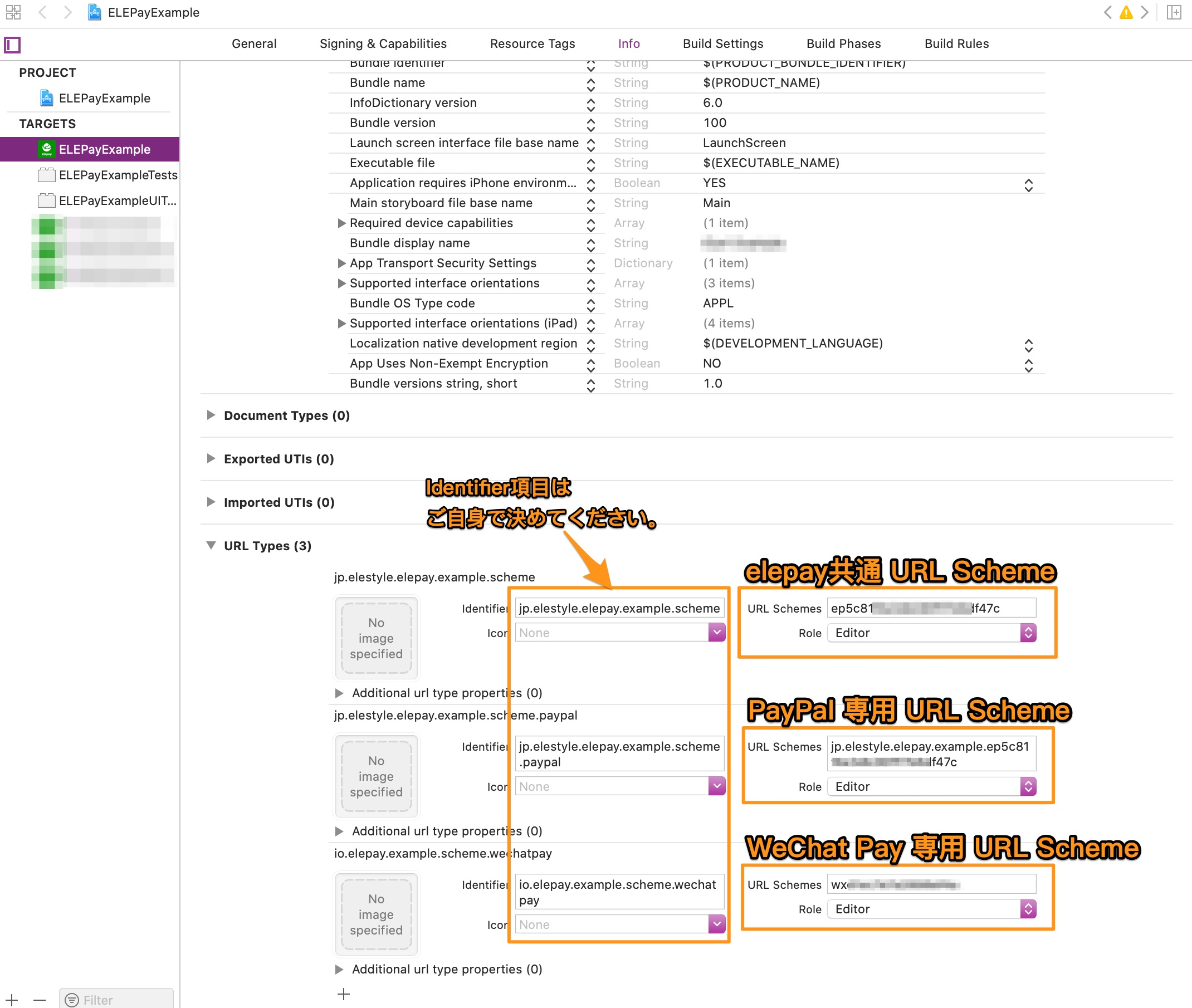
In Xcode’s Project Navigator, click the Info tab. You’ll see a list of property keys; scroll down until you find URL Types. If it’s not there, click the + button at the bottom and select URL Types from the dropdown.
2. Add a new URL type entry
- Click the small + next to URL Types to create a new dictionary.
- In the Identifier field, type a reverse‑DNS string that identifies your app, such as com.mycompany.myapp. This isn’t the scheme itself, but a unique key for the entry.
- Under URL Schemes, add another + and type the actual scheme you want, for example myapp. Do not include the colon or slashes.
3. (Optional) Specify role and icon
If your app will both open URLs and be opened by them, set the Role to Editor. You can also provide a small icon that appears in the Settings > Apps list, though most developers skip this step.
4. Save and rebuild
After you’ve entered the scheme, hit ⌘B to build the project. Xcode writes the new entries into the compiled Info.plist, and the system now recognises myapp:// as a valid address for your app.
Testing Your New Scheme
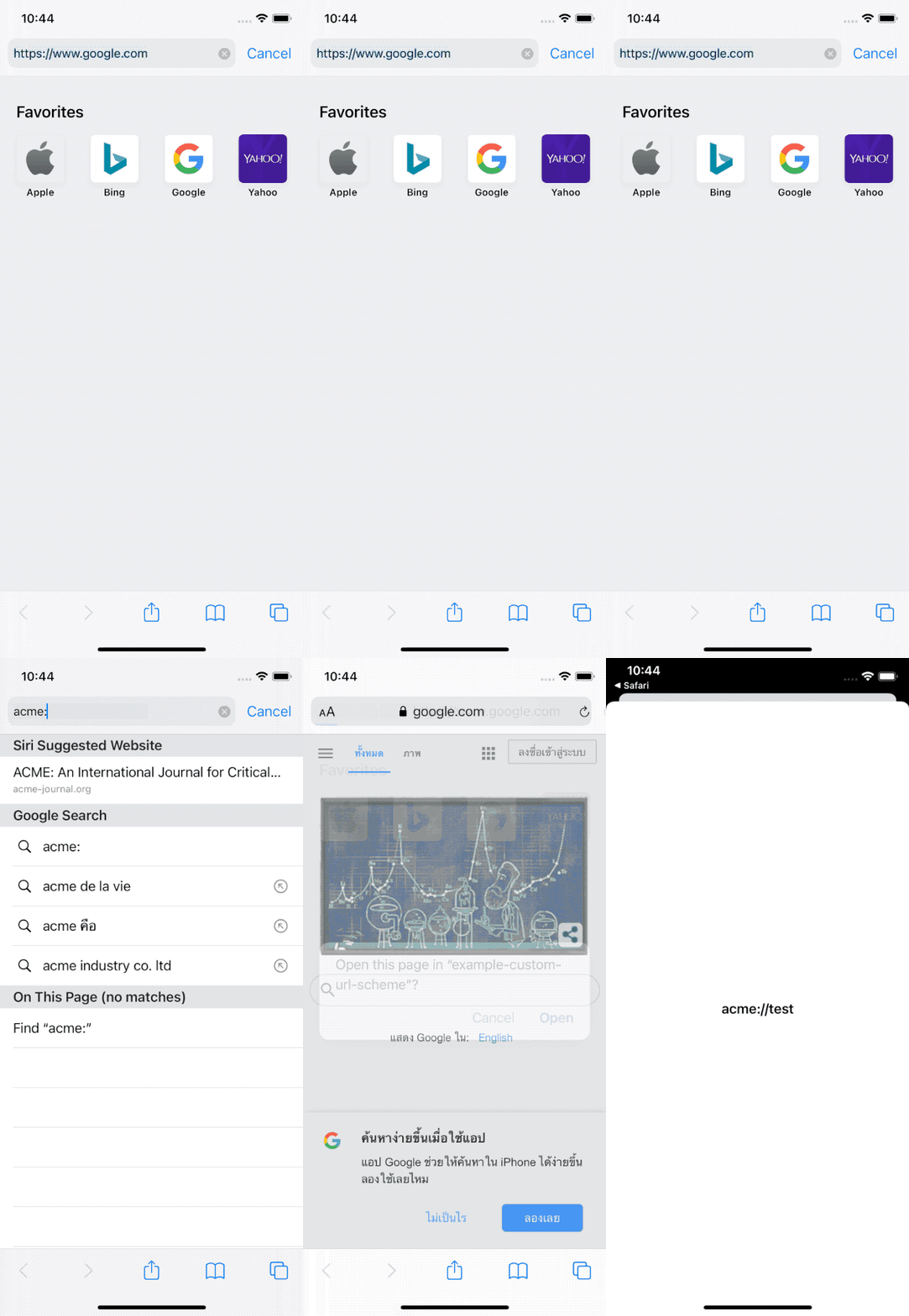
The quickest way to verify the registration is to use Safari’s address bar. Type myapp:// (or add a path like myapp://test) and hit Go. If everything is set up correctly, iOS will pop up a prompt asking whether to open your app. For a more programmatic test, add the following Swift snippet to a button action:
if let url = URL(string: "myapp://demo") { UIApplication.shared.open(url) }
Running the app and tapping the button should bring you back to the same view, confirming that the URL was parsed and delivered.
Common Pitfalls and How to Avoid Them
- Scheme collisions: Two apps using the same scheme cause unpredictable behaviour. Always check the App Store or run a quick search before finalising your name.
- Missing colon: The scheme entry must be just the word (e.g., myapp), not myapp://. Adding the colon leads to a silent failure where the system ignores the entry.
- Case sensitivity: iOS treats schemes as case‑insensitive, but it’s good practice to pick a consistent lower‑case style to avoid confusion in logs.
- Universal Links overriding: If you later adopt Universal Links for the same domain, iOS will prefer the universal link over the custom scheme. Plan your deep‑linking strategy accordingly.
When to Choose Custom Schemes Over Universal Links
If your audience is strictly internal, or you need a rapid prototype that works on iOS 9 and earlier, custom schemes still shine. However, for public‑facing apps that require a seamless handoff from a website to the native experience, Universal Links provide a more secure, Apple‑approved pathway.
FAQ
Can I register multiple custom schemes for the same app?
Yes. Add additional strings under the same URL Schemes array. This is handy when you want a short alias (e.g., my) alongside a more descriptive one (e.g., myapp).
Do custom schemes work in the iOS simulator?
Absolutely. The simulator respects the same Info.plist entries as a physical device, so you can test without a real phone.
Is there a limit to how many characters a scheme can have?
Apple doesn’t publish an explicit maximum, but keeping it under 20 characters avoids accidental truncation in logs and makes the URL easier to type.
Will registering a scheme affect my app’s App Store review?
Not normally. As long as the scheme isn’t used for deceptive routing or privacy‑violating data transfer, Apple’s guidelines consider it a standard feature.