How to Quickly Resolve No Sound on Voice Chat
Nothing’s more frustrating than a lagging game or a tense video call that suddenly falls silent. When you hit “mute” by mistake, you’ll quickly see the solution. But a complete loss of audio is often more complex, especially in a multi‑app environment. Below is a step‑by‑step guide that tackles the most common culprits and restores sound in no time.
Start with the Basics: Check Your Audio Devices
Before diving into software settings, confirm your hardware is working.
- Volume Controls: Ensure both the system volume and the application’s volume slider are up. Some operating systems let you mute specific apps independently.
- Headphone Jack or USB Port: If you’re using a headset, unplug it and plug it back in. Try another port or cable if possible.
- Test Other Audio Sources: Play a song or watch a video. If the sound works elsewhere, the issue is isolated to the voice‑chat app.
Verify Application‑Level Settings
Most modern voice‑chat programs allow you to choose input and output devices, and to adjust their volumes. Look for:
- Output Device: Make sure the correct speaker or headset is selected.
- Input Device: The mic should be the one you intend to use.
- Mute Toggle: Some apps have a separate “Mute” button that may be turned on by accident.
Update or Re‑install Audio Drivers
Outdated or corrupted drivers can silence your system’s sound output. Follow these steps:
- Open Device Manager (Windows) or Audio MIDI Setup (macOS).
- Locate “Sound, video & game controllers” (Windows) or “Output Devices” (macOS).
- Right‑click and select “Update driver” or “Reinstall.”
- Restart the computer after the update completes.
Check for Windows/OS‑Specific Issues
Operating systems sometimes apply blanket changes that affect voice‑chat apps.
- Windows: Game Mode – Turn it off if you’re not playing a game. It can interfere with audio routing.
- macOS: Quiet Mode – Disable “Do Not Disturb” and “Focus” to ensure notifications and sounds aren’t suppressed.
Inspect Network and Firewall Settings
Voice‑chat relies on real‑time data packets. Firewalls or VPNs can block these streams.
- Allow the application through your firewall. In Windows, navigate to “Windows Defender Firewall > Allow an app or feature.” In macOS, use “System Preferences > Security & Privacy > Firewall.”
- Turn off VPN temporarily to see if the issue resolves.
- Check your router’s QoS settings; prioritizing voice traffic can improve stability.
Use the Built‑in Troubleshooter (Windows)
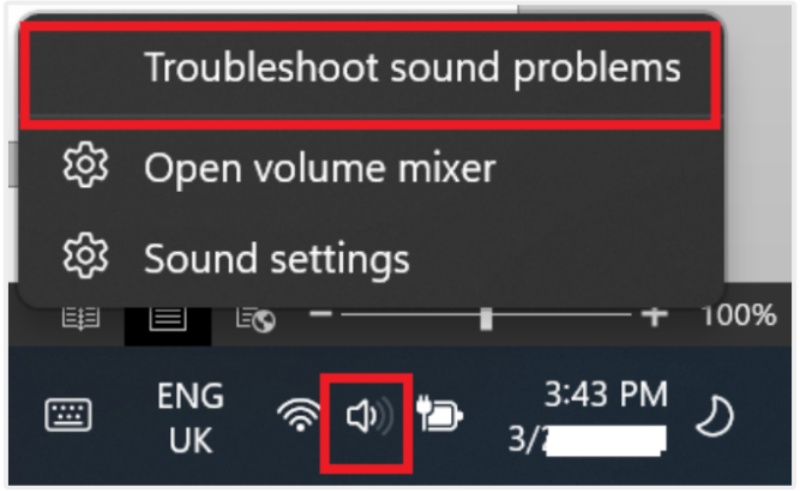
Windows includes a dedicated troubleshooter that can identify and fix many audio problems automatically.
- Open Settings > System > Sound.
- Under “Advanced sound options,” click “Troubleshoot.”
- Follow the prompts; the system will test playback and suggest fixes.
Reset Application Preferences
Sometimes configuration files become corrupted. Resetting can help:
- In most games or apps, navigate to Settings > Audio and look for a “Reset to defaults” button.
- Alternatively, delete or rename the app’s configuration folder (usually located in
%APPDATA%on Windows or~/Library/Application Supporton macOS).
Check for Overlapping Software
Other programs can hijack audio output. Common culprits include:
- Music players that keep the output device locked.
- Other communication apps like Discord, Teams, or Slack.
- Screen‑recording tools that capture audio streams.
Close or pause these applications before testing the voice‑chat again.
Reinstall the Voice‑Chat Application
If none of the above solutions work, a clean reinstall often resolves stubborn issues.
- Uninstall the app through your system’s Add/Remove Programs.
- Delete any leftover folders in the app’s installation directory.
- Download the latest version from the official site and install fresh.
When to Seek Professional Support
Persistent problems may stem from deeper hardware faults or system corruption. Consider the following:
- Test the headset on another device to rule out a faulty jack or cable.
- Run a full system scan for malware or drivers that may interfere with audio.
- Consult the app’s help center or community forums; others may have faced similar glitches.
Quick Reference Cheat Sheet
For a one‑minute rundown, copy this list into your notes:
- Hardware check – volume, jack, test other apps.
- App settings – output, input, mute toggle.
- Update drivers – Device Manager or Audio MIDI Setup.
- Firewall/VPN – allow app, disable VPN.
- Troubleshooter – Settings > Sound > Troubleshoot.
- Reset or reinstall the app.
FAQ
- Why does my microphone work but I hear no sound during the chat? Often the output device is set to a different speaker or muted. Verify the output selection in the app and system.
- Will a fresh OS install fix the problem? It can, but it’s a drastic step. Try driver updates and resets first.
- Can a bad network cause complete audio loss? Yes, if the voice packets are blocked or heavily delayed. Check firewall rules and VPN settings.
- Is it safe to uninstall system audio components? No. Only remove specific driver packages, not core OS audio modules.
By systematically walking through hardware, application, driver, and network checks, you’ll quickly locate the root of the “no sound on voice chat” problem. Keep this guide handy for future troubleshooting, and you’ll spend less time silent and more time communicating.