How to Quickly Reset Your Digital Thermostat: A Step‑by‑Step Guide
Modern homes rely on digital thermostats to keep temperatures steady, save energy, and even sync with smartphones. Yet when a display freezes, a sensor glitch occurs, or a firmware update misbehaves, you may need to reset the unit. Reset your digital thermostat quickly and safely, and restore its full functionality. This guide walks you through the most common reset procedures—covering Nest, Ecobee, Honeywell, and other popular models—so you can troubleshoot without a technician’s call.
Reset Your Digital Thermostat: Why and When
Thermostat resets aren’t just a last‑ditch remedy; they’re a first‑step diagnostic tool. Common triggers include:
- Unresponsive touchscreen or frozen screen
- Unexpected temperature jumps or oscillations
- Connectivity hiccups (Wi‑Fi dropouts or app sync failures)
- Firmware updates that didn’t finish properly
- Repeated sensor error messages that don’t resolve on their own
Resetting can clear temporary glitches, restore default settings, and reestablish communication with your HVAC system. It’s usually quick—often under five minutes—so you’ll be back to comfortable temperatures in no time.
Gathering Essentials Before Reset
Before you touch any buttons, make sure you have:
- Your thermostat’s serial or model number (found on the back or in the app)
- A current backup of any custom settings, if possible (e.g., scheduled times stored in the cloud)
- Access to the HVAC system’s power supply (for a hard reset)
- A flashlight for dimly lit panels or wiring behind the thermostat
- Paper and pen to jot down any error codes that appear
Having these items on hand avoids unnecessary delays and ensures you can restore your preferences afterward.
Step‑by‑Step Reset Instructions
The exact method depends on your thermostat model. Below are concise instructions for the most common brands.
1. Nest Thermostat (2nd‑Gen and 3rd‑Gen)
- Press the thermostat ring to open the quick‑menu.
- Select Settings → Reset.
- Choose All Settings to wipe user data, or pick Wi‑Fi if only the network is an issue.
- Confirm the action. The Nest will reboot in about a minute.
After reboot, re‑enter your Google Home account, Wi‑Fi credentials, and schedule preferences.
2. Ecobee SmartThermostat
- Swipe down from the top of the touchscreen and tap Settings.
- Tap Reset, then select the desired reset type (e.g., Factory Reset).
- Confirm. The device will restart automatically.
Re‑pair the Ecobee via the Ecobee app to reconnect to your HVAC system.
3. Honeywell Lyric T6 (Wi‑Fi Enabled)
- Tap the Menu icon, then go to Settings → Advanced.
- Select Reset to Default and confirm.
- Wait for the thermostat to reboot; it will return to factory defaults.
Use the Honeywell Home app to set up Wi‑Fi and schedules anew.
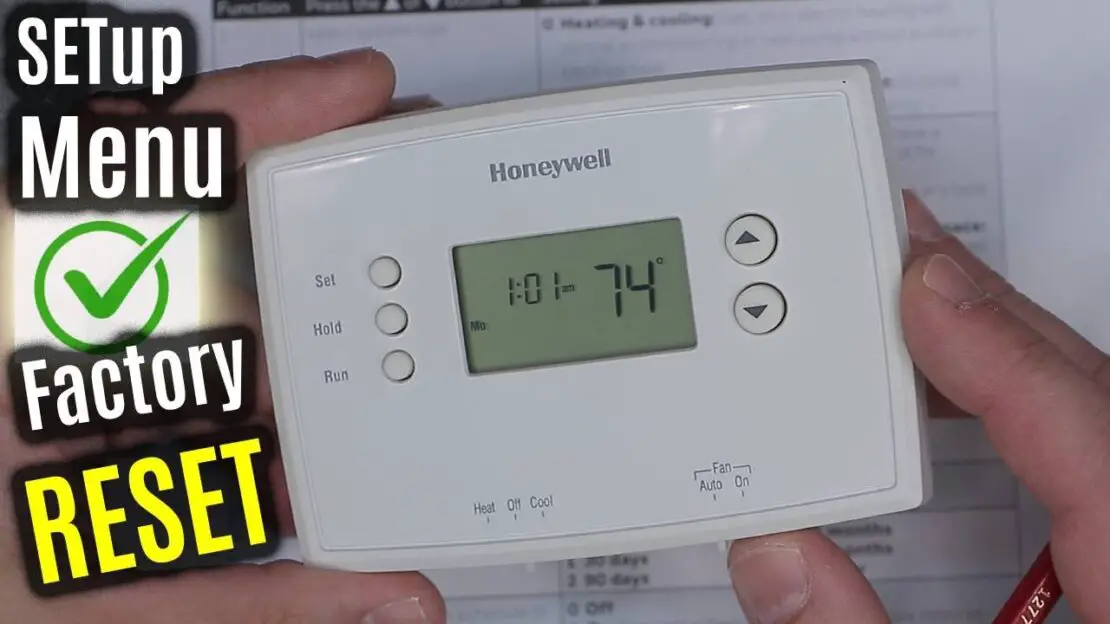
4. Manual Hard Reset (for non‑smart models or stubborn firmware)
- Turn off the HVAC power at the breaker to cut power to the thermostat’s relay.
- Remove the thermostat’s backplate and disconnect the wiring harness.
- Wait 30 seconds, then reconnect the wires and reapply the backplate.
- Restore power and allow the unit to boot up; it should default to factory settings.
After a hard reset, re‑program your desired temperature ranges and schedule through the device’s keypad or manual settings.
Troubleshooting After Reset
Once the thermostat is back online, verify the following:
- Temperature readouts match actual room conditions.
- Fan and heat/cool modes activate on schedule.
- Wi‑Fi or Bluetooth connectivity is stable (test by syncing the companion app).
- No error codes or warning icons remain displayed.
If problems persist, check the HVAC system’s air filter and ensure the thermostat’s wires are tight and correctly connected to the control board.
Preventive Measures to Avoid Future Resets
- Keep Firmware Updated: Enable automatic updates or check monthly for new releases.
- Use a Surge Protector: Protect your thermostat and HVAC equipment from power spikes.
- Maintain Clear Airflow: Replace filters regularly and ensure vents aren’t blocked.
- Backup Settings: Use manufacturer apps to store schedules and preferences in the cloud.
Regular maintenance reduces the likelihood of software glitches and hardware failures.
FAQ
Q: Will resetting my thermostat erase all my custom schedules?
A: A factory reset will wipe local schedules, but most smart thermostats sync schedules to cloud accounts. Back up or re‑enter your preferences after the reset.
Q: Can I reset a thermostat that’s still connected to the HVAC system?
A: Yes, most resets can be performed without disconnecting the HVAC power, but a hard reset may require turning off the system.
Q: What if the thermostat still doesn’t function after a reset?
A: Inspect wiring for loose connections, replace any damaged sensors, and consider contacting the manufacturer’s support line for advanced troubleshooting.