How to Master IBM SPSS for Easy Data Analysis
If you’ve ever felt overwhelmed by the sheer number of statistical packages out there, you’re not alone. IBM SPSS (Statistical Package for the Social Sciences) manages to blend powerful analytics with a surprisingly gentle learning curve—once you know where to start. In the next few minutes, we’ll walk through the essential steps that turn a fresh install into a reliable research companion, without drowning in jargon.
Why Choose SPSS for Your Data Projects
SPSS isn’t just a legacy tool for sociologists; it’s a versatile engine that handles everything from simple descriptive stats to complex multivariate models. Its drag‑and‑drop interface lets beginners explore data visually, while the syntax editor satisfies power users who crave reproducibility. Because the program stores output as a tidy, searchable file, you can revisit and tweak analyses months later without losing any context.
- Point‑and‑click simplicity – Ideal for quick surveys or classroom demos.
- Robust library of procedures – Regression, factor analysis, survival models, you name it.
- Extensive documentation – Built‑in help files and a thriving community of users.
These strengths make SPSS a go‑to choice for academics, market researchers, and health‑care analysts alike.
Setting Up Your First Project
Before you dive into any test, give your workspace a solid foundation. Start by launching SPSS and creating a new .sav file—this is the native format that preserves variable labels, missing‑value definitions, and value formats.
1. Import your raw data. Use File → Read Text Data for CSV or Excel files; the wizard will prompt you to assign variable types (numeric, string, date) and to set appropriate delimiters.
2. Define variable attributes. Double‑click a variable in the Variable View tab to add a label (e.g., “Age of Respondent”) and, if needed, specify value labels for categorical codes (1 = Male, 2 = Female). This step saves you from confusing spreadsheets later on.
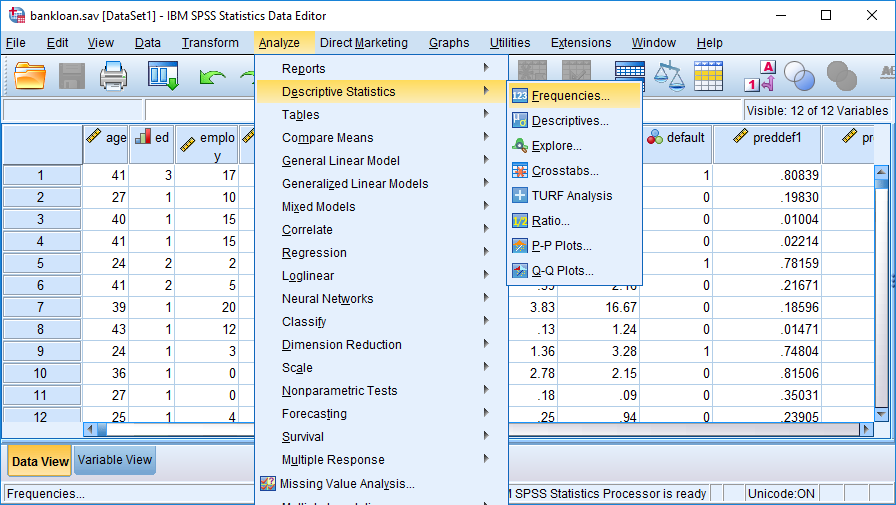
3. Check for missing values. Run Descriptive Statistics → Frequencies and tick “Display frequency tables.” Spotting unexpected blanks early helps you decide whether to impute, exclude, or investigate further.
Core Analyses Made Simple
Once your data are tidy, the real fun begins. Below are three staple procedures that illustrate SPSS’s balance of power and accessibility.
Descriptive Statistics in One Click
Navigate to Analyze → Descriptive Statistics → Explore. Drag the variables you want to summarize into the “Dependent List,” and SPSS will generate means, medians, standard deviations, and boxplots—all on the same output page. The visual boxplot instantly flags outliers without any extra coding.
Running a Linear Regression
Head to Analyze → Regression → Linear. Place your outcome variable in the “Dependent” box and the predictors in “Independent(s).” Before you hit “OK,” consider checking the “Statistics” box for confidence intervals and the “Plots” box for residual plots; these diagnostics keep you honest about model assumptions.
Exploring Categorical Relationships with Chi‑Square
If you’re dealing with survey responses, the chi‑square test is a quick way to see whether two categories are related. Choose Analyze → Descriptive Statistics → Crosstabs, then click “Statistics” and tick “Chi‑square.” The output will list the test statistic, degrees of freedom, and the exact p‑value, letting you interpret significance at a glance.
Tips to Keep Your Workflow Smooth
Even the most seasoned analysts stumble over small habits that slow them down. Here are a few practices that pay off over the long run.
- Save syntax alongside output. When you click “Paste” instead of “OK,” SPSS generates the command line for that analysis. Storing these snippets in a master .sps file creates a reproducible script you can run later or share with collaborators.
- Use the “Output Viewer” as a notebook. Highlight tables you’ll need, right‑click, and select “Copy → Pivot Table.” You can then paste directly into a Word report, preserving formatting and footnotes.
- Leverage the “Variable Sets” feature. Group related variables (e.g., all demographic items) so you can drop an entire set into an analysis dialog with a single click.
- Back up regularly. SPSS files can become corrupted if a crash occurs mid‑session. Enable “Auto‑Save” under Edit → Options → File and keep a copy on cloud storage.
Adopting these habits transforms SPSS from a static toolbox into a dynamic partner that grows with your projects.
Frequently Asked Questions
Can I use SPSS on a Mac?
Yes—IBM provides native macOS installers, and the interface mirrors the Windows version closely, so tutorials apply across platforms.
Do I need to learn SPSS syntax to perform advanced analyses?
Not at all, but knowing the basics (e.g., GET FILE, FREQUENCIES, REGRESSION) makes it easier to automate repetitive tasks and ensures your work is reproducible.
How does SPSS handle large datasets?
While SPSS can comfortably manage millions of rows, performance depends on your computer’s RAM. If you encounter slowdowns, consider using the “Data → Split File” option to work on subsets, or export to a database for heavy‑duty processing.
Is SPSS suitable for machine‑learning workflows?
SPSS Modeler (a separate product) offers drag‑and‑drop predictive modeling, but the classic SPSS Statistics package also includes basic classification tools like logistic regression and decision trees—enough for many introductory machine‑learning projects.

.png)