How to Install MongoDB on 32‑Bit Windows: A Step‑by‑Step Guide
Installing MongoDB on a 32‑bit Windows machine can feel like a niche task, especially now that most modern distributions target 64‑bit systems. But if you need to keep an older setup running or are working in a legacy environment, you can still get MongoDB up and running with a few tweaks. Below is a clear, concise walk‑through that covers everything from choosing the right version to verifying the installation.
Selecting a Compatible MongoDB Version
MongoDB 4.4 and newer dropped 32‑bit support entirely. If your Windows machine is 32‑bit, you must use a legacy release that still ships with a 32‑bit binary. The last release with official 32‑bit support is MongoDB 3.6.20, but you can also opt for 2.6.10 if you require even older features.
- 3.6.20 – Still receives security patches until 2021.
- 2.6.10 – Stable for older drivers and drivers that require MongoDB 2.6 APIs.
Downloading the Installer
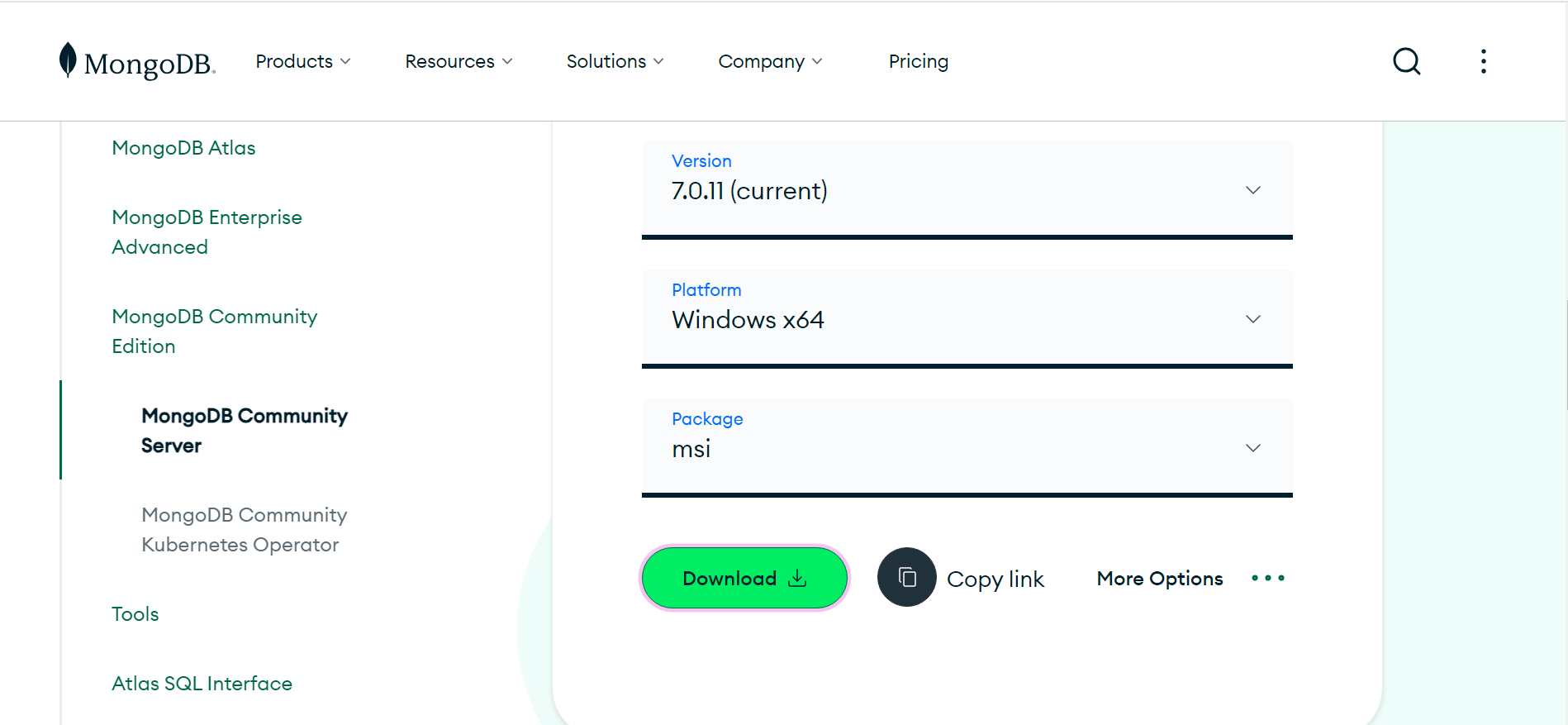
- Navigate to the MongoDB Community Server Archive on the official MongoDB website.
- Choose the appropriate Windows 32‑bit ZIP archive for your chosen version (e.g.,
mongodb-windows-standalone-3.6.20-x86_32.zip). - Download the ZIP file to a folder you can easily access, such as
C:\MongoDB.
Unpacking and Organizing Files
After extraction, you’ll see a structure like:
C:\MongoDB\binC:\MongoDB\data
C:\MongoDB\log
The bin folder contains the executables. Create data and log directories for the database files and logging output. This keeps everything tidy and mirrors the defaults used by many deployment scripts.
Setting Environment Variables
Adding MongoDB’s bin directory to your system’s PATH makes the mongod and mongo commands available from any command prompt. Right‑click This PC → Properties → Advanced system settings → Environment Variables. Under System variables, edit Path and append:
C:\MongoDB\binCreating a Windows Service
Running MongoDB as a service ensures it starts automatically and stays available after reboots. Open an elevated command prompt (Run as Administrator) and run:
mongod --config "C:\MongoDB\mongod.cfg" --installCreate a mongod.cfg file in C:\MongoDB with the following minimal content:
systemLog:destination: file
path: C:\\MongoDB\\log\\mongod.log
storage:
dbPath: C:\\MongoDB\\data
net:
bindIp: 127.0.0.1
After installing the service, start it:
net start MongoDBVerifying the Installation
Open a normal command prompt and type:
mongoIf the shell launches and you see a prompt like MongoDB shell version v3.6.20, the installation succeeded. To double‑check, run a simple query:
use testdb.testCollection.insertOne({hello: "world"})
db.testCollection.find()
You should see the document you just inserted.
Troubleshooting Common Issues
- Service fails to start: Check the log file at
C:\MongoDB\log\mongod.logfor permission or configuration errors. - “MongoDB not recognized” error: Verify the
PATHenvironment variable was edited correctly and restart any open command prompts. - Memory limitations: 32‑bit Windows caps the maximum process memory at 2 GB. If you plan on storing large datasets, consider moving to a 64‑bit server.
Best Practices for Legacy Deployments
Even though you’re using an older MongoDB version, you can still apply many of today’s security practices:
- Enable authentication in
mongod.cfgby addingsecurity.authorization: enabled. - Use encrypted connections (TLS/SSL) if the environment is accessible over a network.
- Regularly back up the
datadirectory or use themongodumputility.
When to Upgrade
If you anticipate future growth, plan a migration. Upgrading to a 64‑bit machine or moving to MongoDB Atlas will unlock new features, improved performance, and long‑term support.
Frequently Asked Questions
- Does MongoDB still support 32‑bit Windows? – Official support ended with MongoDB 4.4; the latest 32‑bit binaries are from the 3.6 series.
- Which Windows versions can run MongoDB 32‑bit? – Windows XP, Vista, 7, and 8.1 are compatible, but Windows 10 no longer ships with 32‑bit support for newer MongoDB releases.
- Can I use the MongoDB shell with a 32‑bit server? – Yes; the shell is a client and runs on any architecture supported by the driver.
- Is it safe to run MongoDB 3.6 on production? – It receives security updates, but the lack of feature parity and long‑term end‑of‑life considerations mean it’s best suited for non‑critical workloads.