How to Fix Common Xbox Series X Controller Problems
Spotting the Symptoms of Xbox Series X Controller Issues
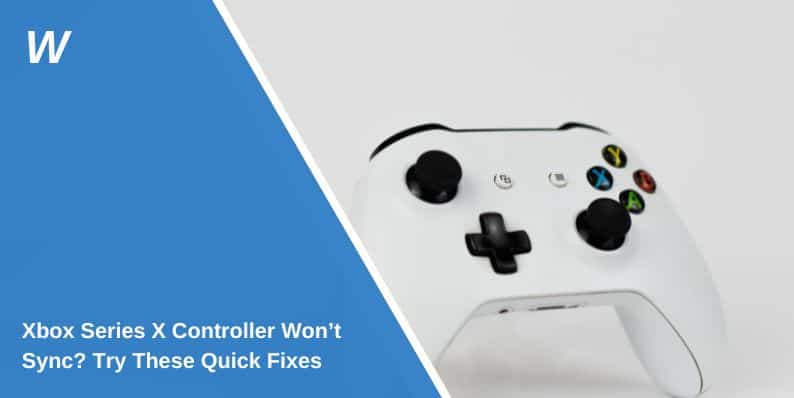
If your Xbox Series X controller feels sluggish, drifts on its sticks, or refuses to pair, you’re not alone. Xbox Series X controller issues crop up for a surprisingly wide range of users, from occasional couch players to competitive gamers. The first step is to narrow down whether the problem is software‑related, a simple connectivity hiccup, or something deeper inside the hardware.
Basic Checks Before You Tear Anything Apart
Even the most seasoned gamers overlook a few straightforward fixes. Start with these quick actions:
- Replace or recharge the batteries. Low power often masquerades as lag or unresponsive buttons.
- Give the controller a firm but gentle shake to dislodge any dust that might be stuck under the analog sticks.
- Plug the controller into the console with a USB‑C cable. A wired connection can rule out wireless interference.
- Restart the console. A fresh boot clears temporary glitches that sometimes affect peripheral devices.
If the controller behaves normally while wired, the culprit is likely a wireless or firmware problem.
Fixing Stick Drift and Unresponsive Buttons
Stick drift—where the character moves on its own—can be maddening. The good news is that many drift issues stem from debris or wear, not a dead controller.
- Cleaning the sticks: Use a cotton swab lightly dampened with isopropyl alcohol. Rotate the stick in all directions while gently rubbing the base. Let it dry for a minute before testing.
- Re‑calibrating: Navigate to Settings → Devices & accessories, select the controller, and choose “Configure.” From there, reset the thumbstick calibration to its default position.
- Replacing the thumbstick module: If cleaning and calibration don’t help, the internal potentiometer may be worn. Replacement kits are available online; swapping the module takes about 15 minutes with a small screwdriver set.
For sticky or unresponsive buttons, a similar cleaning approach works. Press each button while you swipe a lightly moistened swab around the edges. If the issue persists, the button’s contact pad might need replacement—a tiny but doable repair.
Resolving Connectivity Glitches
Wireless drop‑outs can feel random, but they often have a pattern. Interference from Wi‑Fi routers, Bluetooth devices, or even the console’s own Bluetooth can cause brief disconnects.
- Move the console or controller away from other electronic devices.
- Switch the controller’s wireless channel: Hold the sync button on the controller and the console’s pairing button simultaneously for about five seconds. This forces a fresh handshake.
- Update the controller’s firmware. Microsoft releases patches that improve Bluetooth stability.
If you’re playing on a PC, make sure the Xbox Wireless Adapter is seated firmly in a USB 3.0 port. Older USB 2.0 ports sometimes struggle with the controller’s bandwidth demands.
When Firmware Updates Help (and When They Don’t)
Most users hear about “firmware updates” but aren’t sure when to apply them. In the Xbox Accessories app, you’ll see a prompt if a newer version is available. Updating can resolve hidden bugs, especially those affecting vibration motors or the “share” button.
However, if a controller has already shown hardware wear, an update alone won’t revive a failing stick or a cracked button. In those cases, treat the update as a diagnostic step rather than a cure.
Hardware Repairs You Can Attempt at Home
For the DIY‑inclined, the Xbox Series X controller is surprisingly modular. Here’s a quick rundown of the most common internal fixes:
- Loose internal ribbon cable: Open the back shell with a Torx T8 screwdriver, locate the ribbon connecting the PCB to the battery compartment, and reseat it firmly.
- Faulty vibration motor: Remove the front shell, locate the motor near the left stick, and check the solder joints. A gentle re‑flow with a soldering iron often restores rumble.
- Battery contacts corroded: Clean the metal contacts with a fine‑grade sandpaper or an eraser, then wipe away any residue.
Always power down the console and remove the batteries before opening the controller. If you feel uncertain about soldering, it’s safer to seek professional repair or a replacement.
When to Consider a Replacement
Even with diligent care, controllers have a finite lifespan. If you notice:
- Recurring drift after multiple cleanings,
- Buttons that stick despite new contact pads, or
- Intermittent Bluetooth that no amount of re‑pairing fixes,
it may be time to invest in a new unit. Microsoft’s official controller warranty covers defects for two years, and many retailers offer a 30‑day return window.
FAQ
Q: My controller disconnects only when I’m far from the console. How can I extend its range?
A: Position the console in a central location and avoid obstacles like metal shelves. Adding a USB‑C extension cable to the controller can also bring the Bluetooth antenna closer to the console, improving signal strength.
Q: Does using a third‑party rechargeable battery cause stick drift?
A: Not directly, but cheaper batteries sometimes deliver inconsistent voltage, which can affect the controller’s internal sensors. Stick drift is more often linked to wear on the analog sticks themselves.
Q: Can a software reset on the Xbox fix a controller that won’t turn on?
A: A full power cycle—unplugging the console for a minute—often clears low‑level glitches. If the controller still won’t power, the issue is likely hardware, such as a dead battery or a faulty power button.