How to Find Your Spotify Wrapped on a PC – Quick Guide
If you’ve already seen the colorful year‑in‑review on your phone but can’t spot it on your computer, you’re not alone. Spotify Wrapped lives behind the same algorithmic magic no matter the device, yet the desktop layout hides it in a few less obvious spots. Below you’ll learn exactly where to click, what URLs to bookmark, and how to troubleshoot the occasional missing banner.
What Spotify Wrapped Actually Is
Every December Spotify rolls out a personalized recap of the songs, artists, and genres you streamed most over the past twelve months. It usually appears as a sleek carousel on the home screen, plus a handful of curated playlists that you can save or share. The data is drawn from your listening history, so the results are identical whether you view them on mobile, web, or desktop.
Finding Wrapped Directly in the Desktop App
The quickest route is to open the official Spotify client for Windows or macOS. Once it’s running, follow these steps:
- Log in if you haven’t already.
- Navigate to the Home tab on the left‑hand sidebar.
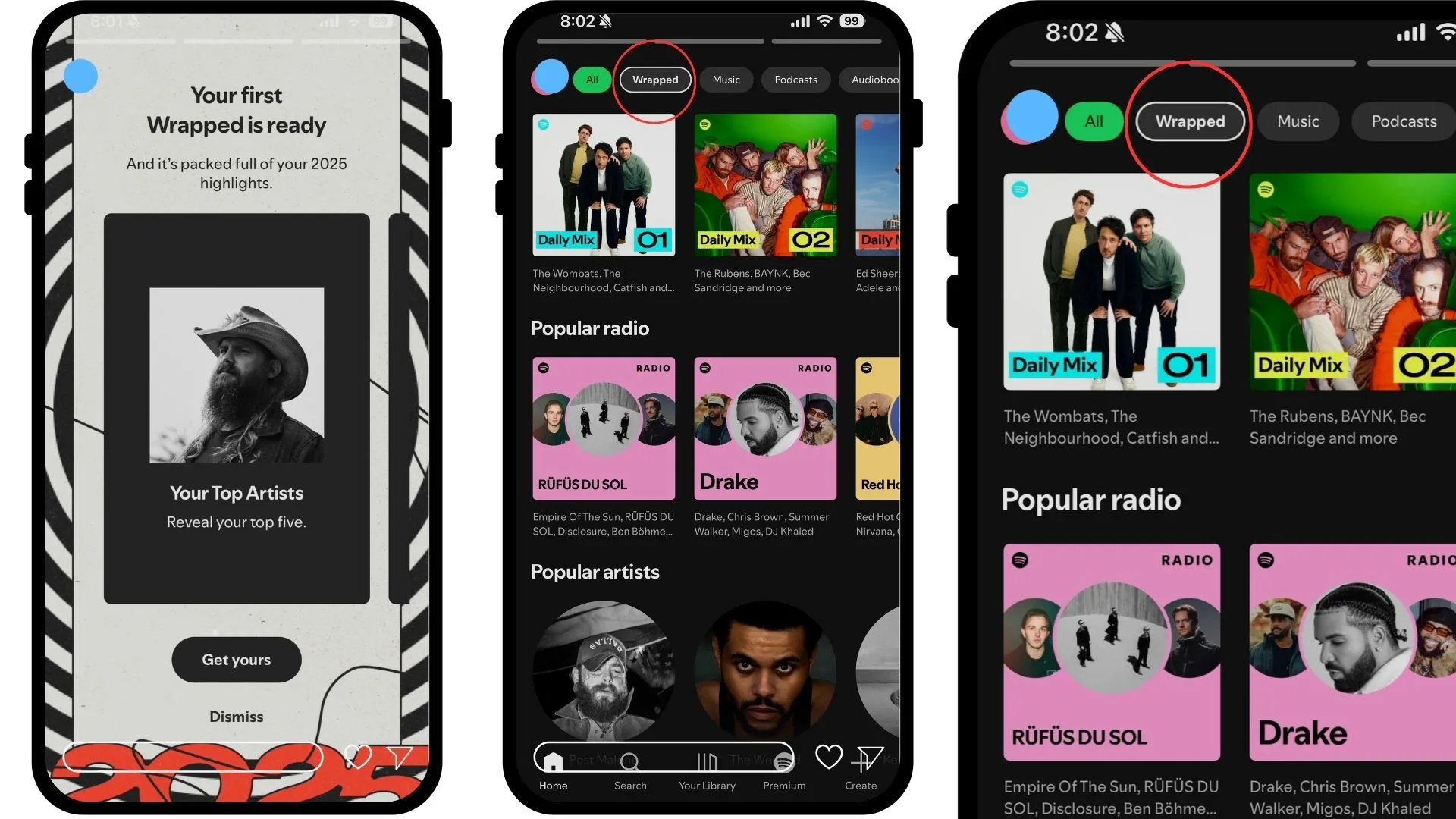
- Scroll down until you see the large Spotify Wrapped banner. It typically sits near the top of the feed during the rollout period.
- Click the banner to launch the interactive story, or tap the 2023 Wrapped (or current year) playlist that appears in the “Your Library → Playlists” section.
If the banner doesn’t show up, it may be because the app hasn’t refreshed yet. Hit Ctrl + R (or Cmd + R on a Mac) to reload the client, then check again.
Using the Web Player as a Backup
Spotify Wrapped is also accessible via the web player, which can be handy if the desktop client is acting up. Here’s how:
- Open your favorite browser and go to open.spotify.com.
- Sign in with the same credentials you use on your phone.
- Once the home page loads, look for the same large Wrapped banner, or simply type
spotify.com/wrappedinto the address bar. - The link redirects you to a dedicated Wrapped hub where you can view your stats, share them, and add the year’s playlists to your library with a single click.
The web version updates in near‑real time, so if you notice a delay on the desktop client, the browser is a reliable fallback.
Saving and Sharing Your Wrapped Playlists
When you click the Wrapped banner, you’ll land on a page that offers two main playlists: “Your Top Songs 2023” and “Your Top Artists 2023.” To keep them handy:
- Hover over each playlist and click the Save to Your Library button (a plus sign appears).
- They’ll instantly show up under Your Library → Playlists, ready for offline listening if you have a Premium subscription.
- To share, click the three‑dot menu on the playlist, select Share, and choose the platform you prefer—Twitter, Instagram Stories, or a simple copy‑link.
Because the playlists are generated uniquely for each user, they’ll stay in your library even after the Wrapped campaign ends.
Troubleshooting Common Issues
Even with a clear path, a few hiccups can keep Wrapped from appearing:
- App not updated: Spotify typically releases a small patch for the Wrapped rollout. Check Help → Check for Updates and install any pending version.
- Region restrictions: Wrapped is available globally, but a VPN set to a different country might show a different banner or none at all.
- Cache glitches: Clearing the app’s cache (Settings → Show Advanced Settings → Delete Cache) often forces a fresh fetch of the home feed.
- Account mismatch: If you use multiple Spotify accounts, make sure you’re logged into the one with the listening history you want to review.
After addressing any of these, restart the client and look for the banner again.
Why It’s Worth Checking Out Wrapped on a PC
Beyond the novelty of seeing your favorite tracks in a larger format, the desktop environment lets you:
- Export your Wrapped data using third‑party tools that read your listening history from the web API.
- Create custom playlists that blend your Wrapped songs with other favorites, thanks to the easier drag‑and‑drop interface.
- Take high‑resolution screenshots for social media, which are clearer on a larger monitor.
In short, the PC version gives you more room to play with your year‑in‑review.
FAQ
Do I need a Premium subscription to view Spotify Wrapped on my computer?
No. Wrapped is available to all free users, though Premium subscribers can download the curated playlists for offline listening.
What if the Wrapped banner disappears after a few weeks?
The banner is a seasonal feature, so it usually vanishes once the year ends. However, the playlists remain in your library, and you can still access the stats by visiting spotify.com/wrapped as long as you stay logged in.
Can I see Wrapped for a previous year?
Spotify only keeps the current year's Wrapped in the dedicated hub, but you can locate older playlists (e.g., “Your Top Songs 2022”) in your library if you saved them when they first appeared.