How to Download and Log Into the Orange Money App (Quick Guide)
If you’re looking for a fast way to move cash, pay bills, or send money to friends, the Orange Money app is a solid choice in many African markets. This quick guide walks you through the Orange Money app login and download process, highlights common hiccups, and offers a few security pointers so you can start transacting with confidence.
Why Choose Orange Money?
Orange Money is tied to the telecom giant’s extensive network, which means you can fund your wallet using airtime or a linked bank account without needing a traditional bank card. The service is especially handy where banking infrastructure is sparse, and it supports a growing list of merchants for everyday purchases.
Step‑by‑Step: Downloading the App
First things first—get the app onto your device. The process differs slightly between Android and iOS, but both are straightforward.
Android Users
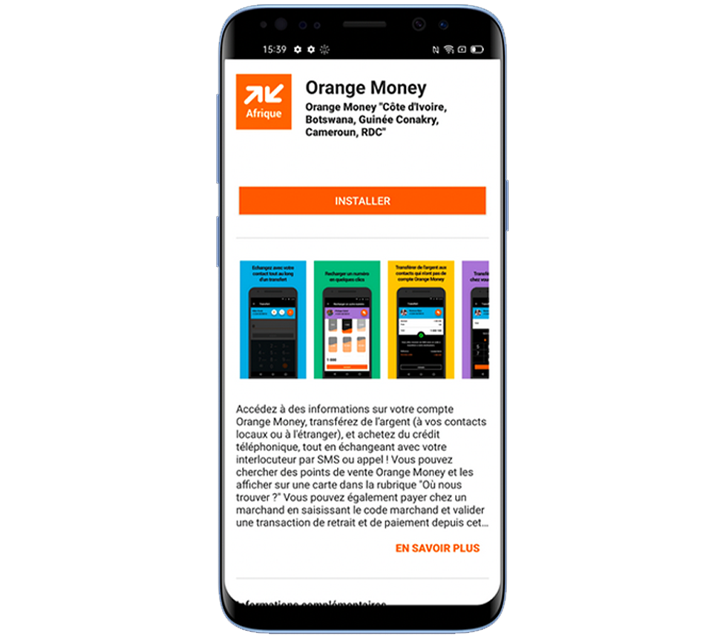
- Open Google Play Store.
- Search for “Orange Money”. Look for the official logo—Orange’s orange circle with a white “M”.
- Tap “Install”. The download typically takes under a minute on a 4G connection.
- Once installed, open the app to begin setup.
iPhone Users
- Launch the App Store.
- Enter “Orange Money” in the search bar.
- Select the authentic app—check the developer name (Orange Money or Orange Group).
- Press “Get” and confirm with Face ID, Touch ID, or your Apple ID password.
- After the app appears on your home screen, tap to launch.
Creating Your Orange Money Account
Even if you already have an Orange Money wallet, the first login on a new device will prompt you to verify your identity. Here’s what you’ll need:
- Valid phone number registered with Orange (the number will receive an OTP).
- National ID or passport number for KYC (Know‑Your‑Customer) compliance.
- A secure PIN—think four to six digits you can remember but isn’t obvious.
Enter your phone number, wait for the one‑time password (OTP) via SMS, then follow the on‑screen prompts to input your ID details. Once the system validates the information, you’ll set a personal PIN and the wallet is ready.
Logging In for the First Time
Now that the app is installed and your account is created, logging in is a breeze:
- Open the Orange Money app.
- Enter your registered phone number.
- Key in the PIN you chose during registration.
- Tap “Login”.
If the app asks for a biometric option (fingerprint or face recognition), you can enable it for quicker access later. Remember, the PIN is your fallback if biometrics fail.
Common Login Hurdles and How to Fix Them
Even a smooth system can throw a curveball. Below are the most frequent snags and quick fixes.
- Forgotten PIN: Tap “Forgot PIN” on the login screen. You’ll receive a reset link via SMS after confirming your identity.
- OTP not arriving: Verify that you have good network coverage. Restart your phone or request a new OTP after a minute.
- App won’t open: Clear the app cache (Settings → Apps → Orange Money → Storage → Clear cache) or reinstall the latest version from the store.
- Account locked: After multiple failed attempts, the system blocks access for security. Contact Orange Money customer support through the “Help” section or dial the toll‑free number.
Keeping Your Wallet Secure
Security is a shared responsibility. Here are three habits that go a long way:
- Never share your PIN or OTP. Even trusted friends don’t need this info.
- Enable biometric login. Fingerprint or facial recognition adds a layer that’s harder to guess than a four‑digit code.
- Log out after each session on shared devices. A quick tap on the profile menu and “Logout” prevents accidental access.
What to Do If You Change Phones
Switching to a new smartphone? Your balance follows you, but you’ll need to re‑authenticate.
- Install the Orange Money app on the new device (see the download steps above).
- Log in with your phone number and PIN.
- If prompted, verify your identity again via OTP.
- Consider enabling “Remember Me” only on devices you own.
The backend wallet stays the same; only the front‑end app changes.
Exploring the App’s Core Features
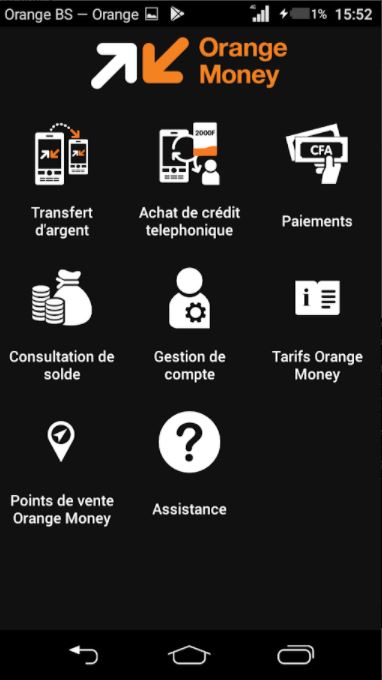
Once you’re logged in, the dashboard presents a handful of useful tabs:
- Send Money – Transfer to another Orange Money user or to a bank account.
- Pay Bills – Utilities, internet, and even school fees are just a tap away.
- Top‑Up – Recharge your mobile airtime directly from your wallet.
- History – Review past transactions, filter by date, or export receipts.
Each function follows a simple flow: choose a recipient, enter the amount, confirm with your PIN, and you’re done.
FAQ
Can I use Orange Money without an internet connection?
Transactions require at least a 2G/3G signal for SMS verification, but the app itself needs data. Offline, you can view balance if it was cached, but you won’t be able to send or receive funds.
Is there a fee for downloading the Orange Money app?
No. The app is free on both Google Play and the App Store. Fees only apply to specific services, such as cash‑out or certain bill payments.
What should I do if I receive a suspicious OTP?
Never enter an OTP you didn’t request. Contact Orange Money support immediately, as it could indicate a phishing attempt.
Can I link multiple bank accounts to the same Orange Money wallet?
Yes, the app allows you to add several bank accounts, but each must be verified separately before you can fund or withdraw to them.



:quality(30):format(webp):focal(0.5x0.5:0.5x0.5)/tribunnews/foto/bank/originals/film-kemah-terlarang-kesurupan-massal.jpg)