How to Download and Install 7‑Zip on Windows 11: The Ultimate Guide
If you’re hunting for a reliable 7‑Zip download for Windows 11, you’ve landed in the right spot. The free, open‑source file archiver has been a go‑to for developers, power users, and anyone who needs to compress or extract files without fuss. In this guide we’ll walk through every step—from checking system requirements to tweaking settings so the program feels like a native part of your workflow.
Why Choose 7‑Zip on Windows 11?
Windows 11 already ships with a built‑in ZIP handler, but it lacks the flexibility of 7‑Zip. Here are a few reasons why many users upgrade:
- Higher compression ratios for formats like 7z, often shaving off several megabytes compared to the native ZIP.
- Support for many archive types—including RAR, TAR, GZIP, and ISO—so you rarely need a second utility.
- Lightweight footprint (under 5 MB) that doesn’t bog down your system.
- Regular security updates and a transparent development process.
All of that adds up to a smoother experience when handling large backups, software packages, or multimedia collections on your new PC.
Preparing Your System for the Installation
Before you click “download,” a quick system check can prevent hiccups later. Windows 11 runs on a wide range of hardware, but 7‑Zip itself has modest requirements:
- Processor: Any 64‑bit CPU released after 2005.
- RAM: 512 MB minimum (though 2 GB+ is recommended for handling big archives).
- Disk space: Less than 10 MB of free space for the program files.
If you’re on a machine that meets these basics, you’re good to go. It’s also wise to ensure your Windows 11 build is up to date—go to Settings → Windows Update and install any pending patches.
Step‑by‑Step 7‑Zip Download and Installation
Follow these concise steps to get the latest 7‑Zip version working on Windows 11:
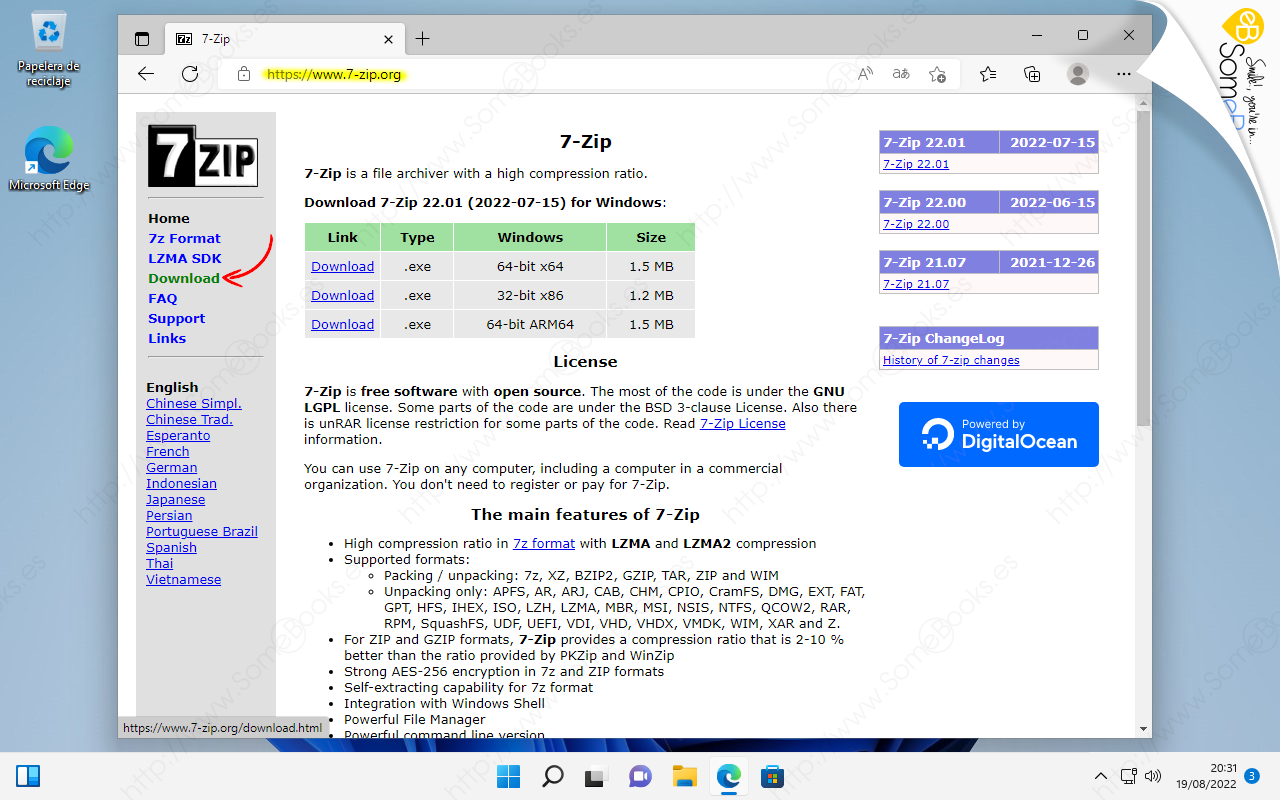
- Visit the official site. Open your browser and head to 7‑zip.org. Avoid third‑party download portals; they can bundle adware.
- Select the correct installer. For most users, the “64‑bit x64” version is appropriate. If you’re on an older 32‑bit system, grab the “x86” build instead.
- Start the download. Click the “Download” button; the file will be saved as something like 7z1900-x64.exe.
- Run the installer. Double‑click the file, confirm any User Account Control prompts, and then click “Install.” The default folder (C:\Program Files\7‑Zip) works fine.
- Finish and verify. After installation, open the Start menu, type “7‑Zip,” and launch the file manager. You should see the familiar orange logo.
That’s it—your system now has a powerful archiving tool at your fingertips.
Configuring 7‑Zip for Everyday Use
Out of the box, 7‑Zip integrates with Windows Explorer, but you can fine‑tune the experience:
- Context‑menu tweaks. Open 7‑Zip File Manager → Tools → Options → System. Here you can enable or disable “Create archive” and “Extract here” entries for right‑click menus.
- Set default compression level. In the same Options window, under the “Compression” tab, pick “Fastest” for quick archives or “Ultra” for maximum size reduction.
- Associate file types. Tick the checkboxes next to formats like .7z, .zip, .tar to ensure double‑clicking opens them directly in 7‑Zip.
These adjustments let you tailor the tool to match how you work—whether you’re compressing screenshots on the fly or archiving massive project folders.
Common Issues and How to Fix Them
Even solid software can run into occasional snags. Below are a few frequent hiccups and straightforward remedies.
Installer won’t start
Make sure you downloaded the correct architecture (x64 vs. x86). If Windows SmartScreen blocks the file, click “More info” then “Run anyway.”
Context menu entries missing
Re‑run the installer with “Repair” selected, or manually enable the entries in the Options menu as described above.
Extraction fails with “CRC error”
This usually signals a corrupted archive. Try re‑downloading the source file, or use the “Test archive” function to verify integrity before extracting.
7‑Zip appears slow on large files
Switch the compression level to “Fastest” for quicker processing, or split massive archives into smaller chunks via the “Split to volumes” feature.
Keeping 7‑Zip Up to Date
Security updates for 7‑Zip are released roughly once a year. To stay current, periodically revisit the official download page. Windows 11 doesn’t auto‑update 7‑Zip, so a manual check is the safest route.
FAQ
Q: Is 7‑Zip safe to use on Windows 11?
A: Yes. The software is open source, regularly audited, and the official website distributes clean binaries without bundled adware.
Q: Can I use 7‑Zip to encrypt archives?
A: Absolutely. When creating a new archive, choose “AES‑256” under the encryption options for strong password protection.
Q: Do I need admin rights to install 7‑Zip?
A: Admin privileges are required only for the initial installation into Program Files. Once installed, any standard user can run and use the program.
Q: How does 7‑Zip compare to WinRAR?
A: Both are capable, but 7‑Zip is free and offers a higher compression ratio for its native .7z format, whereas WinRAR is shareware and focuses more on RAR archives.