How to Create Bold Montserrat Text Online in Seconds
What Is Montserrat Bold and Why Use It?
Montserrat is a geometric sans‑serif typeface that originated from the signage of Buenos Aires’ historic Montserrat neighborhood. Its bold weight packs a lot of personality—clean lines, strong contrast, and a modern feel that works well for headlines, logos, and social‑media graphics. Because the font is freely available through Google Fonts, designers can embed it on websites without licensing worries, making it a go‑to choice for anyone who wants a professional look without the cost.
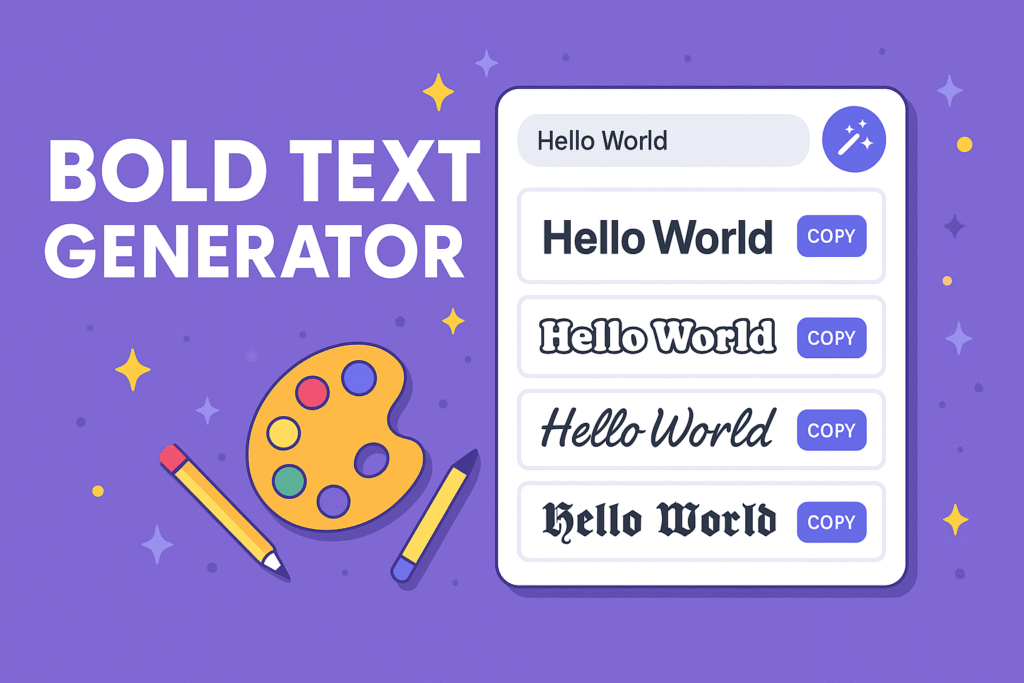
When you need a quick piece of bold text—perhaps a meme caption or a call‑to‑action button—but don’t have a graphic design program at hand, an online Montserrat Bold font generator does the heavy lifting. In just a few clicks it turns ordinary characters into instantly usable, high‑resolution output.
How a Montserrat Bold Font Generator Works
The core idea is simple: you type your message, the tool applies the Montserrat Bold style, and then it renders the result as either plain Unicode text (styled with CSS) or as an image file you can download. Most generators run on a tiny JavaScript library that pulls the font from Google’s CDN, so the process is fast and doesn’t require any server‑side processing.
Because the output can be copied as HTML or saved as PNG/SVG, the same generator can serve both web developers and social‑media creators. The flexibility is what makes these tools popular across a wide range of skill levels.
Step‑by‑Step Guide to Generating Bold Montserrat Text
- Choose a reputable generator. Look for sites that mention “Montserrat Bold” explicitly and offer both text and image download options.
- Enter your phrase. Type the exact wording you need—nothing fancy, just the characters you want to appear.
- Adjust settings. Some tools let you tweak font size, line height, and text color. Pick a size that matches the intended use; 48 px works well for web banners, while 24 px is better for inline headings.
- Preview the result. The live preview shows how the bold font will look on different backgrounds. If the contrast isn’t enough, change the text or background color.
- Download or copy. Click “Download PNG” (or SVG) to get a raster or vector file, or copy the generated HTML/CSS snippet to embed directly on your site.
Tips for Getting the Most Out of Your Bold Text
Even the best generator can produce sub‑optimal results if you don’t pay attention to a few details. Here are some practical pointers:
- Contrast matters. Light text on a dark background (or vice‑versa) ensures readability, especially on mobile screens.
- Mind the spacing. Montserrat’s bold weight can look cramped in all‑caps. Consider using title case or adding letter‑spacing (CSS property
letter-spacing) to give each character breathing room. - Export as SVG for scalability. If you need the text to appear crisp at any size—say, for a logo—choose the SVG option. It keeps the vector data intact, unlike PNG which can become pixelated when enlarged.
- Check licensing if you go beyond personal use. While Montserrat is free, some commercial projects may require attribution or a specific license clause, especially if you bundle the font with a product.
Alternatives and When to Use Them
If you find that a Montserrat Bold generator doesn’t meet a particular need, there are a few workarounds. For complex typographic effects—like gradients, shadows, or multi‑layered text—design software such as Figma or Canva provides more control. On the other hand, if you only need a quick, plain‑text snippet for a forum post, plain Unicode bold characters (e.g., using **bold** markdown) may suffice, though they won’t carry the Montserrat styling.
Another option is to use a CSS‑only approach: embed Montserrat via @import from Google Fonts and apply font-weight: 700; to any element. This method is perfect for developers who want the text to stay editable in the DOM rather than locked into an image.
Common Pitfalls to Avoid
Beginners sometimes overlook that the generated image inherits the background color they selected during preview. If you forget to set a transparent background, you might end up with a white square that looks odd on a dark website. Always double‑check