How to Create a GST Proforma Invoice in Excel: A Step‑by‑Step Guide
In the world of Indian commerce, a proforma invoice is the pre‑sale document that outlines the goods or services, price, and terms before the official sales bill is issued. When GST rules require that every transaction be captured accurately, having a ready‑made GST Bill Proforma Invoice Excel Template & Guide becomes essential for businesses of all sizes. Below is a practical walkthrough that explains why you need the template, what it should contain, and how to set it up in Excel so you can generate professional proforma invoices in minutes.
Why Proforma Invoices Matter Under GST
A proforma invoice isn’t just a courtesy note; it serves several critical functions: it confirms the transaction terms to the customer, allows the buyer to obtain credit or advance approval, and provides a baseline for the final GST‑enabled invoice. Under GST, the details recorded in the proforma must match the final taxable invoice to avoid discrepancies during audits or return filing. A well‑structured template therefore helps maintain compliance, streamline record‑keeping, and reduce manual errors.
Key Elements Every GST Proforma Must Contain
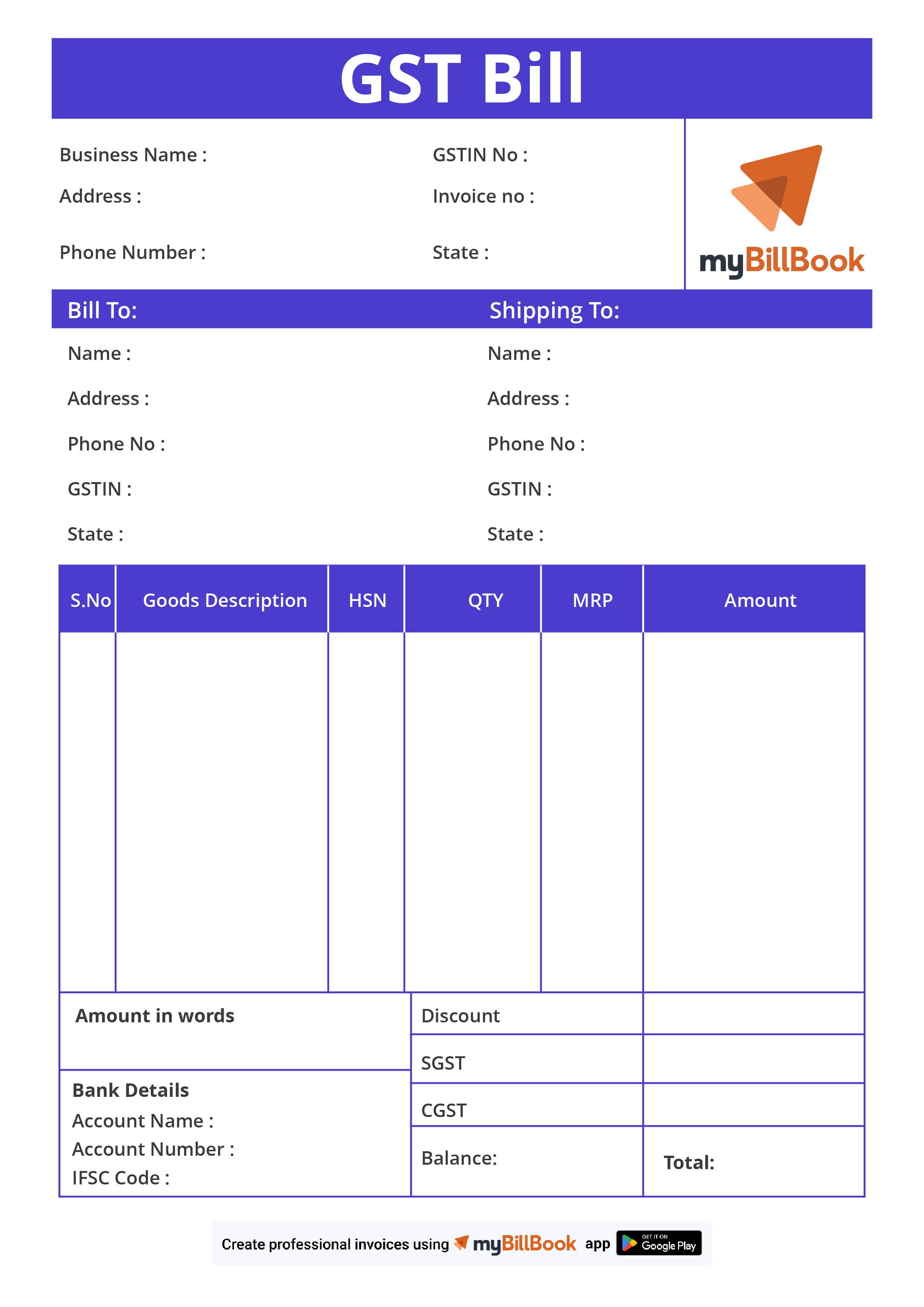
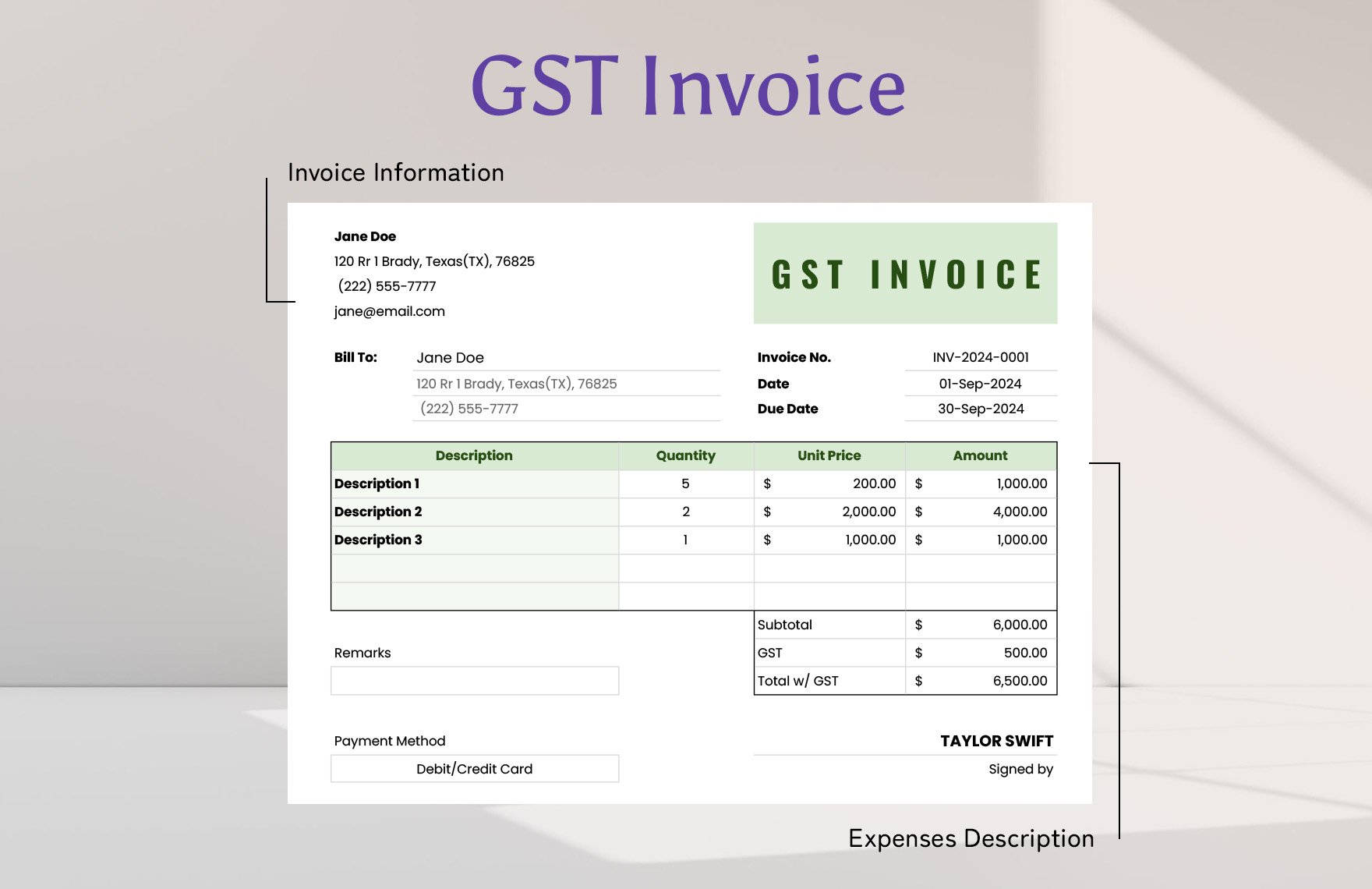
- Supplier and Recipient Details: Name, address, GSTIN, and contact information.
- Invoice Reference: A unique number and date to track the proforma.
- Description of Goods/Services: SKU, quantity, unit rate, and total value.
- Taxation Breakdown: Integrated Tax (IGST), Central Tax (CGST), State Tax (SGST), or Union Territory tax (UTGST) as applicable.
- Subtotal, Discounts, and Net Amount: Clear presentation of any price adjustments.
- Payment Terms: Due date, mode of payment, and any late‑fee clauses.
- Legal and Compliance Notices: GST disclaimer and any statutory statements.
Step‑by‑Step: Building Your Excel Template
Follow these simple steps to create a reusable GST proforma template:
- Open a New Workbook – Name the sheet “Proforma Invoice”.
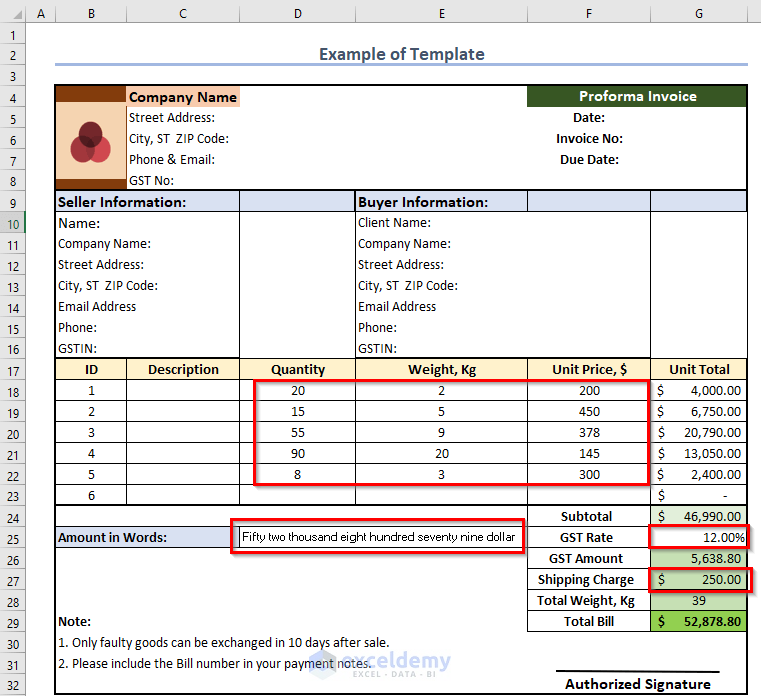
- Set Up the Header – Merge cells A1 to G1 for the company logo, and A2 to G2 for the company name and GSTIN. Use a bold font and a subtle background color.
- Define Static Fields – In rows 4–7, create labeled cells for Supplier Name, Address, GSTIN, Contact and mirror these for the Customer section.
- Create a Table for Line Items – In columns A to H, label headers: Sr. No., Description, HSN/SAC, Qty, Unit, Rate, Amount, GST %. Apply data validation to the GST % column to restrict entries to 0, 5, 12, 18, or 28.
- Automatic Calculations – In the Amount column, use
=Qty*Rate. Below the table, sum amounts with=SUM(H7:H20)(adjust range). Add a discount field and calculate the net total. - Compute GST Components – For each line item, add separate columns for CGST, SGST, IGST using
=Amount*(GST%/2)for CGST/SGST or=Amount*(GST%)for IGST. Summarize each tax type at the bottom. - Grand Total and Tax Summary – Present the net payable amount and a detailed tax summary block (Total CGST, SGST, IGST, and total GST).
- Add Payment & Legal Sections – Include a section for Payment Terms, Due Date, Bank Details and a legal disclaimer about GST compliance.
- Protect the Sheet – Lock formula cells and enable “Allow Users to Edit Ranges” so that only the static fields can be edited.
- Save as Template – Store the workbook as an Excel Template (.xltx) for quick duplication.
Once the template is ready, you can simply open a new instance, fill in the customer data and line items, and the sheet will calculate taxes instantly.
Customizing for Different Industries
GST rules vary slightly between goods and services, and certain sectors—like software or food—have unique HSN/SAC codes. To accommodate this:
- Use a drop‑down list for HSN/SAC codes sourced from the GST portal.
- Insert conditional formatting to flag missing or incorrect codes.
- For services, add a column for the “Nature of Service” so that the correct SAC code can be applied automatically.
Automating GST Calculations with Macros
For businesses that generate dozens of proformas a month, a simple VBA macro can speed up the process. A macro that clears previous data, prompts for customer details, and inserts the new transaction data can cut the time from minutes to seconds. Ensure you test the macro thoroughly, as any error could propagate through multiple invoices.
Saving, Sharing, and Maintaining Your Template
Keep your template in a shared drive or cloud storage so that all authorized staff can access it. Version control is vital: label each update with the date and revision number. When sharing with clients, convert the Excel file to PDF to preserve formatting and prevent accidental edits.
Common Pitfalls to Avoid
- Inconsistent GST Rates – Double‑check that the tax rate matches the HSN/SAC classification.
- Manual Total Entry – Rely on formulas to prevent mis‑calculations.
- Outdated HSN/SAC Codes – Regularly sync your code list with the GST portal.
- Missing Legal Statements – Include the required GST compliance notice; otherwise the invoice may be rejected by the tax authority.