How to Bypass iPhone Wi‑Fi Pause: Step‑by‑Step Guide
What “Wi‑Fi Pause” Actually Means on an iPhone
When you hear someone talk about a Wi‑Fi pause on an iPhone, they’re usually referring to a network‑level block that temporarily disables a device’s access. Schools, cafés, or corporate environments often use this tactic to limit bandwidth during peak hours. From the iPhone’s perspective, the connection simply drops or refuses to reconnect, even though the Wi‑Fi icon stays lit.
Why You Might Want to Bypass It
Legitimate reasons can include needing to finish urgent work, accessing a blocked educational resource, or simply testing a network for troubleshooting. Bypassing should never be used to violate policies or break the law—think of it as a technical workaround, not a cheat code.
Preparation: Check Your iPhone’s Settings First
- Make sure Airplane mode is off.
- Verify that “Wi‑Fi Assist” (Settings ▶ Cellular) isn’t automatically switching you to cellular data.
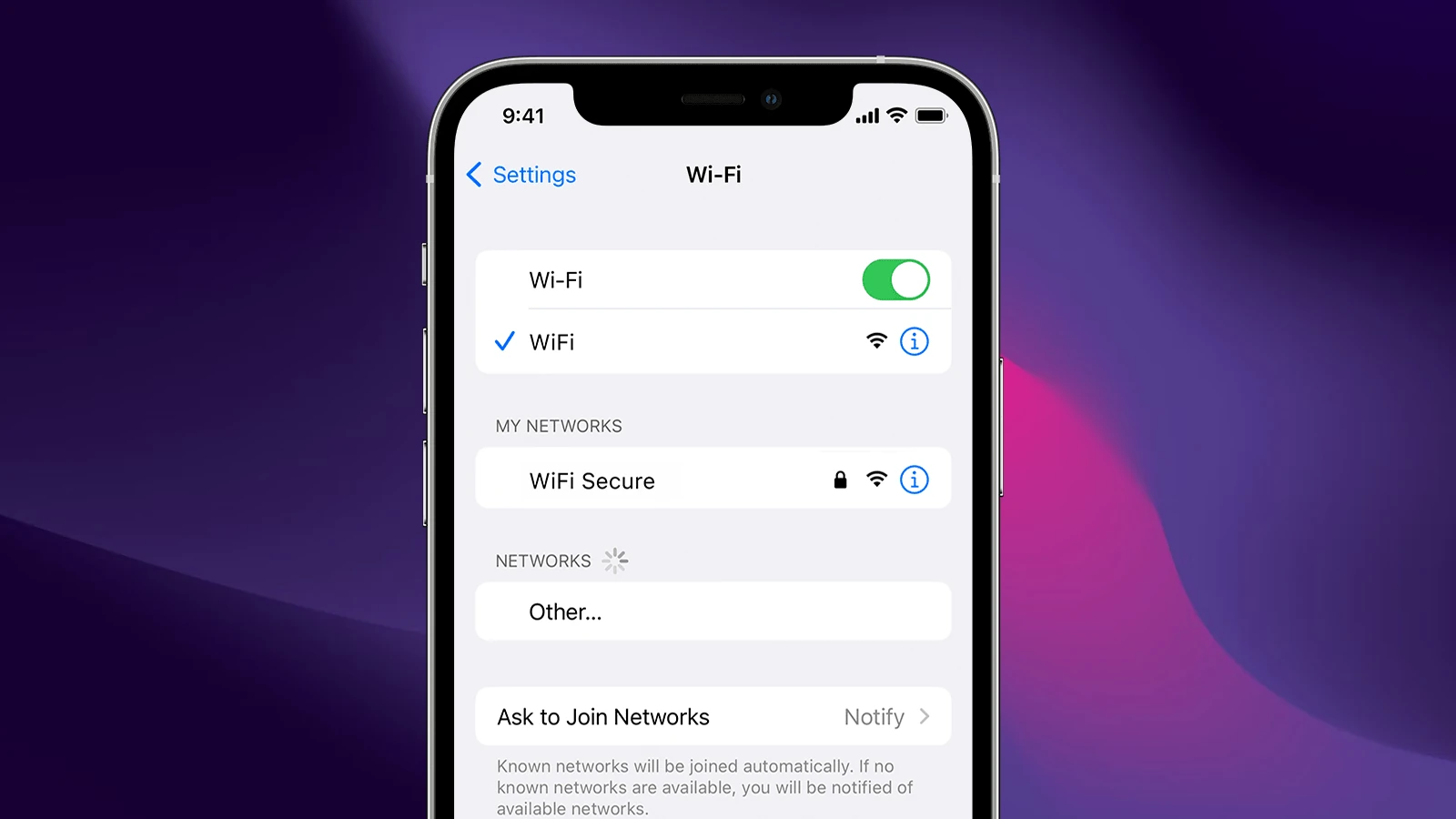
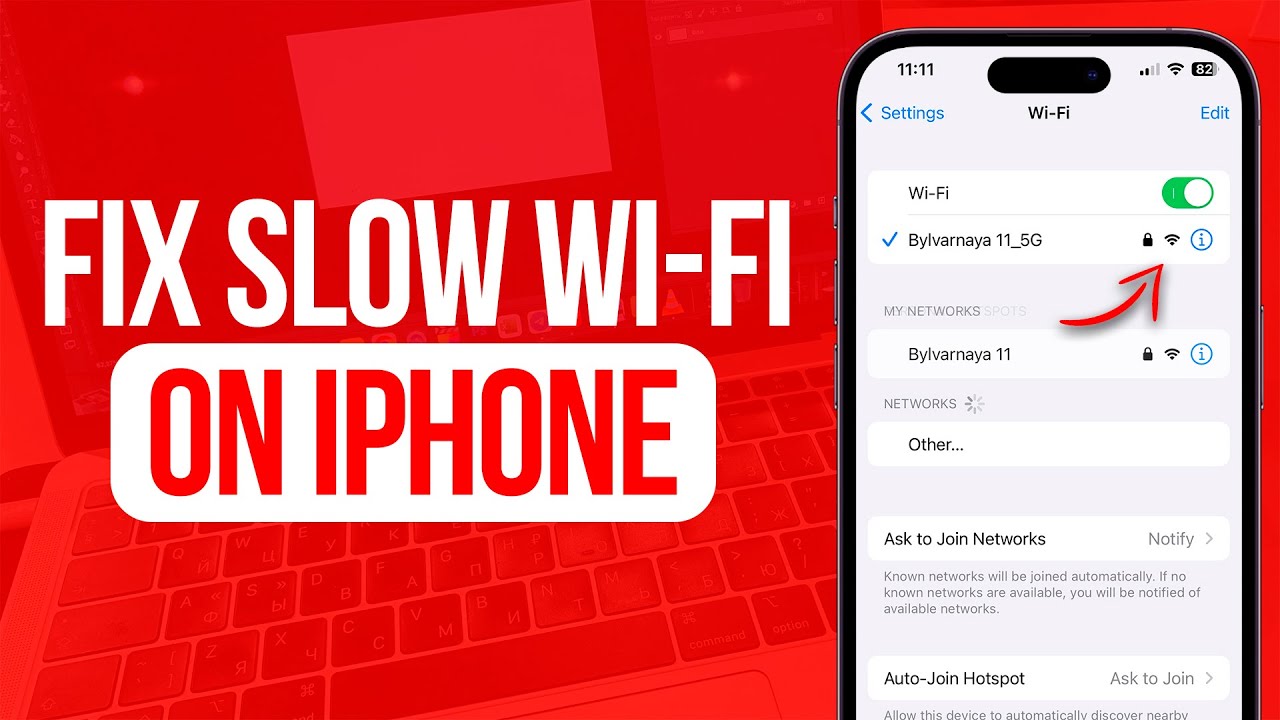
- Forget the problematic network (Settings ▶ Wi‑Fi ▶ Tap the “i” ▶ Forget This Network) to clear any corrupted credentials.
Step 1: Use a Static IP Address
Many Wi‑Fi pause systems flag devices by their IP lease. By assigning a static address, you sidestep the DHCP handshake that the pause script watches.
Go to Settings ▶ Wi‑Fi, tap the “i” next to the network, then choose “Configure IP” → “Manual.” Enter an unused address in the same subnet (for example, 192.168.1.250), set the subnet mask to 255.255.255.0, and point the router field to the network’s gateway. Save and reconnect.
Step 2: Tunnel Through a VPN
A VPN encrypts all traffic, making it impossible for the local pause mechanism to see the underlying data packets. Choose a reputable provider that offers iOS apps, install it, and connect before joining the Wi‑Fi.
Once the VPN tunnel is active, the network sees only encrypted traffic to the VPN server, effectively bypassing the pause. Remember to enable “Connect on Demand” so the VPN starts automatically when the Wi‑Fi joins.
Step 3: Switch to a Personal Hotspot
If the pause persists, a quick fallback is to tether your iPhone to another device’s hotspot. This works because the pause is tied to the Wi‑Fi SSID, not to cellular data. Turn on Personal Hotspot (Settings ▶ Personal Hotspot), connect your iPhone to it, and you’ll be back online in seconds.
Step 4: Use DNS Over HTTPS (DoH)
Some pause systems rely on DNS queries to identify and block devices. Configuring DoH forces your iPhone to resolve domain names through an encrypted channel, sidestepping the DNS filter.
Navigate to Settings ▶ Wi‑Fi ▶ the network’s “i,” scroll to “Configure DNS,” select “Manual,” and add a DoH resolver like 1.1.1.1 (Cloudflare) or 9.9.9.9 (Quad9). Save and reconnect.
Step 5: Reset Network Settings (When All Else Fails)
Resetting wipes saved Wi‑Fi passwords and VPN configurations, giving you a clean slate. Go to Settings ▶ General ▶ Transfer or Reset ▶ Reset ▶ Reset Network Settings. After the phone restarts, re‑enter the Wi‑Fi credentials and try the earlier steps again.
Things to Keep in Mind
Bypassing a Wi‑Fi pause can sometimes trigger additional security measures, such as captive‑portal re‑authentication or temporary MAC address bans. If you notice repeated disconnects, give the network a short break before attempting again.
Also, be aware that some institutions log VPN usage. Using a reputable service that respects privacy reduces the risk of exposing your browsing habits.
When Bypassing Isn’t Worth It
If the network enforces a strict policy—like a university that limits bandwidth during exams—it’s better to respect those rules. Attempting to bypass may lead to disciplinary action, and it could also overload the network for other users.
Quick Recap of the Core Steps
- Assign a static IP to avoid DHCP‑based blocks.
- Activate a reliable VPN to encrypt traffic.
- Fall back to a personal hotspot if Wi‑Fi remains uncooperative.
- Configure DNS over HTTPS for added privacy.
- Reset network settings as a last resort.
FAQ
Can I legally bypass a Wi‑Fi pause on a public hotspot?
Legality varies by jurisdiction. Generally, if the hotspot’s terms of service prohibit circumvention, doing so could be considered a breach of contract. It’s safest to seek permission from the provider first.
Will using a VPN affect my data usage on the same network?
Yes. VPN encryption adds overhead, usually 5‑15 % more data, because each packet carries additional headers. However, the impact is modest for typical browsing.
Is a static IP address visible to the network administrator?
Absolutely. The administrator can still see the IP you chose, but it bypasses the automatic block that targets DHCP‑assigned leases.
Do these methods work on iOS versions older than iOS 15?
The core steps—static IP, VPN, DNS over HTTPS—are supported on iOS 13 and newer. Older versions may lack DoH settings, in which case a third‑party DNS app becomes necessary.