How to Boost PUBG Mobile FPS on iPhone: A Gamer’s Guide
Understanding FPS and Why It Matters in PUBG Mobile
Frames per second (FPS) is the heartbeat of any fast‑paced shooter. When the frame count dips, your aim lags, enemy movements blur, and the whole experience feels sluggish. On an iPhone, the hardware is already tuned for smooth performance, but a few tweaks can unlock extra headroom, giving you that extra edge in the final circle.
Check Your iPhone’s System Settings First
Before diving into the game, make sure the device itself isn’t holding you back.
- Enable Low Power Mode only when you’re not gaming; it throttles the CPU, so turn it off.
- Disable Background App Refresh for apps you don’t need while playing. This frees RAM and reduces occasional frame spikes.
- Turn off Automatic Brightness and set the screen to a comfortable level manually. A lower brightness can marginally lessen GPU load.
- Update iOS to the latest version. Apple often includes performance patches that benefit games like PUBG Mobile.
Fine‑Tune PUBG Mobile’s In‑Game Settings
These options are the most direct way to boost PUBG Mobile FPS on iPhone. Each setting trades visual fidelity for smoother motion; experiment to find the sweet spot that feels right for you.
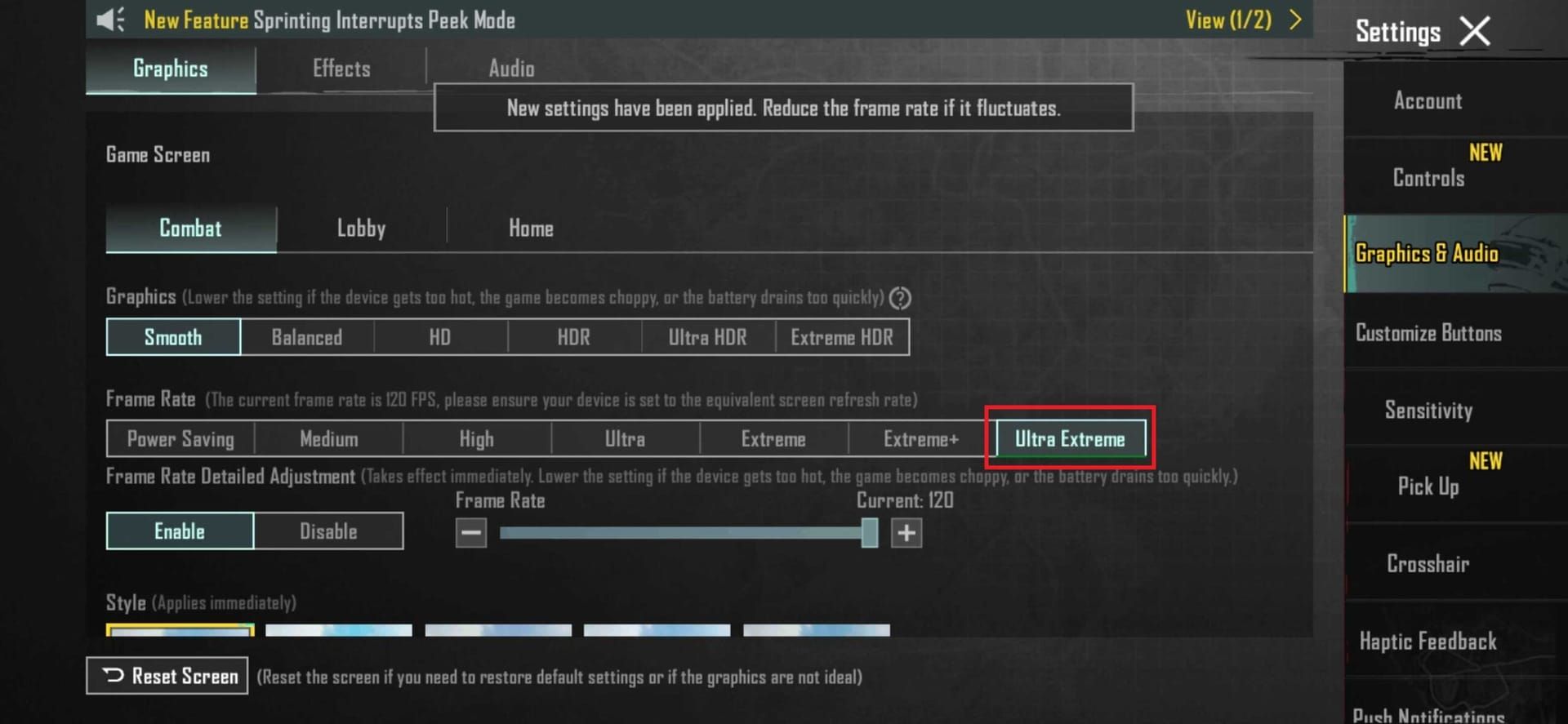
- Graphics: Choose “Smooth” instead of “HD” or “Ultra”. “Smooth” caps the frame rate at 60 FPS on newer iPhones, while “HD” can dip below 30 FPS on older models.
- Frame Rate: Set to “High” (60 FPS) if your device supports it; otherwise select “Medium” (30 FPS) for a stable experience.
- FOV (Field of View): A narrower FOV (e.g., 70°) reduces the amount of scene the GPU must render, often nudging FPS up a few points.
- Anti‑Aliasing: Turn it off. The jagged edges are a small price for a smoother run.
- Shadows & Motion Blur: Disable both. They consume considerable processing power without adding much to competitive play.
- Sensory Effects: Reduce or turn off “Vibration” and “Camera Shake” to keep the CPU focused on rendering.
Optimize Network Settings for Consistent Performance
Even if your FPS is solid, a laggy connection can feel just as disastrous. Here’s how to keep the network side in check.
- Prefer a stable Wi‑Fi connection over cellular, especially 5 GHz bands, which offer lower latency.
- Close any apps that might be using bandwidth in the background, such as streaming services or cloud backups.
- If you must use mobile data, enable “Low Data Mode” in iOS Settings to prevent background downloads from interrupting gameplay.
Extra Tips for Long Gaming Sessions
Extended play can cause thermal throttling, where the iPhone deliberately slows down to stay cool. These habits help keep temperatures down.
- Remove any bulky case that traps heat during intense matches.
- Play in a well‑ventilated area; a simple fan can make a noticeable difference.
- Take short breaks every 30‑45 minutes to let the device cool.
- Consider enabling “Reduce Motion” in iOS Accessibility settings; it cuts down on some of the system’s visual effects, which can lower overall GPU strain.
What Not to Do: Common Pitfalls to Avoid
Some “quick fixes” actually harm performance more than they help.
- Installing third‑party “FPS boosters” from unknown sources can introduce malware and may be flagged by Apple, leading to bans.
- Overclocking the device is not possible on iOS, and any app that claims to do so is misleading.
- Reducing the resolution via external tools is unnecessary; the built‑in graphics settings already provide the most efficient path.
FAQ
Will lowering graphics quality affect my chances of winning?
Generally no. Competitive play relies more on reaction time and positioning than on ultra‑realistic visuals. Many top players run the “Smooth” preset because it offers a steadier frame rate.
Can I achieve 60 FPS on an iPhone SE (2020)?
That model caps at 30 FPS for PUBG Mobile due to hardware limitations. The best you can do is ensure the game runs consistently at 30 FPS by applying the settings above.
Does enabling “Game Mode” in iOS improve FPS?
iOS’s “Game Mode” (when available) primarily prioritizes network traffic and reduces background interruptions; it doesn’t directly boost frame rates, but it helps keep the experience smooth.
Is it safe to jailbreak my iPhone for performance gains?
Jailbreaking voids warranties, opens the device to security risks, and often violates PUBG Mobile’s terms of service, potentially leading to a permanent ban.