How to Boost Performance Using an M.2 NVMe SSD SATA Adapter
Understanding the Basics of an M.2 NVMe SSD to SATA Adapter
The phrase “M.2 NVMe SSD to SATA adapter” often pops up when users want to repurpose a fast NVMe drive in an older system that only has SATA ports. In theory, the adapter acts as a bridge, letting the tiny M.2 card plug into a larger 2.5‑inch slot or a standard SATA connector. However, the underlying technology matters: NVMe communicates over PCIe lanes, while SATA is limited to a 6 Gb/s bus. That mismatch is the first thing to keep in mind when you’re trying to boost storage speed without changing the whole motherboard.
Because of this fundamental speed ceiling, an adapter cannot magically turn a PCIe 3.0 ×4 NVMe drive into a 6 Gb/s SATA drive without loss. Yet, many users still see tangible benefits compared to traditional hard drives or older SATA SSDs, especially when the alternative is not having the NVMe drive at all.
When an Adapter Makes Sense
- Legacy laptops or desktops: Machines that lack an M.2 slot but have a free SATA bay can still enjoy the capacity of a modern NVMe drive.
- Cost‑effective upgrades: Buying a high‑capacity NVMe SSD and pairing it with an adapter is often cheaper than a full system replacement.
- Testing and diagnostics: Technicians use adapters to quickly evaluate the health of an NVMe drive on a test rig that only offers SATA.
If you fall into one of these scenarios, the adapter can be a practical stopgap. Just remember that the performance gain will be capped by SATA’s maximum throughput—roughly 550 MB/s after accounting for overhead.
Choosing the Right Adapter
Not all adapters are created equal. Look for the following features before you buy:
- USB‑type connector: Some adapters use a USB‑C enclosure with an internal SATA bridge. They’re portable but add another bottleneck.
- Direct SATA‑to‑M.2 slot: A simple bracket that slides the drive into a SATA power and data cable is often the most reliable.
- Power handling: NVMe SSDs can draw up to 5 W under load. Ensure the adapter’s SATA power connector can supply enough current.
- Thermal design: Heat sinks or ventilation slots help prevent throttling during sustained writes.
Brands such as StarTech, Sabrent, and Ugreen have reputable models. Reading user reviews for real‑world performance figures can spare you from a disappointing purchase.
Step‑by‑Step Installation Guide
1. Gather Your Tools
You’ll need a small Phillips screwdriver, the M.2 NVMe SSD, the chosen adapter, and a SATA data cable (if the adapter doesn’t include one). A static‑release wrist strap is optional but recommended for safety.
2. Prepare the Drive
Power down the computer and unplug it. If the SSD is brand‑new, you can skip any firmware updates for now—those are easier to apply once the drive is recognized by the OS.
3. Attach the SSD to the Adapter
Align the notch on the SSD’s edge connector with the corresponding key in the adapter’s M.2 slot. Gently push until it clicks, then secure it with the tiny screw supplied with the adapter.
4. Connect Power and Data
Plug the SATA power connector from the PSU into the adapter’s power port. Then attach the SATA data cable to the adapter and the motherboard’s SATA port. If the adapter includes an internal power splitter, double‑check that both pins are seated firmly.
5. Boot and Verify
Power on the system. Enter the BIOS/UEFI and look for the new drive under the storage list. It may appear as a standard SATA device rather than an NVMe one—this is normal. Save any changes and boot into your operating system.
6. Format and Optimize
Once Windows or Linux detects the drive, initialize it with GPT partitioning for best compatibility. Enable TRIM support in the OS to maintain long‑term performance, even though the drive is operating over SATA.
Performance Expectations and Tweaks
Even with a solid adapter, you’ll notice that sequential read/write speeds hover near the SATA ceiling—typically 500‑540 MB/s for a high‑end NVMe drive. Random I/O performance, however, can still outpace many SATA SSDs because the NAND chips themselves are faster.
To squeeze the most out of the setup, consider these adjustments:
- Disable unnecessary background services: Windows’ Superfetch and indexing can create extra write cycles that a SATA link struggles to handle.
- Allocate a dedicated cache partition: Some users carve a small 20‑GB partition on the NVMe drive for OS temp files, reducing random writes on the main storage.
- Keep firmware up to date: Both the SSD and the adapter may receive updates that improve compatibility and power management.
Potential Pitfalls to Watch Out For
While adapters are convenient, they come with trade‑offs. The most common issues include:
- Thermal throttling: Without adequate cooling, the SSD may drop performance after 10‑15 minutes of heavy use.
- Power loss during sudden shutdowns: Some adapters lack power‑loss protection, which could corrupt data if the system loses power abruptly.
- Compatibility quirks: Certain older motherboards struggle to boot from a drive that appears as a “non‑standard” SATA device.
If you encounter any of these, try updating the BIOS, adding a small fan to the drive bay, or using a different SATA port.
FAQ
Can an M.2 NVMe SSD to SATA adapter increase the drive’s speed?
No. The adapter can only translate the interface; the SATA bus remains the limiting factor. You’ll get the SSD’s capacity and better random I/O than a typical SATA SSD, but not its full PCIe bandwidth.
Do I need to reinstall the operating system after installing the adapter?
Not necessarily. If you’re adding the SSD as a secondary drive, just format it and start using it. For a primary OS drive, you’ll need to clone the existing system or perform a fresh install, just as you would with any new storage device.
Is TRIM still effective when the SSD is behind a SATA bridge?
Yes. Modern adapters pass TRIM commands through to the NVMe drive, so the OS can still inform the SSD which blocks are no longer in use.
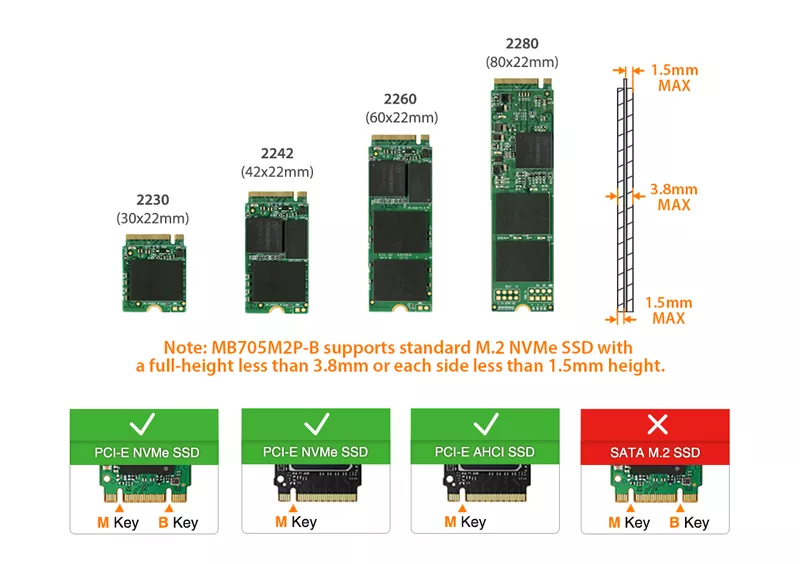
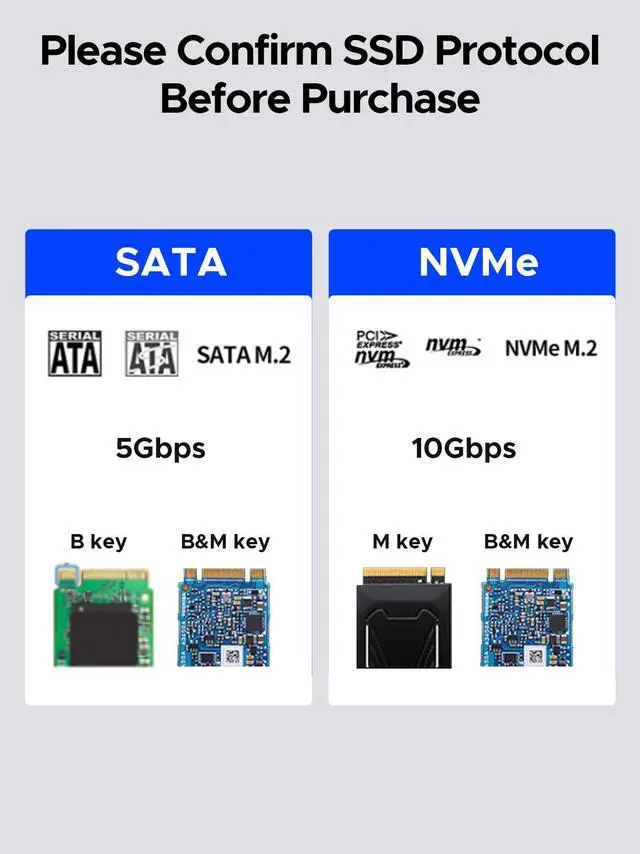
Will the adapter work with an M.2 SATA SSD?
Only if the adapter explicitly supports both NVMe and SATA M.2 keys. Some adapters are NVMe‑only, so double‑check the product specifications before buying.