How to Adjust Display Settings on Your Roku TV: A Simple Guide
If you’ve ever stared at a picture that looks washed out or overly sharp, you’ve probably wondered whether the Roku TV format can be tweaked without a professional’s help. The good news is that most Roku models expose a surprisingly intuitive menu for fine‑tuning picture quality. In the next few minutes you’ll learn where the settings live, which presets work best for different rooms, and how to dive into the deeper calibrations only the savvy viewer needs.
Understanding Roku TV Display Formats
Roku TVs use a combination of hardware presets (often called “picture modes”) and software sliders that control brightness, contrast, color temperature, and more. The default mode—usually labeled “Standard” or “Dynamic”—aims for a bright, eye‑catching look that works in a lit living room. If you watch in a darker environment, that same mode can make blacks look gray and details disappear. Knowing the purpose of each preset helps you decide whether you need a quick switch or a full custom calibration.
Quick Switch: Choosing the Right Picture Mode
Most Roku remote controls feature a dedicated Picture button that cycles through four or five built‑in modes. Here’s a quick rundown of what each typically offers:
- Standard/Dynamic: Bright, high‑contrast; good for daytime viewing.
- Vivid: Extra saturation; ideal for colorful movies but can oversaturate skin tones.
- Cinema/Filmmaker: Warmer tones and softer contrast; designed for dark rooms and accurate color reproduction.
- Game: Low input lag; reduces processing for smoother gameplay.
- Custom: Your own saved settings; perfect for households with varied lighting.
To switch, simply press the Picture button until the on‑screen label matches your preference. That’s all you need for a fast fix.
Step‑by‑Step: Changing the Picture Mode via Settings
If you prefer a more deliberate approach, head into the main Settings menu:
- Press the Home button on your remote.
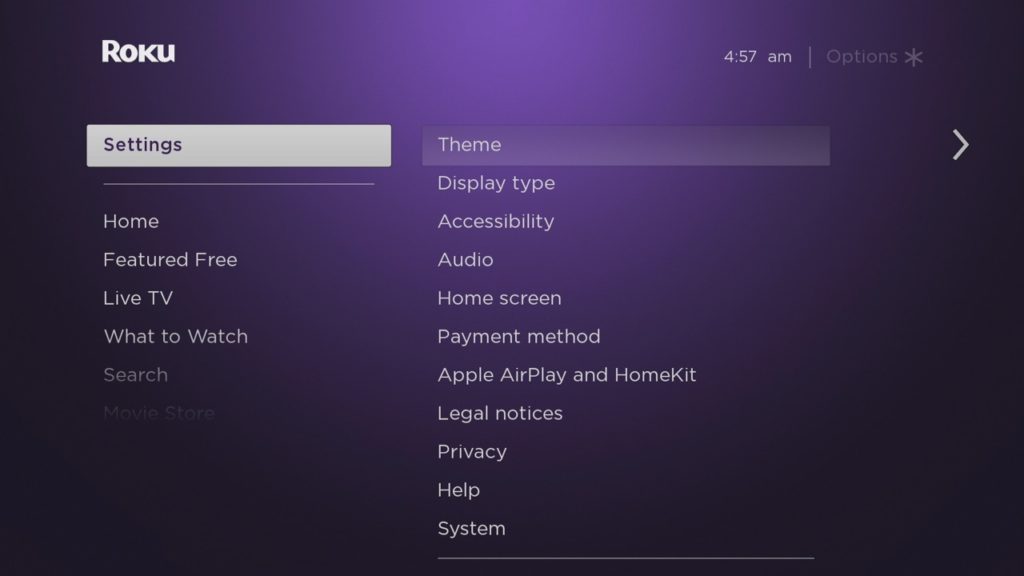
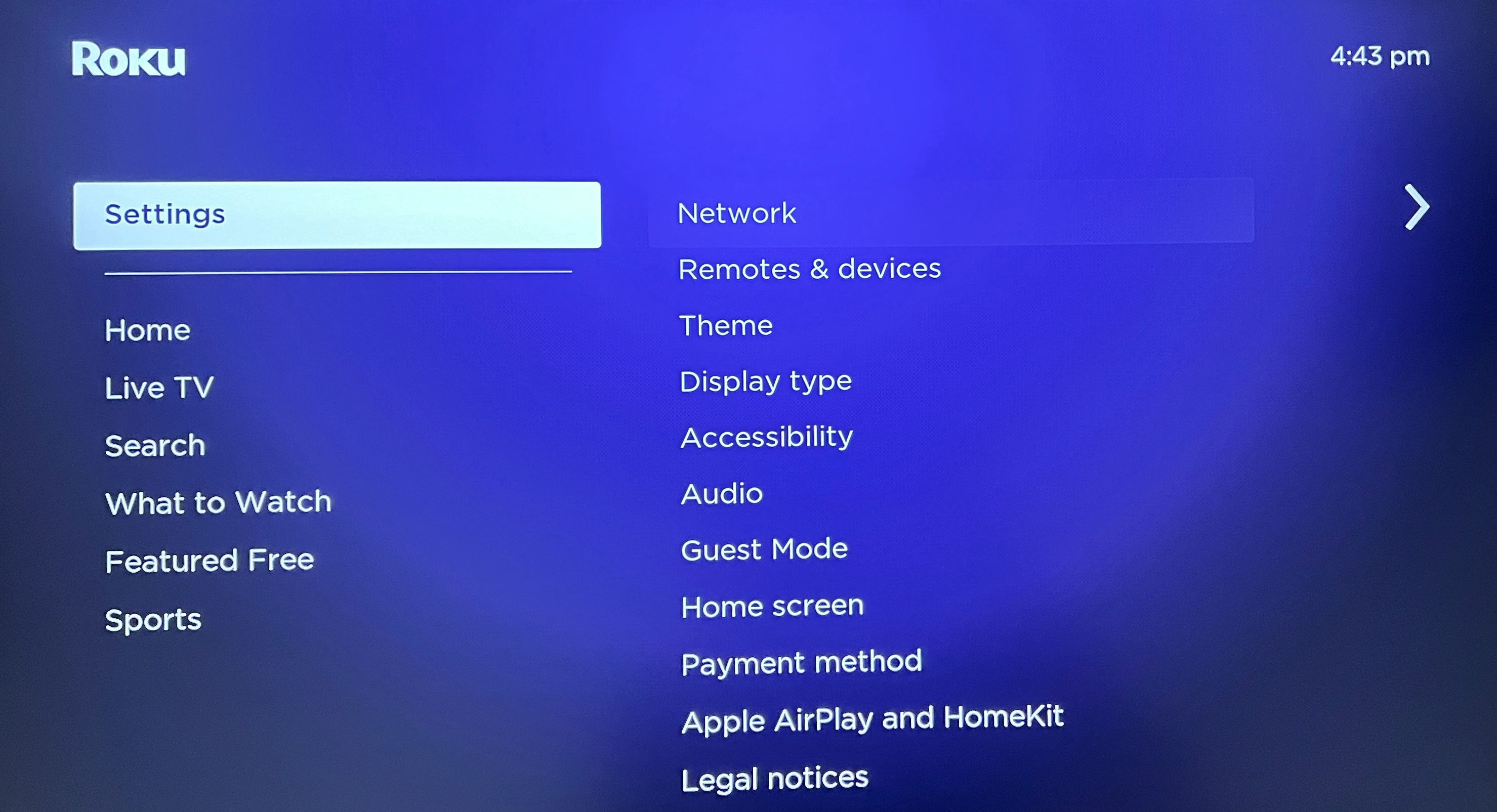
- Select Settings → Audio & Video → Picture Settings.
- Choose Picture Mode and scroll through the list.
- Tap the mode you want and confirm with OK.
The changes apply instantly, and you can always revert by revisiting the same path. For families that watch both movies and sports, it’s worth creating a “Sports” preset that boosts motion handling while keeping colors natural.
Fine‑Tuning Brightness, Contrast, and Color
Beyond the preset modes, Roku’s “Advanced Picture Settings” let you tweak individual parameters. Here’s how to adjust the three most common sliders:
- Brightness (or Black Level): Move the slider until dark scenes retain detail without appearing muddy.
- Contrast (or White Level): Increase until bright highlights pop, but avoid clipping where whites lose texture.
- Color Saturation: Slide toward “Warm” for a more cinematic feel, or toward “Cool” for a crisper, more neutral look.
Remember that each adjustment influences the others—raising contrast may make blacks look harsher, so a small back‑and‑forth is normal. If you’re unsure, set each slider to the midpoint, then make incremental changes while watching a familiar show.
Advanced Options: HDR, Motion Smoothing, and Noise Reduction
Modern Roku TVs support HDR (High Dynamic Range) content, which expands the range between darkest and brightest parts of the picture. To enable HDR:
- Go to Settings → Audio & Video → HDR.
- Toggle Auto HDR on; the TV will automatically switch when HDR media is detected.
Motion smoothing (often labeled “Motion Flow”) can reduce judder in fast‑moving scenes, but many purists prefer it off because it adds a “soap‑opera” look. Noise reduction helps clean up low‑light footage, yet turning it up too far can blur fine details. Experiment with these settings in short bursts—watch a fast‑action clip, then a dark drama scene, and note which configuration feels most natural.
Saving and Resetting Custom Profiles
Roku lets you store up to five custom picture profiles per TV. After dialing in the perfect combination of mode, brightness, contrast, and advanced features, simply select Save as Custom 1 (or any slot you prefer). If you ever need to start over, the Reset Picture Settings option under Audio & Video restores factory defaults, wiping all custom profiles in the process. This safety net makes it painless to experiment without fearing a permanent mess.
Tips for Specific Viewing Environments
Here are a few quick guidelines to match your settings to the room’s lighting:
- Bright Living Room: Stick with Standard or Dynamic, keep contrast high, and use a cooler color temperature.
- Dim Home Theater: Switch to Cinema, lower brightness slightly, and add a warm tint for a film‑like ambiance.
- Gaming Corner: Choose Game mode, ensure motion smoothing is off, and set input lag to “Low” if your TV offers that toggle.
Even a small tweak—like nudging the brightness down by 10%—can make late‑night viewing easier on the eyes without sacrificing picture fidelity.
When to Call in Professional Calibration
If you’re a home‑theater enthusiast who wants the absolute best from a high‑end Roku TV, a professional calibrator can measure color accuracy with a spectrophotometer and adjust the TV’s internal color gamut. This service typically runs $150‑$300 and is most worthwhile for flagship models with premium panels. For the average viewer, the built‑in presets and manual sliders provide more than enough flexibility.
Frequently Asked Questions
Can I change the Roku TV format without using the remote?
Yes. Most Roku TVs have a physical button on the side or back that brings up the picture mode menu, allowing you to cycle through presets without the remote.
Does turning on HDR affect battery life on my Roku TV?
HDR itself doesn’t drain the TV’s power noticeably, but the higher peak brightness required for HDR content can increase overall energy consumption during playback.
Why does my picture look different after a software update?
Software updates sometimes reset picture settings to default or introduce new calibration profiles. Check the Picture Settings menu after an update to reapply any custom profiles you saved.
Is “Game” mode always the best choice for gaming?
Game mode reduces processing lag, which is crucial for fast reflexes. However, if you prioritize visual depth over latency, you might prefer a custom profile that balances both.