How to Add a News Feed to Your Site in a Few Simple Steps
Keeping visitors in the loop is a subtle way to boost engagement, and a news feed does exactly that. Whether you run a corporate blog, a community portal, or a personal showcase, integrating a live feed of updates can make your site feel current without constant manual edits. Below is a straightforward guide that walks you through the whole process—from picking the right format to styling the final widget.
Why a News Feed Matters
A well‑placed feed turns static pages into a dynamic hub. Readers can skim headlines, click through to full articles, and stay longer on your site. Search engines also appreciate fresh content, which can translate into modest ranking bumps over time. In short, a news feed is a low‑effort way to keep both users and crawlers happy.
Choosing the Right Feed Format
Not all feeds are created equal, and the choice depends on your content source and technical comfort level.
- RSS/Atom – The classic XML‑based format. Most blogging platforms output an RSS feed automatically, making it the easiest to tap into.
- JSON – Modern APIs often deliver data in JSON, which is lighter and easier to parse with JavaScript.
- Custom HTML snippets – Some services provide ready‑made embed codes that you can drop straight into your pages.
If you already have an RSS link, start there. If you’re pulling from a headless CMS or a third‑party news service, you’ll likely work with JSON. The underlying principle is the same: fetch the feed, extract the headlines, and display them.
Embedding the Feed: Step‑by‑Step
Below is a generic workflow that works for most sites, regardless of whether you’re using a plain HTML page, WordPress, or a static site generator.
- Locate the feed URL. Look for an “RSS” or “Feed” button on your blog, or ask your content provider for the endpoint.
- Include a script. Add a small JavaScript file that will handle the request. For example:
<script src="https://cdn.jsdelivr.net/npm/axios/dist/axios.min.js"></script> - Fetch the data. Use axios (or fetch) to retrieve the feed. A typical snippet looks like this:
axios.get('https://example.com/feed.json').then(response => renderFeed(response.data))
.catch(err => console.error('Feed error', err));
- Parse and render. Loop through the first five items and inject them into a container element:
function renderFeed(items) {const container = document.getElementById('news-feed');
items.slice(0,5).forEach(item => {
const entry = document.createElement('div');
entry.innerHTML = `${item.title}`;
container.appendChild(entry);
});
}
- Place the container. Somewhere in your HTML, add
<div id="news-feed"></div>. That’s where the headlines will appear.
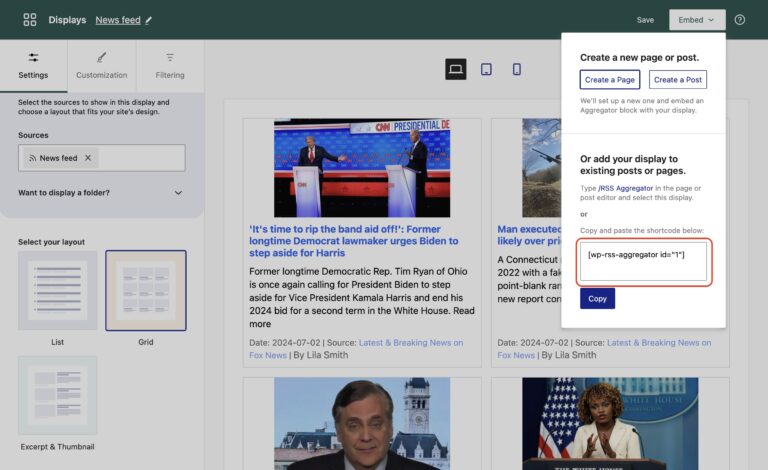
WordPress users can skip most of the code by installing a plugin like “WP RSS Aggregator,” then using a shortcode such as [wp_rss_feed url="https://example.com/feed.xml"]. The principle remains: fetch, parse, display.
Styling and Customizing Your Feed
Raw headlines are functional but rarely delightful. A few CSS tweaks can make the feed blend with your site’s aesthetic.
- Typography. Match the font family and size of your body text for consistency.
- Spacing. Use
margin-bottom: 0.5remon each entry to keep things breathable. - Hover effects. A subtle underline or color shift on
a:hoversignals interactivity.
Here’s a quick style block you can paste into your stylesheet:
#news-feed div {font-family: inherit;
font-size: 0.95rem;
margin-bottom: 0.6rem;
}
#news-feed a {
text-decoration: none;
color: #0066cc;
}
#news-feed a:hover {
text-decoration: underline;
color: #004999;
}
If you need more control—say, showing thumbnails or publishing dates—expand the rendering function to include those fields and adjust the markup accordingly.
Handling Updates and Errors Gracefully
Feeds can go stale or temporarily fail. To keep the user experience smooth, consider a fallback message:
function renderFeed(items) {if (!items || !items.length) {
document.getElementById('news-feed').innerHTML = 'No recent news at the moment.';
return;
}
// normal rendering logic follows…
}
Additionally, caching the response for a few minutes reduces server load and avoids hitting rate limits on third‑party APIs. Many CDN providers let you set a short Cache‑Control header, or you can store the JSON in localStorage and refresh it on a timed interval.
Testing Across Devices
Responsive design matters. Verify that the feed looks tidy on mobile screens—especially because headlines can be longer than expected. A simple media query can shrink the font size or stack items vertically when the viewport drops below 600 px.
@media (max-width: 600px) {#news-feed div {
font-size: 0.85rem;
}
}
Run the page through your browser’s DevTools, toggle device emulation, and watch for overflow or broken links. A quick visual check saves you from embarrassing layout glitches after launch.
SEO Considerations
Search engines treat feed content as part of the page, but they also appreciate canonical URLs. If your feed pulls from the same articles that already exist elsewhere on your site, add a rel="canonical" link in each article’s header to avoid duplicate‑content penalties. For external feeds, you can safely display headlines without full article text, which sidesteps any copyright concerns while still offering value to readers.
FAQ
Can I add a news feed without any coding?
Yes. Most major CMS platforms have plugins or widgets that let you paste a feed URL and configure basic styling from the dashboard.
Is it safe to display headlines from another website?
Generally, yes—headlines are public data. However, always respect the source’s terms of use and provide proper attribution when required.
How often should the feed refresh?
A refresh interval of five to fifteen minutes balances freshness with server load. Adjust based on how quickly your source updates.
What if the feed includes images that are too large?
Resize images on the server side or use CSS to constrain max-width and height. This prevents layout breakage on slower connections.