How to Activate the Personal Hotspot on iPhone 15
If you’ve ever needed a quick internet connection for a laptop, tablet, or a friend’s phone while you’re out and about, the iPhone 15’s Personal Hotspot feature is a lifesaver. Apple refined the process with iOS 17, making it smoother than ever—yet the steps can still feel a bit hidden for first‑time users. In this guide we’ll walk through exactly how to turn on the Personal Hotspot on your iPhone 15, troubleshoot the usual hiccups, and share a few tips to keep your data usage in check.
Why Use a Personal Hotspot on Your iPhone 15?
Beyond the obvious convenience of sharing a cellular connection, the iPhone 15’s hotspot supports both Wi‑Fi and Bluetooth tethering, giving you flexibility depending on the device you’re connecting. It’s especially handy when you’re traveling abroad and can’t rely on public Wi‑Fi, or when you’re in a location with spotty broadband but solid LTE/5G coverage. The feature also respects Apple’s privacy standards, encrypting the connection so you don’t have to worry about casual snooping on the network.
Preparing Your iPhone 15 Before You Enable the Hotspot
First, make sure your carrier allows hotspot usage; most major providers include it in their data plans, but some low‑cost plans may impose limits or extra fees. Next, verify that your iPhone 15 is running the latest iOS version—Apple often patches bugs that affect tethering performance. Finally, check that you have enough battery or plug the phone into a charger; the hotspot can drain power quickly, especially if multiple devices are connected.
Turning On the Personal Hotspot on iPhone 15
Follow these steps, and you’ll be sharing your connection in under a minute:
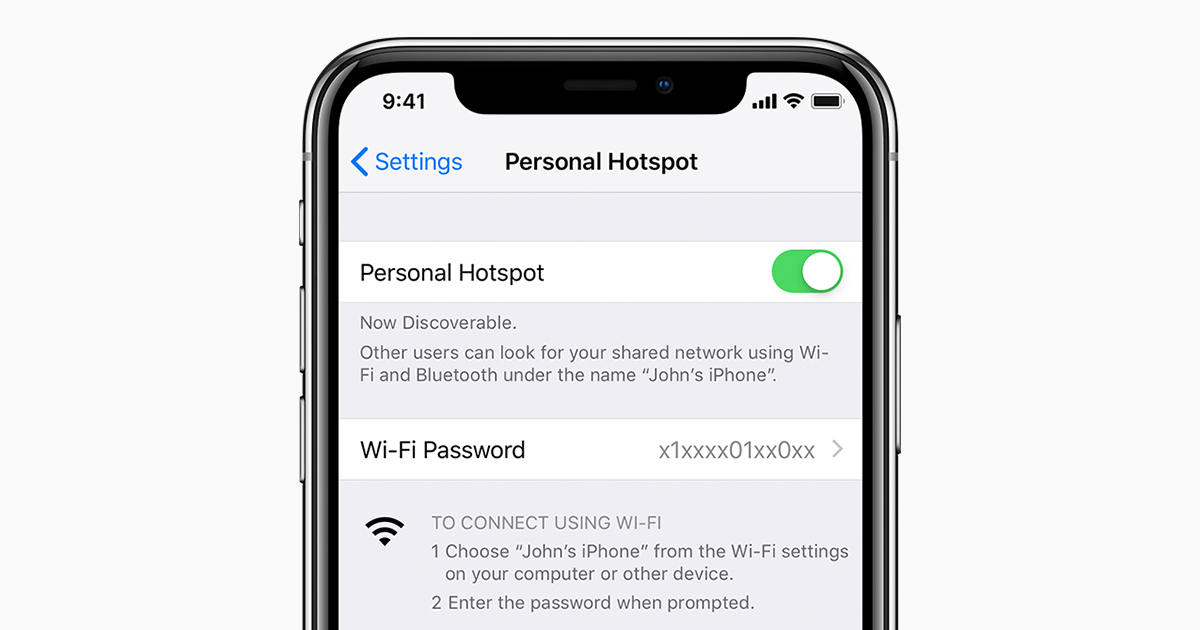
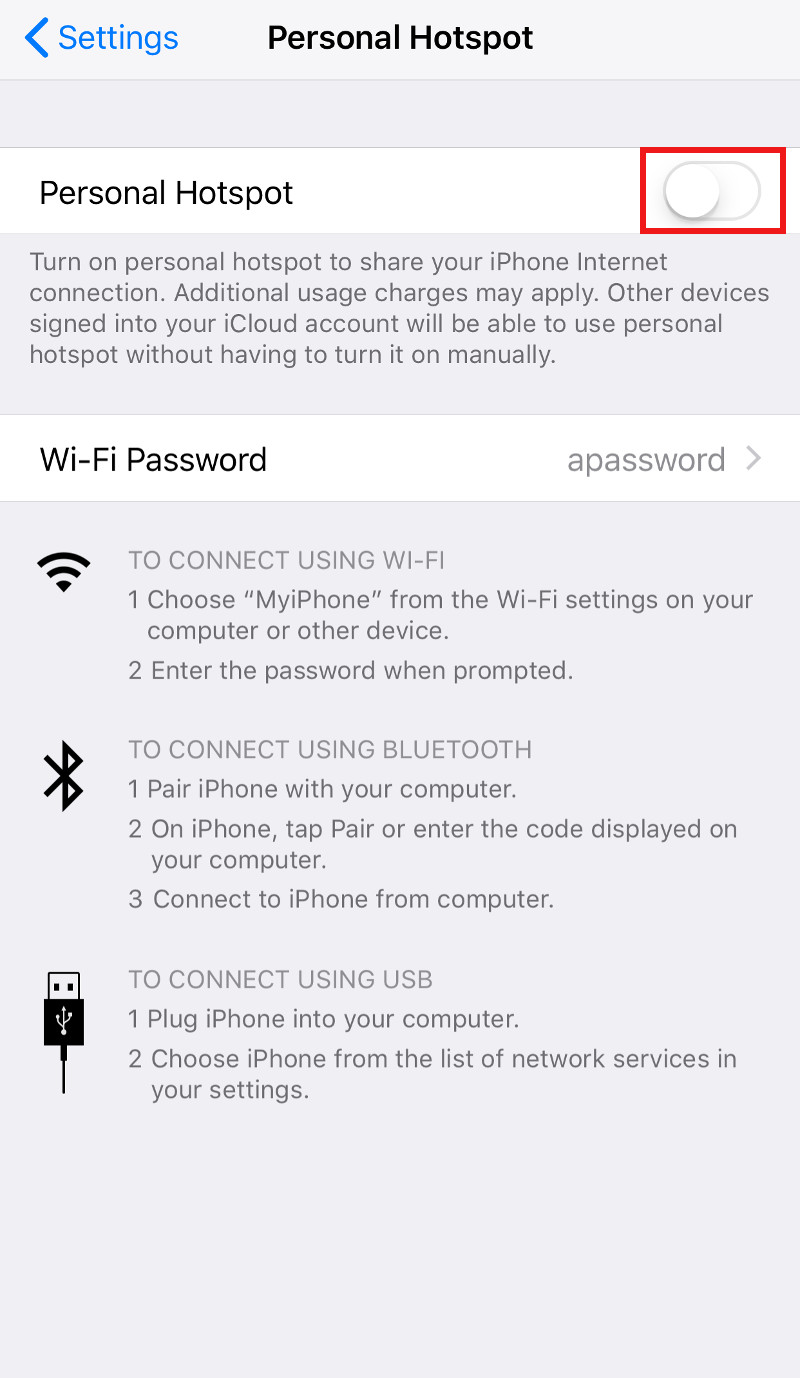
- Open Settings. Scroll down and tap Personal Hotspot. If you don’t see it right away, tap Cellular first, then select Personal Hotspot from the submenu.
- Toggle the switch. Slide the Allow Others to Join toggle to the on position. Your iPhone will automatically generate a Wi‑Fi password if you haven’t set one before.
- Customize the network. Tap Wi‑Fi Password to create a memorable but strong password—at least eight characters, mixing letters and numbers is recommended.
- Connect your device. On the device you want to link, select your iPhone’s name from the Wi‑Fi list and enter the password you just set.
- Optional: Use Bluetooth or USB. For a more stable connection, especially with laptops, pair via Bluetooth or plug your iPhone into the computer with a Lightning‑to‑USB cable and enable “Instant Hotspot” when prompted.
Troubleshooting Common Hotspot Issues
Even with the steps above, you might hit a snag. Here are the most frequent problems and quick fixes:
- No devices can see the hotspot. Turn Wi‑Fi off and on again on both the iPhone and the connecting device. If that fails, restart your iPhone.
- Connected devices lose internet. Check your cellular signal strength; a weak signal can cause intermittent drops. Switching from 5G to LTE in Settings → Cellular → Voice & Data sometimes stabilizes the link.
- Battery drains too fast. Enable “Low Power Mode” in Settings → Battery while the hotspot is active, or limit the number of connected devices.
- Carrier says hotspot is disabled. Contact your provider to confirm that your plan includes tethering. Some carriers require an activation code that can be entered in Settings → Cellular → Add Cellular Plan.
Tips for Managing Data While Using the Hotspot
Sharing a connection can quickly eat through your data allowance, so keep an eye on usage. iOS provides a built‑in data tracker: go to Settings → Cellular and scroll to the “Personal Hotspot” section to see how much you’ve used. If you notice a spike, disconnect idle devices or set a bandwidth limit on the client device itself. For occasional heavy‑download tasks, consider pausing the hotspot afterward to avoid accidental overages.
Security Best Practices for Your Hotspot
Never leave the hotspot on when you’re not actively using it; an open network is an invitation to anyone within range. Always use a password, and avoid common phrases like “password123.” If you suspect unauthorized usage, change the password immediately and review connected devices in Settings → Personal Hotspot → Connected Devices.
FAQ
Can I use the iPhone 15 hotspot without a Wi‑Fi password?
iOS requires a password for Wi‑Fi tethering. You can, however, share via Bluetooth or USB without entering a Wi‑Fi password.
How many devices can connect at once?
Apple officially supports up to five simultaneous connections, though performance may degrade with many high‑bandwidth users.
Does using a hotspot affect my iPhone’s 5G speed?
The hotspot mirrors whatever cellular speed your iPhone receives. If you’re on 5G, connected devices will see 5G‑like speeds, subject to carrier throttling.
Is there a way to automate hotspot activation?
iOS doesn’t offer a built‑in automation for turning on the hotspot, but you can use the Shortcuts app to create a quick toggle that opens the Personal Hotspot settings with one tap.