How Switching to 120 Hz Can Supercharge Your Screen Experience
Ever notice how a smartphone scroll feels sluggish or a game stutters during fast action? The culprit is often the refresh rate, the number of times a display updates each second. Most devices sit at the modest 60 Hz, but if you switch to 120 Hz, the picture becomes noticeably smoother, the touch response feels sharper, and eye fatigue can drop dramatically. Below we unpack why the higher rate matters, which gear can actually run it, and the practical steps to make the change without breaking anything.
Why 120 Hz Beats the Standard 60 Hz
At its core, a 120 Hz panel redraws the image twice as often as a 60 Hz one. That translates to less motion blur when you swipe through a feed, and it gives fast‑moving subjects—like a racing car in a video game—more distinct frames to work with. The result is a fluid visual flow that feels closer to real life. For many people, the difference is subtle at first, but after a few minutes of use the lower‑refresh screen starts to feel “laggy” in comparison.
Beyond smoothness, a higher refresh rate can actually improve perceived responsiveness. When you tap a button, the screen updates quicker, which your brain interprets as a faster reaction. This is why competitive gamers prize 120 Hz (or higher) monitors: the reduced input lag can shave precious milliseconds off reaction time.
How to Switch to 120 Hz on Your Device
Enabling the higher refresh rate isn’t always a single toggle, but the process is usually straightforward. Below are the most common platforms and the steps they require.
- Android phones and tablets: Open Settings → Display → Refresh rate and select “120 Hz” or “Smooth”. Some OEM skins hide the option under “Advanced” or “Screen mode”.
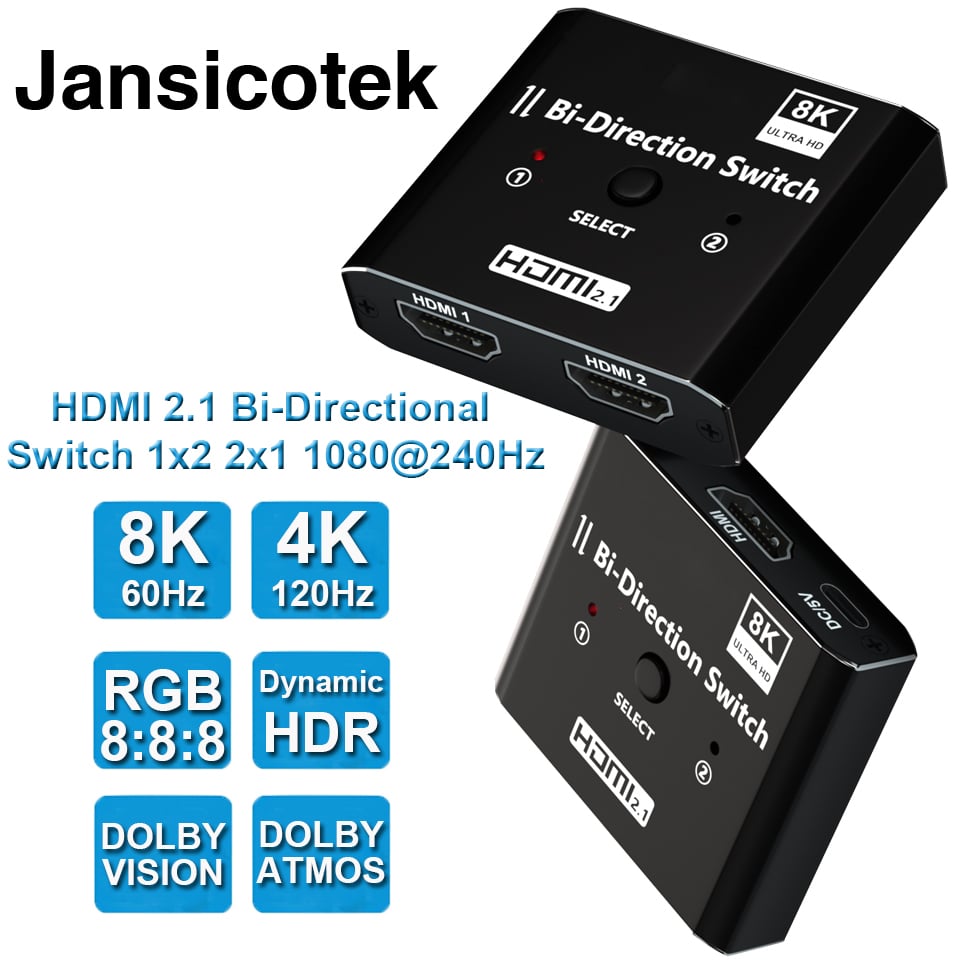
- Windows PCs: Right‑click the desktop, choose “Display settings”, scroll to “Advanced display settings”, then pick “120 Hz” from the “Refresh rate” dropdown. If the option is missing, you may need to update graphics drivers or verify that your monitor’s cable (DisplayPort > 1.2 or HDMI 2.1) supports it.
- macOS: For compatible Apple displays, go to System Settings → Displays, hold the Option key and click “Refresh Rate” to reveal “120 Hz”. Older Macs may be limited to 60 Hz unless you use an external 120 Hz monitor.
- Gaming consoles (PS5, Xbox Series X): Both consoles automatically output at 120 Hz when a TV or monitor reports support. Ensure the HDMI cable is rated for 2.1, enable “120 Hz” or “120 fps” in the console’s video settings, and confirm the TV’s HDMI port is set to “HDMI 2.1” or “Enhanced mode”.
Do Your Device and Content Support 120 Hz?
Hardware is only half the equation; the software you run must also be capable of delivering frames at that speed. Most modern smartphones and high‑end laptops ship with 120 Hz panels, but many still cap games or video playback at 60 fps to conserve battery or GPU power. Look for “High refresh rate” tags in app stores, or check game settings for a “frame rate limit” option.
Streaming services are catching up, too. Some Netflix and YouTube videos now support 60 fps, and a growing handful of titles are being encoded at 120 fps for HDR displays. However, the majority of web video remains at 30 fps, so you won’t see a visual boost everywhere.
Potential Drawbacks and How to Mitigate Them
Running a display at 120 Hz does consume more power. On a laptop, you may notice a shorter battery life of a few percentage points per hour. On a phone, the screen becomes a larger drain, especially if you also enable “Adaptive brightness” and high‑resolution rendering.
GPU load also rises, because the graphics processor must produce twice as many frames. If you’re gaming on a mid‑range card, you might see lower graphical settings or occasional stutters. The usual fix is to enable “Performance mode” in the driver software, which prioritizes frame rate over visual fidelity, or to cap the frame output at 90 Hz to strike a balance.
When 120 Hz Matters Most: Gaming, Media, Productivity
Gaming is the obvious winner. Fast‑paced shooters, racing games, and fighting titles feel dramatically more responsive, and many competitive titles now list “120 fps” as a target performance metric.
Media consumption benefits when the source material is high frame rate. Sports broadcasts filmed at 60 fps become smoother on a 120 Hz screen because each frame is displayed twice, reducing judder. For movies shot at the cinematic 24 fps, the improvement is minimal, though the reduced motion blur can still make action scenes feel cleaner.
Productivity gains are subtler but real. Scrolling through long documents, spreadsheets, or social feeds feels less choppy, which can lessen eye strain during long work sessions. Designers also notice that UI animations render more fluidly, making the overall workflow feel snappier.
FAQ
- Will switching to 120 Hz void my device warranty? No. Changing a software setting does not affect the hardware, and manufacturers typically support the feature out of the box. Just ensure you’re using official cables and drivers.
- Can I use 120 Hz on any monitor? Only displays that advertise a 120 Hz (or higher) capability will work. Older monitors will still list 60 Hz as the maximum, regardless of the cable you use.
- Is 120 Hz worth it for everyday browsing? If you spend a lot of time scrolling or watching fast‑action videos, many users find the smoother motion pleasant enough to justify the modest battery impact.
- What’s the difference between 120 Hz and 144 Hz? Both are high refresh rates; 144 Hz adds a slight edge for competitive gaming, but the perceptible difference is often minimal unless you’re chasing the absolute lowest input lag.