How OpenDNS Transforms Your DNS for Safer, Faster Browsing
When you type a web address, the DNS (Domain Name System) works behind the scenes to translate that human‑readable name into the numeric IP address your device needs. OpenDNS steps into that process, offering a smarter, more secure way to resolve those queries. In the next few minutes you’ll learn what makes OpenDNS different, how to get it running on home or office networks, and which tweaks let you balance speed, safety, and privacy.
What DNS Does – and Why a Better Provider Helps
Every internet request begins with a DNS lookup. Your default ISP resolver does the job, but it often lacks advanced filtering and may keep logs that you’d rather keep private. A third‑party service like OpenDNS replaces the ISP’s resolver with a set of globally distributed servers that cache popular sites, block known threats, and let you apply custom rules.
Because the cache sits closer to you, the round‑trip time for many sites shrinks from a few hundred milliseconds to just a handful. That reduction isn’t dramatic for a single page, but over a day of browsing it adds up to a noticeably snappier experience.
The OpenDNS Edge: Security Features That Matter
- Phishing and malware blocking. OpenDNS maintains a constantly updated list of malicious domains. When a user tries to visit one, the resolver returns a safe‑error page instead of the dangerous site.
- Content categorization. Web sites are grouped into categories—such as “Adult,” “Gambling,” or “Social Media.” You can choose to block entire categories with a single click.
- Custom block and allow lists. If there’s a particular domain you never want to see, add it to your block list; conversely, whitelist any site that the automatic filter might flag.
- Encrypted DNS options. For devices that support DNS‑over‑HTTPS (DoH) or DNS‑over‑TLS (DoT), OpenDNS can be queried over an encrypted tunnel, keeping your lookups hidden from prying eyes on the local network.
Getting OpenDNS Up and Running
Starting is easier than you might think. The core idea is to point your router’s DNS settings at OpenDNS’s IP addresses (208.67.222.222 and 208.67.220.220). Once the router is configured, every device that uses the router’s DHCP service inherits the new resolver automatically.
If you prefer a device‑by‑device approach, here’s a quick rundown:
- Windows 10/11: Open Settings → Network & Internet → Change adapter options, right‑click your connection, choose Properties, then select “Internet Protocol Version 4 (TCP/IPv4).” Enter the OpenDNS addresses in the “Preferred DNS server” fields.
- macOS: System Settings → Network, select your active interface, click “Advanced,” then the DNS tab, and add the two IPs.
- iOS/Android: Most mobile OSes let you set DNS per Wi‑Fi network. On iOS, tap the “i” next to the network, choose “Configure DNS,” set it to Manual, and paste the addresses. Android varies by manufacturer but typically lives under Settings → Network → Advanced → Private DNS.
After you switch, give it a few minutes for the new settings to propagate. Visiting https://welcome.opendns.com/ confirms you’re connected.
Fine‑Tuning Filters and Parental Controls
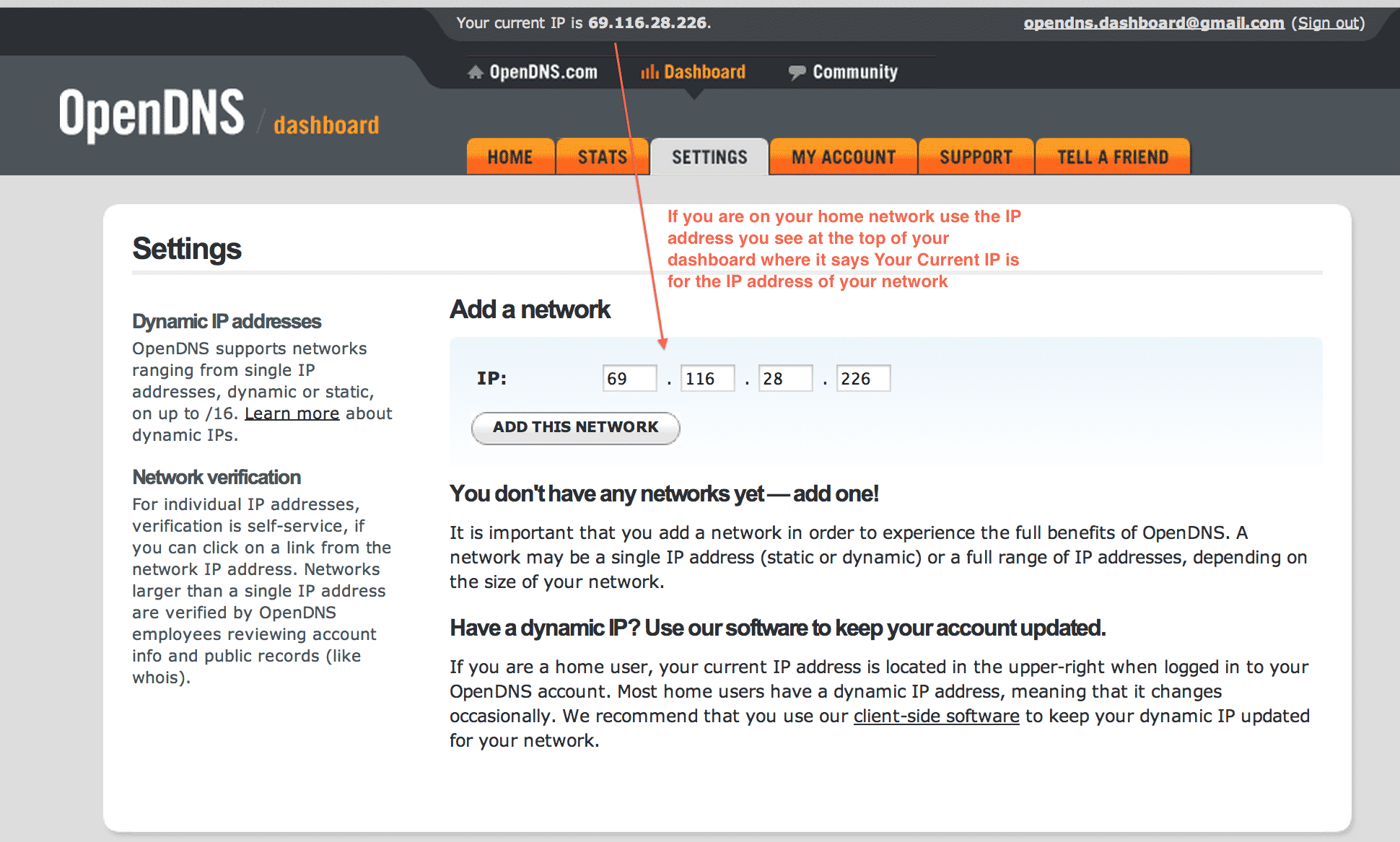
OpenDNS shines when you start shaping the experience for your household or team. The web dashboard offers a “Settings” page where you can toggle category blocks, set schedules (e.g., no social media after 9 p.m.), and even create separate profiles for different devices.
For families with kids, the “FamilyShield” preset blocks adult content by default, letting you focus on whitelisting the sites they need for school. For small businesses, the “Enterprise” tier adds detailed reports and integration with existing security information and event management (SIEM) tools.
Remember, any change you make on the dashboard propagates instantly to all devices using the OpenDNS resolver—no need to reboot or re‑configure each client.
Monitoring, Reporting, and Adjusting Over Time
One of the lesser‑known perks of OpenDNS is the analytics page. It shows a breakdown of blocked requests, the most‑queried domains, and geographic heat maps of where your DNS traffic originates. If you notice a spike in blocked phishing attempts, that’s a good sign the service is doing its job.
Use the data to refine your block lists. Occasionally a legitimate site may be mis‑categorized; the dashboard lets you submit a “request to whitelist” with a few clicks. Over weeks or months the system learns from those adjustments, making future filtering smoother.
Potential Drawbacks and How to Mitigate Them
While OpenDNS offers many benefits, it isn’t a silver bullet. Because the resolver sits outside your ISP, you might experience slightly higher latency if a regional OpenDNS node is farther away than your ISP’s native DNS. In practice most users see a net gain, but if you’re a gamer who craves sub‑millisecond response times, you could test both resolvers with tools like namebench and stick with the faster option.
Privacy‑concerned users should note that OpenDNS, now part of Cisco, does retain aggregate logs for security purposes. If absolute anonymity is required, consider pairing OpenDNS with a VPN that routes DNS queries through the encrypted tunnel.
FAQs About OpenDNS
Does OpenDNS speed up my internet connection?
It can. By caching popular domain names at edge servers, OpenDNS often answers queries faster than a typical ISP resolver, especially for frequently visited sites.
Can I use OpenDNS on a device that only supports IPv6?
Yes. OpenDNS provides IPv6 addresses (2620:0:ccc::2 and 2620:0:ccd::2) that you can enter in the same way you would IPv4 addresses.
Is OpenDNS free for personal use?
For basic filtering and security, the free “Home” tier is sufficient. Advanced reporting and enterprise‑grade controls require a paid subscription.
Will OpenDNS protect me from all online threats?
It blocks many known malicious domains, but no DNS filter can catch everything. Complement OpenDNS with up‑to‑date antivirus software and cautious browsing habits.