Fixing NPM Install Deprecated Warnings: A Practical How‑To Guide
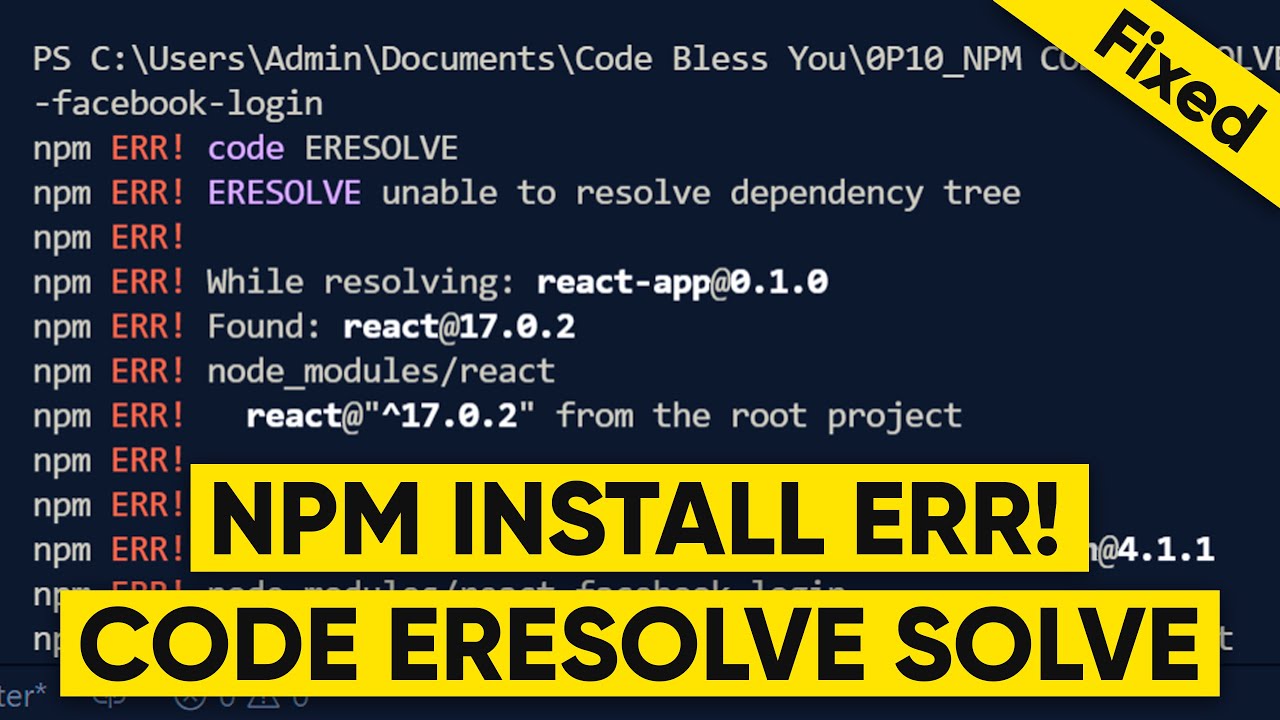
Fixing NPM install deprecated warnings is a common challenge when working with JavaScript projects that rely on third‑party libraries. These warnings surface during npm install and signal that a package has been superseded or no longer maintained. Ignoring them can lead to fragile dependencies and unexpected runtime errors. This guide walks you through a systematic approach to identify, update, and eliminate these warnings so your project stays healthy.
Why Deprecated Warnings Appear During npm Install
When a package author marks a module as deprecated, the NPM registry publishes this status. The npm client then prints a message during installation, often showing the deprecation date and a recommended replacement. Deprecated modules may still work, but they risk security vulnerabilities or future incompatibilities. Understanding why they surface helps you decide whether to upgrade or replace them.
Fixing NPM Install Deprecated Warnings: Step‑by‑Step Actions
1. Identify the Deprecated Packages
Run npm install again and carefully note the warning lines. Each warning includes the package name and the suggested replacement. Copy the names into a list so you can address them systematically. If you prefer a visual summary, try npm ls --depth=0 | grep deprecated to filter out the relevant entries.
2. Update or Replace the Package
Check the npm page for the deprecated package. Most authors provide a replacement link in the warning. For example, lodash may be replaced by lodash-es in modern builds. If no replacement is listed, search npm or GitHub for the latest active fork. Update your package.json with the new name or a newer major version that is no longer deprecated.
3. Clean Up Old Dependencies
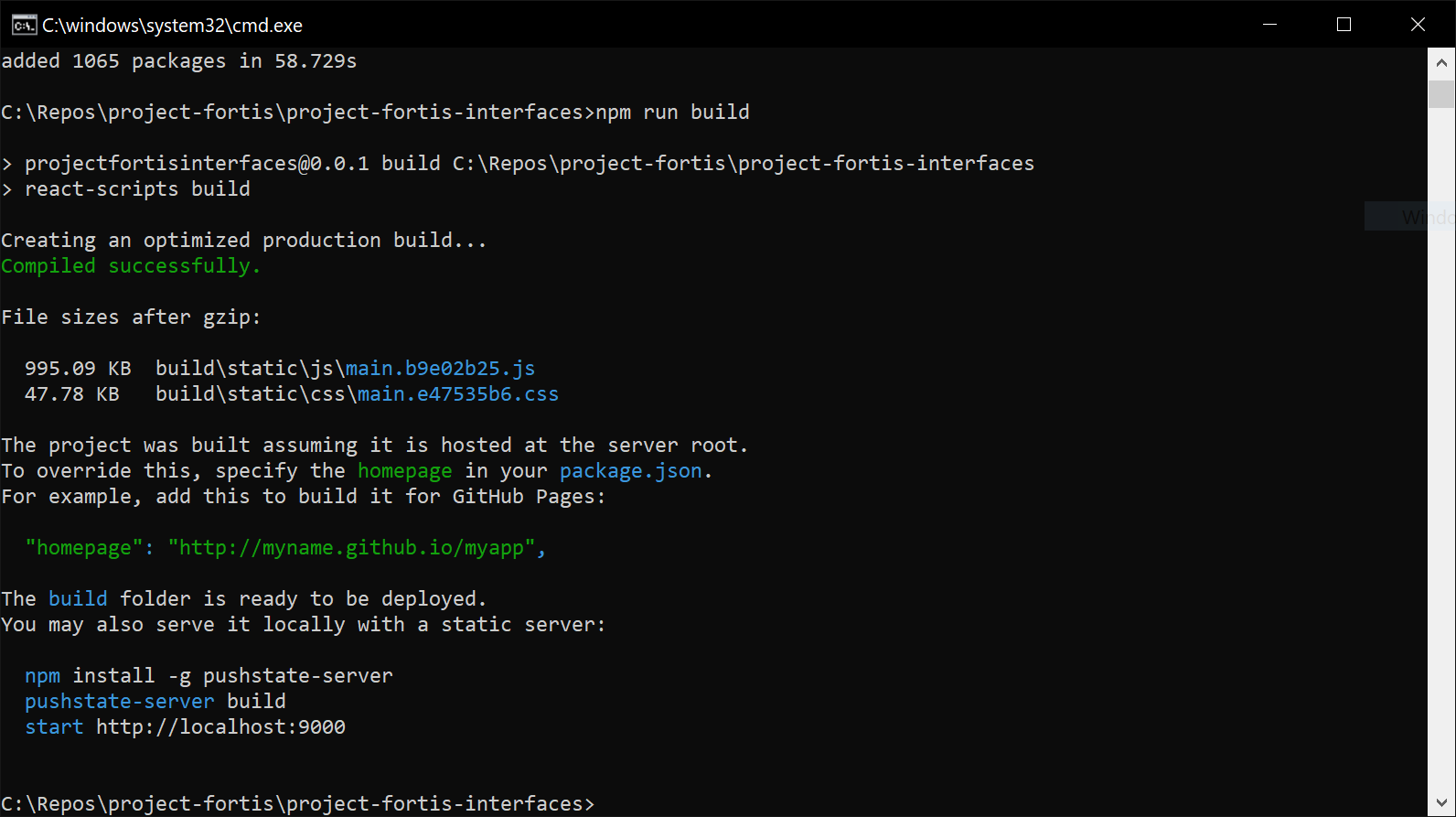
After updating the package.json, delete node_modules and package-lock.json to avoid stale references. Run npm cache clean --force to purge cached copies of the old packages. Then reinstall: npm install. This guarantees that only the updated, non‑deprecated packages are present.
4. Use npm‑check‑updates for Bulk Upgrades
If several warnings appear, manually editing each one can be tedious. Install npm-check-updates globally with npm i -g npm-check-updates. Run ncu -u to bump all outdated packages to the latest safe versions. After updating package.json, run npm install again. This often resolves many deprecation notices in one go.
5. Pin Versions or Use Resolutions
Sometimes a direct upgrade breaks your codebase. Pin the package to a stable version that is not deprecated by adding a version tag in package.json. Alternatively, if you use Yarn, add a resolutions block to enforce a specific dependency tree that avoids deprecated packages.
6. Verify with npm audit and CI Checks
Run npm audit to uncover hidden vulnerabilities that might correlate with deprecated dependencies. Most CI pipelines, such as GitHub Actions or CircleCI, can be configured to fail on any npm WARN output. This proactive step ensures that any new deprecations are caught early.
Best Practices to Avoid Future Deprecations
- Keep dependencies up to date. Schedule a quarterly
![[FIXED] Help With 'npm WARN config global' Warning](https://ioflood.com/blog/wp-content/uploads/2024/04/Graphic-of-a-warning-sign-with-deprecated-tags-for-npm-configuration-update-advice.jpg)