Fix and Optimize Your Logitech K120 CZ/SK Keyboard
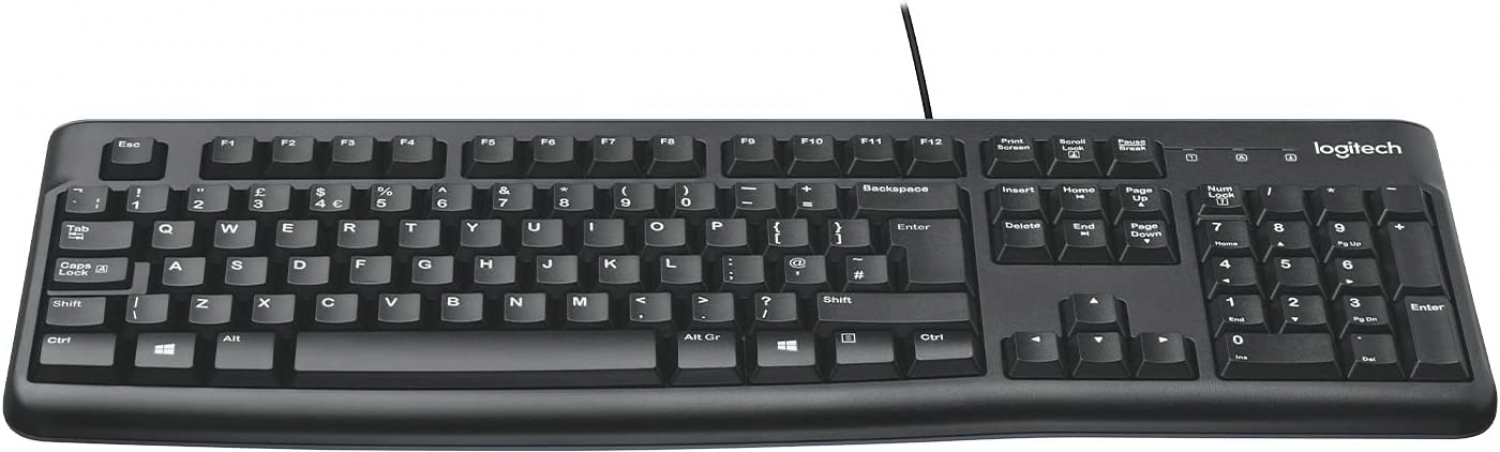
Whether you’re typing up a report in Czech or navigating shortcuts on a Slovak‑language PC, the Logitech K120 OEM CZ SK Keyboard should feel solid and reliable. Yet, like any mass‑produced peripheral, it can develop quirks—ghosting keys, unresponsive modifiers, or layout mismatches. Below you’ll find practical troubleshooting steps and a handful of tips to keep your K120 performing smoothly without a trip to the service desk.
Identify the Symptom Before Diving In
Start by narrowing down what’s actually happening. Is a specific key or whole region dead? Does the keyboard stop working after a Windows update? Or are you seeing characters from the wrong language appear when you type? Pinpointing the pattern saves time and prevents unnecessary driver reinstallations.
Common Issues
- Non‑responsive keys: Often a result of debris, loose contacts, or a failing USB port.
- Wrong characters (Czech/Slovak mix‑up): Usually a language‑setting mismatch in the OS.
- Random disconnections: Could be a power‑management setting or a faulty cable.
- Key‑ghosting during gaming: The K120 isn’t designed for high‑speed n‑key rollover, but adjustments can help.
Basic Physical Checks
Before you open any software, give the keyboard a quick physical inspection. Turn it upside down and give it a gentle shake—tiny crumbs often settle under the keys and cause intermittent contact. A soft brush or a can of compressed air can dislodge the particles without harming the plastic.
If you suspect a loose connection, try plugging the USB connector into a different port, preferably a USB‑2.0 slot directly on the motherboard rather than a hub. Occasionally, a hub’s power budget isn’t enough for a keyboard that draws a steady 100 mA.
Driver and Firmware Considerations
Logitech’s K120 is a plug‑and‑play device, so Windows typically uses the generic HID keyboard driver. However, if you’ve installed Logitech SetPoint or Options software for other peripherals, it can interfere with the OEM version.
To refresh the driver, open Device Manager, expand “Keyboards,” right‑click “HID Keyboard Device,” and choose “Uninstall device.” Restart the PC; Windows will reinstall the driver automatically. This step clears any corrupted driver cache that might be causing missed keystrokes.
Ensuring Correct Language Layout
The “CZ SK” designation means the keycaps follow a Czech‑Slovak layout, but the operating system can still be set to a different locale. In Windows 10/11, go to Settings → Time & Language → Language & Region. Under “Preferred languages,” click “Czech (Czech Republic)” or “Slovak (Slovakia)” and then “Options.” Make sure the “Keyboard” entry shows “Czech (QWERTY)” or “Slovak (QWERTY)” respectively.
If you need to toggle between Czech and Slovak on the fly, add both layouts and use the shortcut Win + Space to switch. The physical keycaps stay the same, but the OS will map the correct accented characters.
Addressing Random Disconnects
Power‑saving features can mistakenly power down a USB device that appears idle. To prevent this, open the Power Options control panel, select “Change plan settings” for your active plan, then “Change advanced power settings.” Expand “USB settings” → “USB selective suspend setting” and set it to “Disabled.” This tells Windows to keep the keyboard’s power line active at all times.
Another hidden culprit is a “fast startup” option that doesn’t fully reset the USB bus during reboot. Disabling fast startup (Control Panel → Power Options → Choose what the power buttons do) often resolves intermittent drop‑outs after a Windows update.
Improving Typing Comfort and Longevity
Even if the keyboard is technically functional, a few ergonomic tweaks can make a big difference, especially for long typing sessions in Czech or Slovak.
- Keycap cleaning: Lightly dampen a microfiber cloth with isopropyl alcohol and wipe each key. Avoid soaking the cloth.
- Wrist support: An inexpensive wrist rest reduces strain on the ulnar side of the forearm, which can become sore when typing characters like “ě” or “ľ” that often require the Shift key.
- Software remapping: If a particular key is constantly problematic, use a free utility like SharpKeys to remap it to another, less‑used key. This is a quick fix when a single contact has worn out.
When All Else Fails: Replacement Options
If you’ve exhausted the above steps and the keyboard still misbehaves, it may be a hardware failure. Because the K120 OEM version is typically sold in bulk to businesses, spare units are often cheap. Check with your office’s procurement department or an authorized Logitech reseller for a replacement. In many cases, a new unit will be covered under a one‑year limited warranty if you have the original purchase receipt.
Quick FAQ
Why does only the left Shift key stop working?
It’s often a simple contact issue. Try cleaning the key with compressed air, and if that doesn’t help, remap the left Shift to the right Shift using a tool like PowerToys.
Can I use the Logitech K120 with a Mac?
Yes. macOS treats it as a generic USB keyboard. You’ll just need to add the Czech or Slovak input source in System Preferences → Keyboard → Input Sources.
Is the K120 compatible with Linux?
Absolutely. The keyboard follows the standard HID protocol, so most Linux distributions recognize it out of the box. If you need specific layout mapping, edit the XKB configuration files.
What if the USB cable feels loose?
Inspect the connector for bent pins. A gentle bend back into shape can restore a solid connection. Otherwise, replacing the cable (if you have a spare USB‑type‑A cable that fits) is a cost‑effective fix.

![Logitech K120 USB Руководство по эксплуатации онлайн [2/8] 749483](https://mcgrp.ru/views2/1981174/page2/bg2.png)