Boost Your PC Performance with a Kingston A400 960GB SSD
Why the Kingston A400 960GB Stands Out
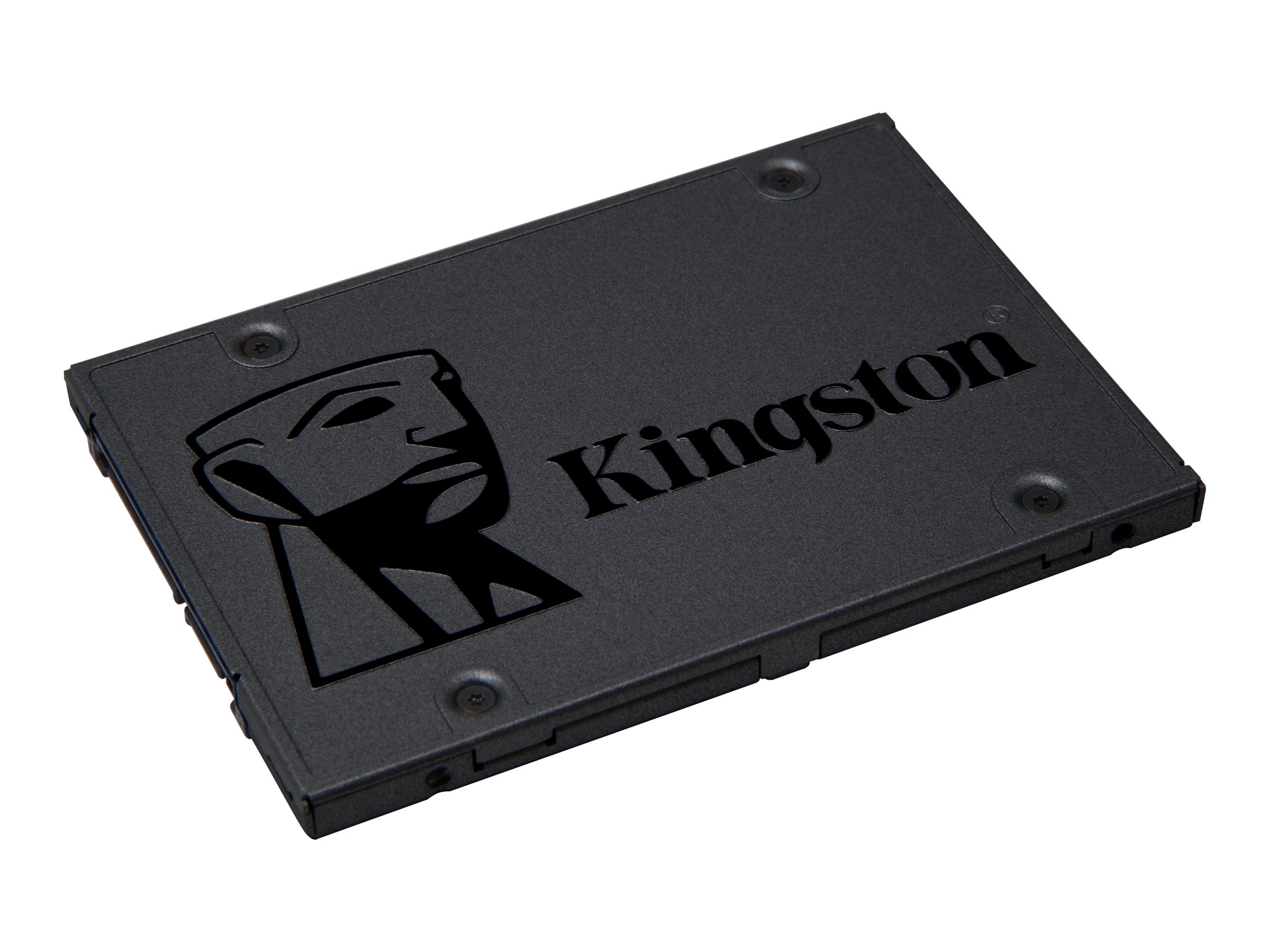
The Kingston A400 960GB SSD is positioned as an entry‑level upgrade that still delivers a noticeable jump in everyday responsiveness. While it doesn’t claim the extreme speeds of high‑end NVMe drives, its SATA‑III interface easily outpaces traditional hard drives, cutting boot times in half for many users. The extra capacity means you can keep a full OS, applications, and a sizable media library on a single drive without juggling external storage.
Real‑World Speed Gains You’ll Feel
Switching from a 7200 RPM HDD to the A400 translates to faster file transfers, snappier program launches, and smoother multitasking. In everyday scenarios—loading a web browser with dozens of tabs, opening large Photoshop files, or streaming games from a local library—the SSD’s lower latency shows up almost instantly. Users often report that Windows updates, which once stalled for minutes, finish within a few seconds after the upgrade.
Installation: What to Expect
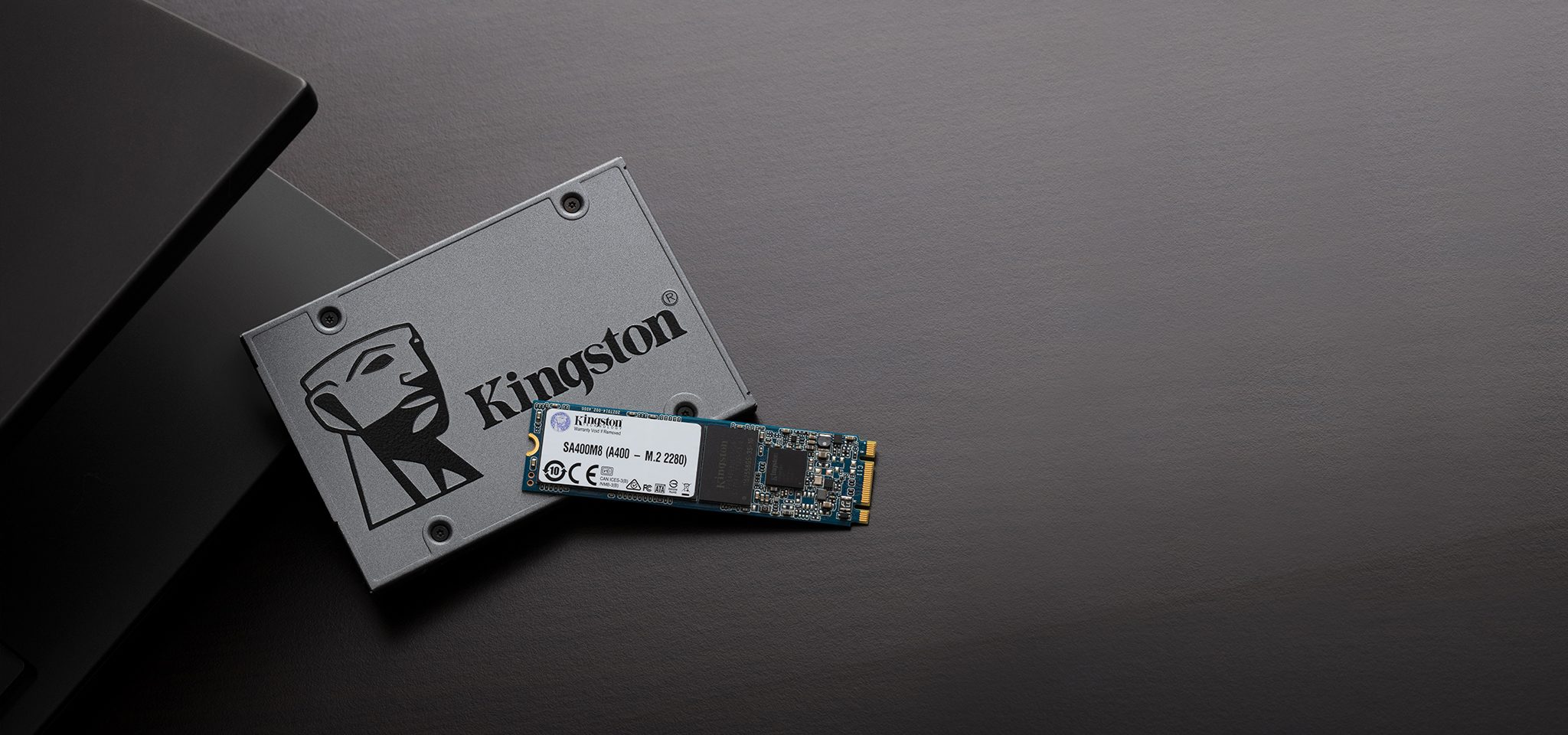
Installing the Kingston A400 is straightforward. The 2.5‑inch form factor fits most laptops and desktops without the need for adapters. If your machine already has a SATA drive, you can simply swap it out, then reinstall the operating system or clone your existing drive using free cloning software. Most modern BIOS setups detect the SSD automatically, but a quick check of the boot order ensures the new drive boots first.
- Tools needed: A small Phillips screwdriver, a backup of your data, and a USB drive for OS installation if you’re not cloning.
- Time required: Typically 15–30 minutes, depending on whether you’re cloning or performing a clean install.
- Compatibility check: Verify that your system supports SATA‑III (6 Gb/s) to get the full performance benefit.
Performance Compared to Other Options
If you’re weighing the A400 against other SSDs, consider both speed and price. High‑end NVMe drives can reach read speeds above 3 GB/s, but they also cost significantly more per gigabyte. The Kingston A400 tops out around 500 MB/s sequential read, which aligns with the limits of SATA‑III. For users on a budget, the price‑to‑capacity ratio of the 960 GB model makes it a compelling choice, especially when the goal is to replace an aging HDD rather than to chase the absolute fastest benchmarks.
Power Efficiency and Longevity
SATA SSDs consume far less power than spinning disks, which can translate into modest battery life gains on laptops. The A400’s NAND flash is rated for several hundred terabytes written (TBW), a figure that comfortably exceeds the typical lifespan of a consumer PC. While you won’t notice wear in everyday use, the drive’s endurance rating ensures it remains reliable for years, assuming normal workloads.
Best Use Cases for the 960 GB Capacity
The 960 GB capacity strikes a sweet spot for many users. It’s large enough to host a full Windows installation, all your favorite games, and a decent media collection without resorting to external drives. Creative professionals who edit photos or video can keep active project files on the SSD for rapid access, while archiving older work on a secondary HDD.
Potential Drawbacks to Keep in Mind
Although the Kingston A400 offers solid value, it’s not without limitations. The SATA‑III bottleneck means you won’t achieve the ultra‑fast load times of newer NVMe drives, and the drive’s random I/O performance is modest compared with premium SSDs. If you’re building a high‑performance gaming rig or a workstation that relies heavily on data‑intensive tasks, you might eventually consider an NVMe upgrade.
Tips to Maximize Your Upgrade
After installing the SSD, a few tweaks can help you squeeze out every ounce of speed. Enable AHCI mode in the BIOS to ensure the drive operates in its optimal mode. Disable Windows’ legacy “Superfetch” service, which can cause unnecessary writes on SSDs. Finally, keep a few gigabytes of free space; SSDs tend to perform best when they aren’t filled to capacity.
Frequently Asked Questions
Can I clone my existing HDD to the Kingston A400 without reinstalling Windows?
Yes. Most cloning tools—such as Macrium Reflect or Clonezilla—support 960 GB transfers, allowing you to move the OS, applications, and data in one step.
Will the Kingston A400 fit in a ultrabook with a slim chassis?
Most ultrabooks use M.2 drives, so the 2.5‑inch A400 may not be compatible. Check your device’s specifications; if it only accepts M.2, you’ll need a different form factor.
How does the SSD affect gaming load times?
Games stored on the A400 typically load 30‑50 % faster than on a traditional HDD. While the difference isn’t as dramatic as with PCIe NVMe drives, the improvement is still noticeable, especially for open‑world titles.
Is the 960 GB model more reliable than the 240 GB version?
Reliability is tied more to the NAND technology than capacity. Both capacities share the same endurance rating, so the larger drive simply offers more space without a reliability trade‑off.