Asus TUF Keyboard: Lighting Controls & Customization
If you own an Asus TUF gaming keyboard, learning how to control and customize its lighting can turn a bland setup into a personal light show. The TUF series isn’t just built for durability; it also packs a surprisingly flexible RGB engine that works across Windows and popular game titles. Below, we walk through the software basics, zone tweaking, profile management, and a few tricks to keep the colors in sync with your gameplay.
Getting Started with the TUF Lighting Software
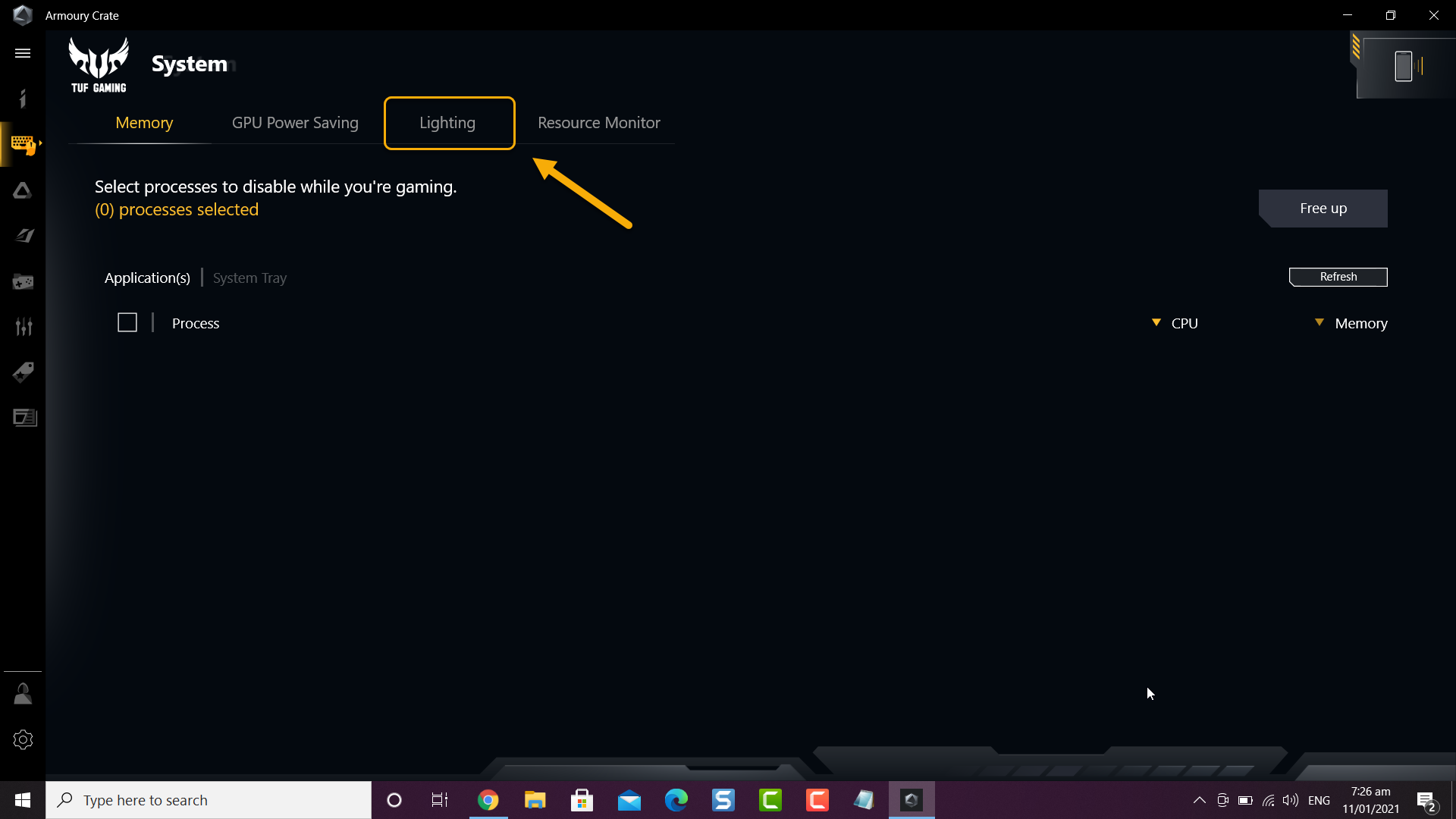
The first step is installing Armoury Crate, Asus’s hub for peripherals. It’s a lightweight program that detects the keyboard automatically and presents a clean “Lighting” tab. If you prefer a slimmer tool, the ASUS Aura Sync app offers the same core functions without the extra device management pages.
- Download the latest version from the official Asus support site to avoid compatibility hiccups.
- Run the installer, accept the default components, and let the program restart.
- When the UI opens, locate the keyboard icon—click it to reveal the lighting palette.
Once inside, you’ll see three main sections: Effects, Zone Control, and Profile Management. Each one caters to a different level of personalization, from quick preset swaps to deep per-key editing.
Key Lighting Zones and How to Adjust Them
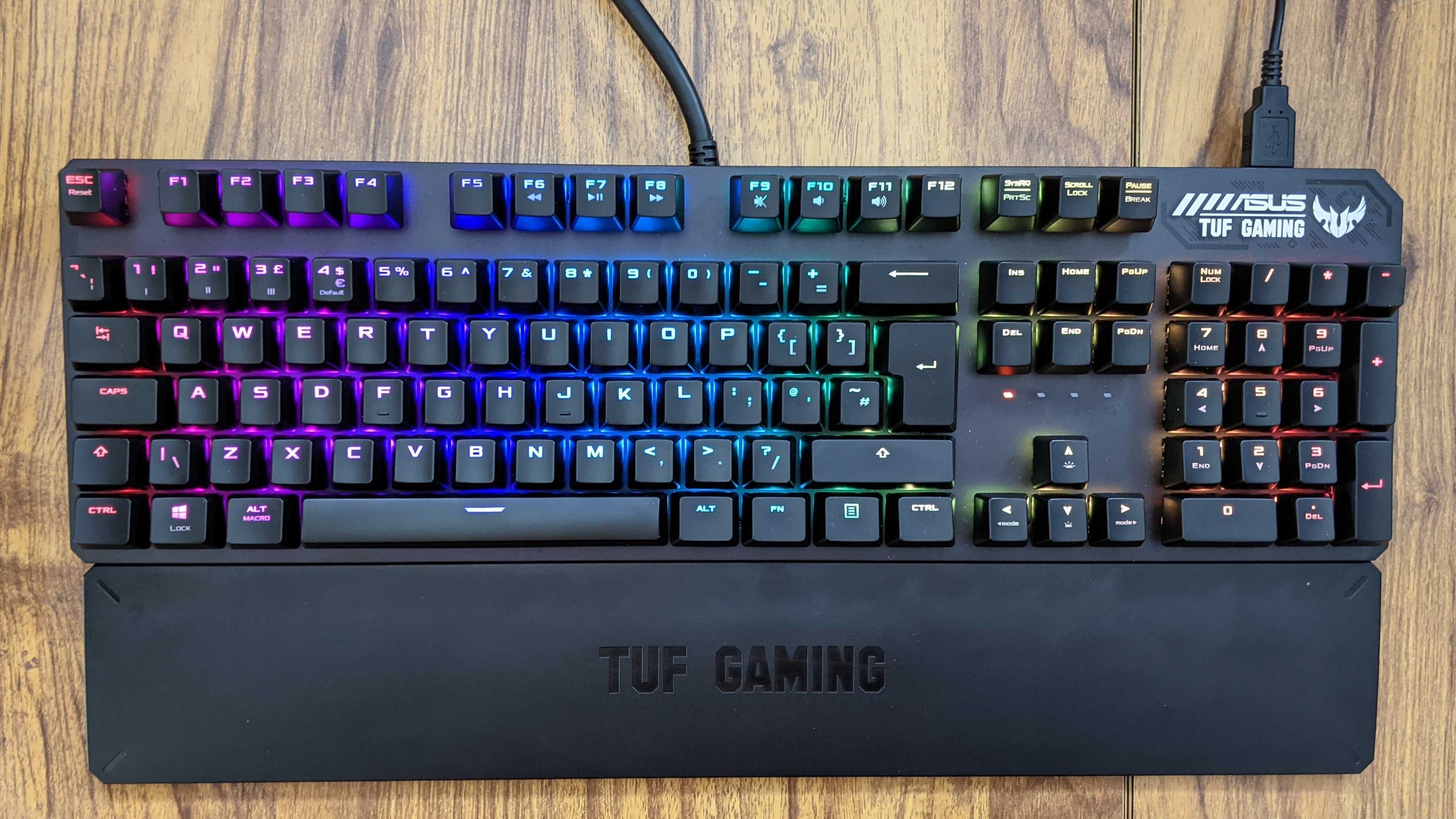
The TUF keyboard splits its RGB strip into four logical zones: the logo, the function row, the alphanumeric block, and the underglow (if your model includes it). Understanding these zones lets you apply colors strategically rather than flooding the entire board.
Logo and Function Row
These areas are ideal for subtle branding. In the Zone Control panel, click the logo icon and pick a hue from the wheel. You can set a static color, a breathing pulse, or even a rainbow cycle that respects your chosen speed.
Alphanumeric Block
For gamers who want key-specific cues—like a red “W” for forward movement—turn on “Per‑Key” mode. This opens a miniature keyboard map where you click individual keys and assign colors. The interface remembers your selections, so you can build complex patterns without scripting.
Underglow (if present)
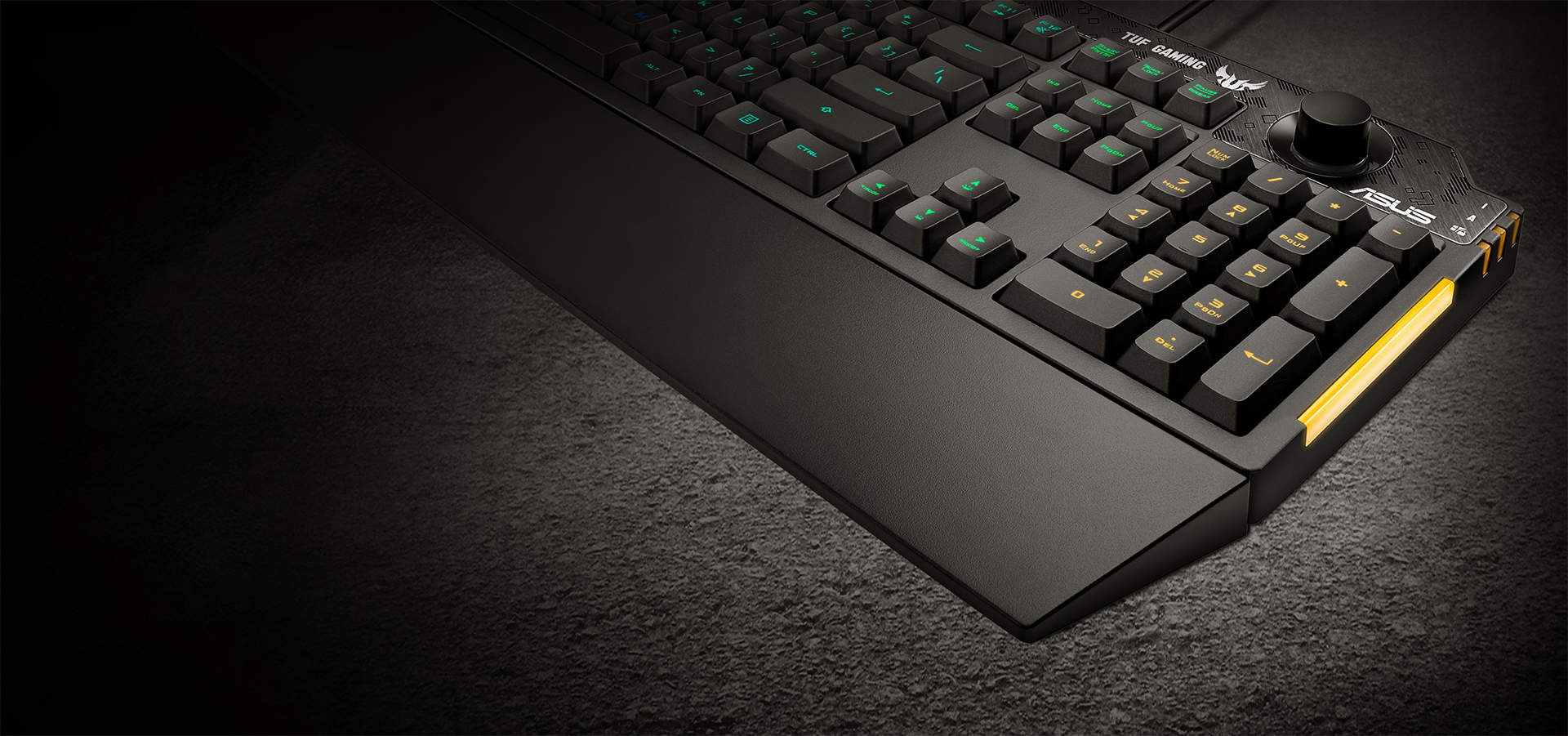
Underglow strips wrap around the base of the keyboard, creating a halo effect. They’re best used for ambient moods. Choose a single color for a calm vibe, or enable “Music Sync” to let the strip pulse in time with your audio output.
Creating and Saving Custom Profiles
Every gamer needs at least two profiles: a “Battle” setup with high‑contrast reds and blues, and a “Work” mode with softer whites. Armoury Crate makes profile creation a breeze.
- Click the “+” button in the Profiles tab.
- Name the profile (e.g., “Stealth Ops”).
- Adjust lighting zones, effects, and speed to your liking.
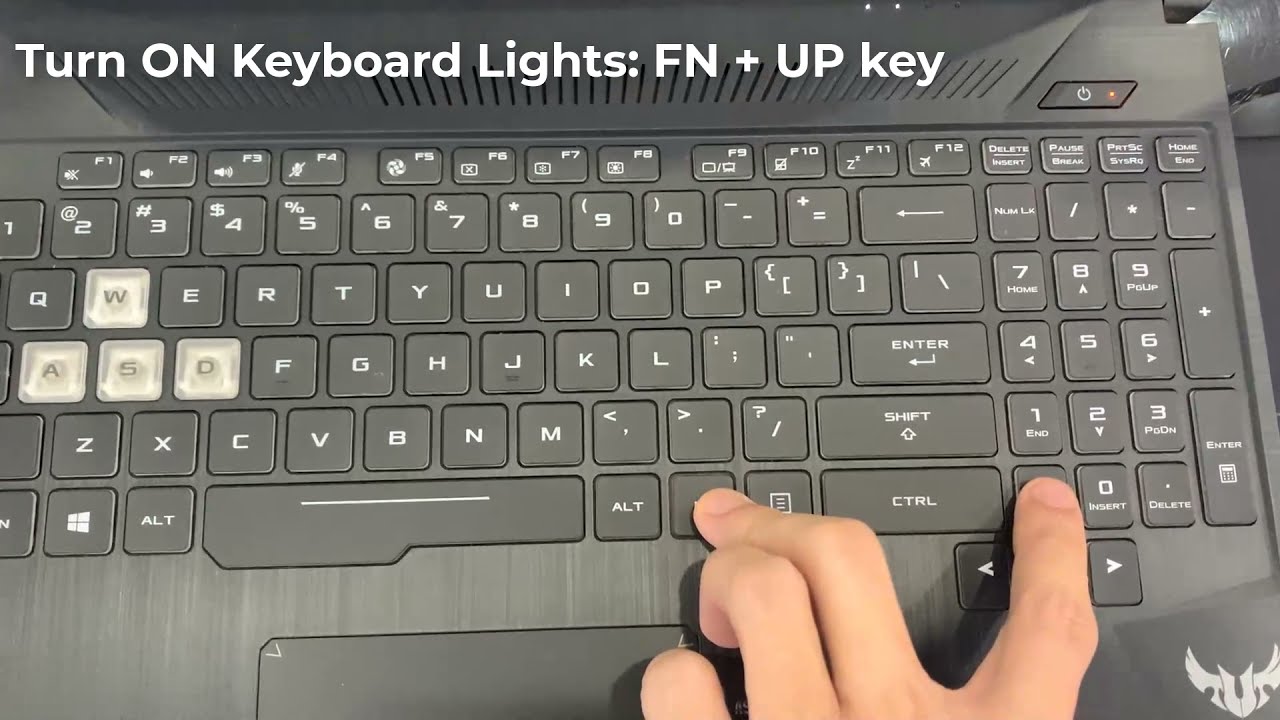
- Hit “Save” and assign a hotkey—typically Ctrl + F1 through Ctrl + F4—so you can toggle on the fly.
Profiles are stored locally, but you can also export them to a USB stick. This is handy if you travel between rigs or want to share a setup with a teammate.
Tips for Syncing Lighting with Your Game
Many modern titles support Aura Sync natively, letting the keyboard react to in‑game events. If the game doesn’t have built‑in support, you can still achieve synchronization using third‑party tools like OpenRGB or Keyboard Visualizer. Here are a few practical ideas:
- Health Indicators: Map low‑health warnings to a pulsing red on the WASD cluster.
- Cooldown Alerts: Assign a soft green glow to the “E” key when an ability is ready.
- Ambient Matching: Use a script that reads the dominant screen color and mirrors it on the underglow.
Most of these tricks rely on simple macro commands within Armoury Crate. The “Macro” tab lets you bind a lighting change to a key press, so a single tap can toggle a “stealth” palette without leaving the game.
Maintaining Your Lighting Settings
RGB hardware can drift over time, especially if you frequently switch profiles. A quick “Reset to Default” in the Settings menu restores the factory scheme and clears any corrupted macros. After a reset, reload your saved profiles to avoid rebuilding them from scratch.
Keep the software updated—Asus releases firmware patches that improve lighting latency and add new effect presets. Check the “Updates” pane in Armoury Crate at least once a month.
FAQ
Can I use the Asus TUF keyboard lighting on a Mac?
Yes, Armoury Crate offers a macOS version, though some advanced per‑key features may be limited compared to the Windows client.
Is it possible to synchronize the keyboard with other Asus devices?
Absolutely. By enabling Aura Sync across your motherboard, GPU, and compatible peripherals, you can create a unified color theme that follows your chosen profile.
Do lighting changes affect the keyboard’s performance?
Lighting runs on a separate microcontroller, so adjusting colors or effects does not impact key polling rates or overall gaming latency.